

- moving from the default Derby database to an external database for production use
- standardizing on an existing database platform
- preparing for environments or configurations that require an external application database
does not automatically switch to the new database. For details, see Switching to the New Database.
Prerequisites
Before you begin the migration, ensure that your environment meets the following requirements. The migration process requires exclusive access to the application database and blocks execution if these conditions are not met.- You have administrative access to .
- The target database is accessible and you have permission to create schemas, tables, and indexes.
- All jobs are stopped and no change data capture (CDC) engines are running.
- Only one node is running. Stop all other nodes before starting the migration.
Migrating the Database
To migrate the application database:- Open and navigate to the Settings page by clicking the gear icon (top right of the window).
- On the Migration tab, locate the Application Database Migration section.
-
Click Migrate Application Database. You might be prompted to enable safe mode, as shown below:
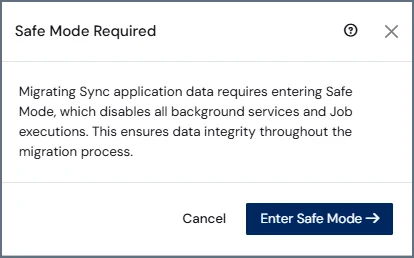
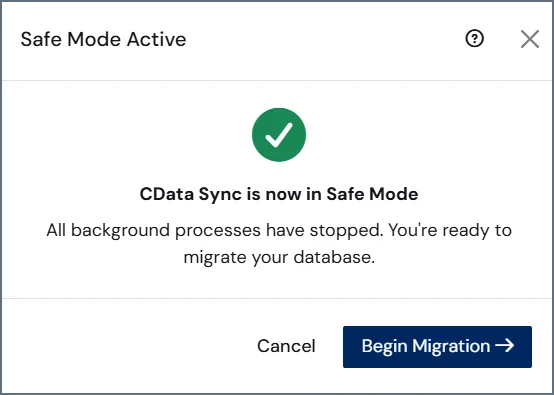
- Click Select Database to open the selection dialog box.
-
On the Select Database tab, choose your database.
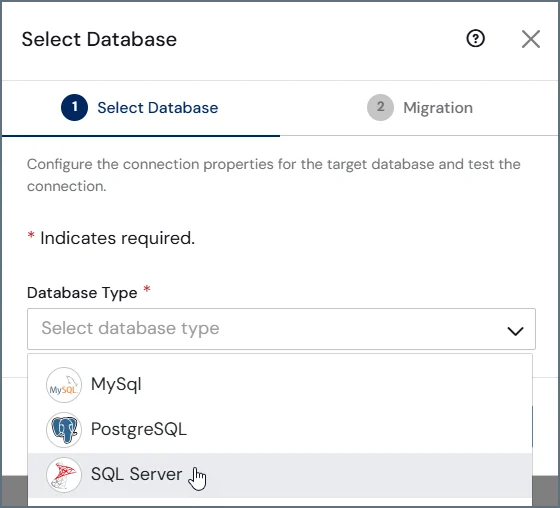
- Enter the connection details for the server that you selected. (Note that the connection details are slightly different for each database.)
- Click Test Connection. If the test connection is successful, click Next. If the test connection fails, check the connection details, correct any errors, and try again.
-
On the Migration tab, click Begin Migration to start the process. Before migration begins, validates that all prerequisite conditions are met, including that no jobs or change data capture (CDC) engines are running and that the system is in safe mode.
Wait for the migration to complete. The migration progress is displayed in the UI.If validation fails, displays a message stating that you must resolve the issues before continuing.
- Copy the encrypted connection string that is provided after the migration is complete. You need to use this connection string in the next section, which explains how to switch to your new database.
If the migration fails, rolls back changes and retains the original Derby database.
Switching to the New Database
After the migration completes, follow these steps to switch to your new database:-
Open the sync.properties file and set the following property:
For more information about encrypted values like the connection string, see Configuring the Server.
- Save the file and restart .
Switching the Database in High-Availability or Clustered Environments
If is deployed in a high-availability (HA) or clustered environment, you must stop all nodes but one before migration. After migration completes, you must then update all nodes, as follows:- Open the sync.properties file on each node.
-
Set the
cdata.app.dbproperty to the encrypted connection string that was generated during the migration. - Restart on each node.