

Add a Generic JDBC Connector
To enable to use a third-party JDBC driver, you first must add the connector, as follows:- Open the Connections page of the dashboard.
- Click Add Connection to open the Select Connectors page.
- On the Sources tab, click the Upload Generic Connector button. This button opens the Upload Generic Connector dialog box.
-
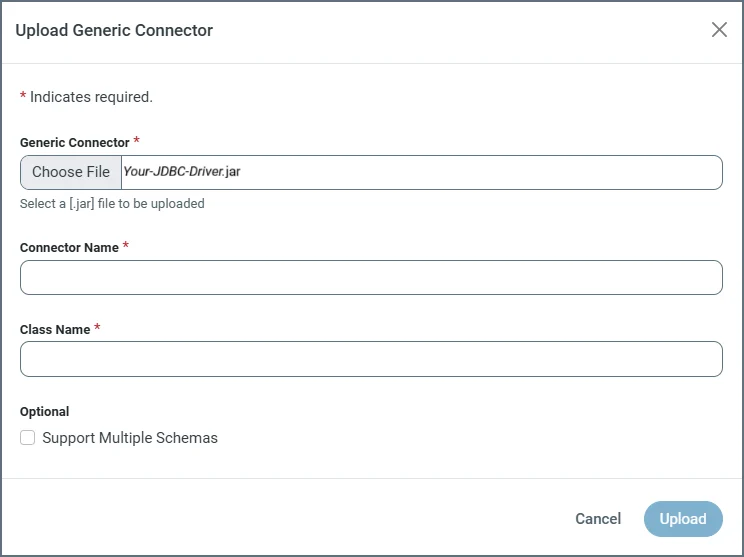
Click Choose File and select a driver file from your local machine.
-
Specify the following properties:
- Connector Name: Enter a name of your choosing for your connector.
-
Class Name: Enter the fully qualified Java class name of your JDBC driver (for example,
org.postgresql.Driver,oracle.jdbc.OracleDriver, and so on). - (Optional) Support Multiple Schemas: Select this checkbox to specify that your generic driver supports multiple schemas.
- Click Upload to install and register the driver in .
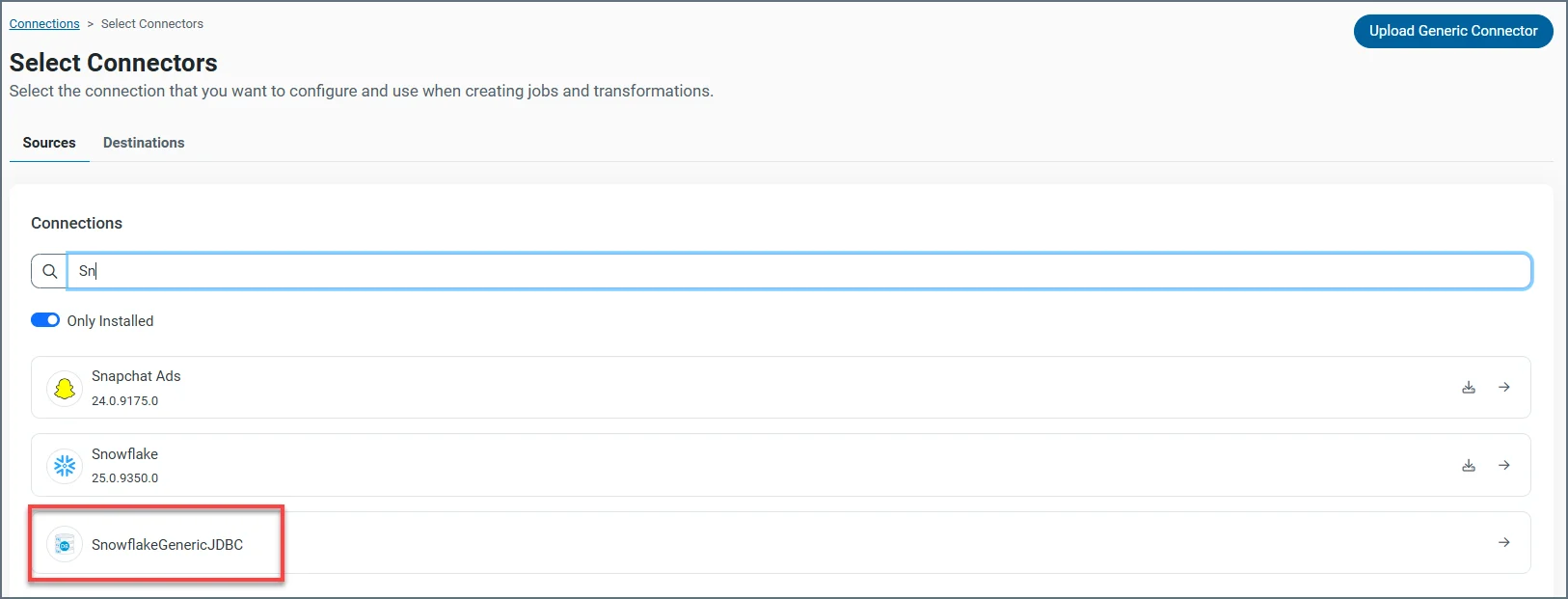
Authenticate Using Your JDBC Driver
After you add your driver, you need to set the required properties.- Connection Name: Enter a connection name of your choice.
-
Connection String: Enter the connection string that enables you to connect to your JDBC database.
Example: