

Enabling Email Alerts for a Job
Each job that you create automatically uses your global alert settings for that job. Those settings include the following:- To: This text box specifies your default email address.
- Subject: This text box specifies a subject tag.
- Errors Only: This checkbox specifies whether sends alerts for all job runs or for only job runs where errors occur. By default, sends alerts for all job runs.
Overriding Global Notification Settings
You can override the default global alert settings for a specific job by selecting the Override Global settings checkbox in the Edit Notifications dialog box. When you select this option, the inherited email address remains in the To text box by default. If you do not want to include this address, clear the checkbox next to that field. You can also add multiple recipients by entering additional email addresses manually in the To text box, as shown below: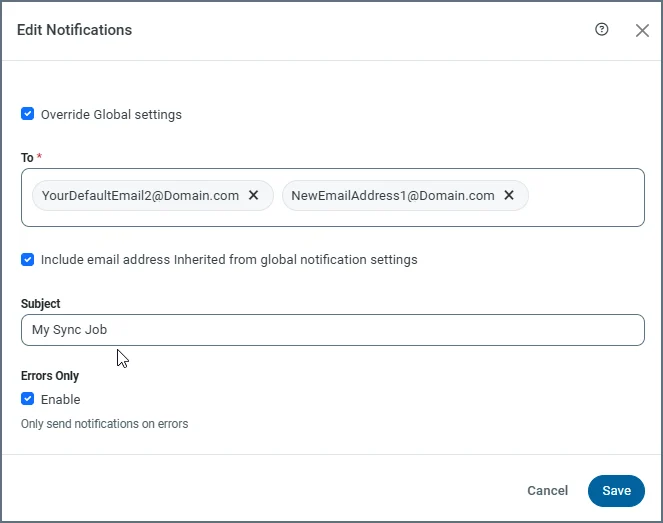
Sending Alerts to a Microsoft Teams Channel
You can send email to a Microsoft Teams channel by using a channel email address in the To text box of the mail settings on the Notifications tab in . Once the channel email is added to a job, sends alerts to the channel with the results of the job execution.You need to configure the connection to your SMTP server to enable to send the email alerts. Without that connection, cannot send emails.
Sending Alerts to a Slack Channel
You can send email to a Slack channel by using a channel email address in the To text box of the mail settings on the Notifications tab in . Once the channel email is added to a job, sends alerts to the channel with the results of the job execution.You need to configure the connection to your SMTP server to enable to send the email alerts. Without that connection, cannot send emails.