

Insert, Update, or Delete) that cause changes in the database. Rather than querying the source table for changes, reads the log file for any change events. Then, the application extracts those changes in near real time for replication and stores the current log position for the next replication.
The following sources support CDC capability. Some of these sources use the CDC Engine to capture and stream changes in near real time. (For a list of the sources that use the CDC Engine, see Enabling Change Capture Data for CDC Engine Sources).
- DB2 (Native)—Uses supplemental logging.
- DB2 for i (Native)—Uses journaling.
- Informix (Native)—Uses the Change Data Capture API.
- MariaDB—Uses binary logs.
- Microsoft Dynamics 365—Uses change tracking.
- MySQL—Uses binary logs.
- Oracle (Native)—Uses Oracle LogMiner.
- PostgreSQL (Native)—Uses logical replication.
- SAP ERP—Uses the Change Data Capture API.
- SAP HANA—Uses trigger-based CDC.
-
SQL Server—Uses either CDC or change tracking. If both methods are enabled on a table, uses CDC.
When SQL Server source tables include
Always Encryptedcolumns, CDC supports these columns when connects via JDBC. The JDBC driver returns decrypted plaintext values instead of encrypted (binary or hexadecimal) representations, which allows encrypted columns to be included in CDC-based replication workflows without causing read failures.
- defining a CDC pipeline
- determining when to use CDC
- enabling CDC for a source database
- creating a CDC job in
- adding tasks to your CDC job
- adding a post-job transformation
What Is a CDC Pipeline?
Change data capture (CDC) creates a pipeline that enables you to stream data changes from a source to supported destinations so you can run transformations on that data. Supported destinations can include any of the following structures:- another relational database
- a cloud storage system or a data lake
- a data warehouse (for example, Snowflake, Amazon Redshift, and Google BigQuery)
- a file storage system
- a message queue (for example, Kafka or Kinesis)
Determining When to Use CDC
The CDC approach integrates data through a process of identification, capture, and delivery of changes that are made to a source database. Those data changes are stored in a transaction log. This approach makes sense in the following situations:- You are using one of the sources that supports CDC. As mentioned earlier, supports native, log-based change data capture for MySQL, Oracle, PostgreSQL, and SQL Server.
- You need near, real-time data. The CDC process provides near real-time data transfer in ETL and ELT processing.
- You want to limit or preserve resource use. CDC data integration has low impact on your system because it does not make changes at the application level, nor does it scan transactional tables.
Enabling CDC for the Source Database
The way in which you enable CDC is different for each of the database sources that support CDC. For information about how to enable CDC for your source, click the appropriate link below.Creating a CDC Job in
Creating a job requires pre-configured source and destination connections. See Connections for more information about creating your source and destination connections. After you define connections to your data source and your destination database, follow these steps to create a new job.- Select Add Job > Add New Job on the Jobs tab in . This action opens the Add Job dialog box.
- Enter your job name and select one of the supported CDC sources and a destination in the dialog box.
- Select Change Data Capture as the replication type.
- Select a schema from the Destination Schema list.
- Click Add Job to create your job.
- Return to the Jobs page to access your job.
Adding Tasks to Your CDC Job
Tasks control the data flow from a source into a destination table. In a standard replication job, all source tables are available to be added as replication tasks to the job. To add tables as replication tasks:- Click a job on the Jobs tab in .
- Click Add Tasks in the Job Settings section of the Jobs/YourJobName page. This action opens the Select Schema dialog box.
- Select the schema (for example, public) from the schema list.
- Select specific tables in the dialog box or select the checkbox next to the source name to select all tables.
- Click Add Tasks to add your new tasks.
- Return to the Jobs page to access and run your job.
CDC Support for Tables Without a Primary Key
supports CDC for source tables that lack a primary key by adding a new column (_cdatasync_id) into the destination table. This column stores a hash value that is generated from the full row content. This hash value acts as a pseudo-unique identifier for a row based on its content. If any value in the row changes, the hash values also changes, which enables to know that the row has been updated, even without a primary key.
After adds the _cdatasync_id column, the application handles the INSERT, UPDATE, and DELETE operations as follows:
-
INSERT: When a new row is detected in the source, generates the
_cdatasync_idvalue and inserts the row into the destination. -
UPDATE: performs a soft delete on the existing row by setting
_cdatasync_deleted=true. Then, inserts the new row. -
DELETE: performs a soft delete on the row by setting
_cdatasync_deleted=true.
Adding a Post-Job Transformation
supports data transformation processes after job completion. Using advanced SQL queries or leveraging your existing dbt Core and dbt Cloud projects enables you to meet all your data needs in a single platform. For more information about SQL transformations, see SQL Transformations. For more information about DBT transformations, see DBT Transformations.Using the CDC Engine
Some Change Data Capture (CDC) sources in use the CDC Engine to capture and stream data changes in near real time. The CDC Engine continuously monitors database transaction logs and stages change events for processing by .CDC Engine
The CDC Engine is a component of that tracks and streams real-time data changes from a source database. By monitoring transaction logs (for example, write-ahead logs or redo logs), the CDC Engine identifies data updates and temporarily stores these change events as files in a staging area for further processing. This staging area is in thejobs folder of the application directory (C:\ProgramData\CData\sync\jobs).
Each CDC job that uses the CDC Engine has a dedicated engine instance with a unique subfolder in the staging area. For each table that is included in the job, creates a corresponding subfolder that contains the staged change event files.
Managing the Stage File
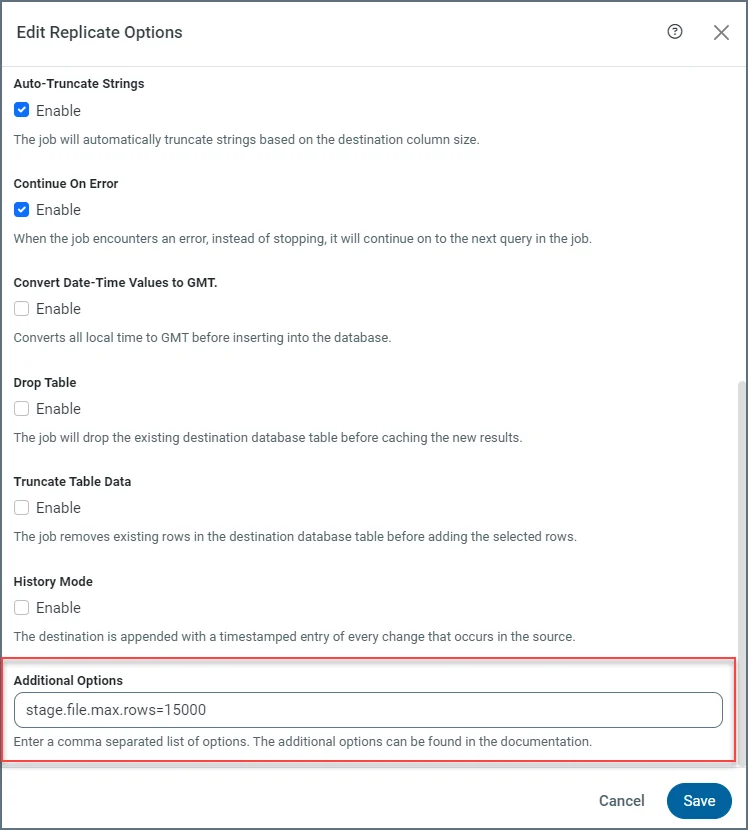
To optimize the storage of change events, you can configure thestage.file.max.rows property, which specifies the maximum number of rows or lines that can be written to a single stage file. By default, this value is set to 100,000 rows. For jobs that involve tables with numerous columns or large objects (for example, binary data), recommends that you decrease the value of this property.
You can configure this property according to your table schema on the job’s Advanced tab, as shown in the following example:
Managing the Stage Limit
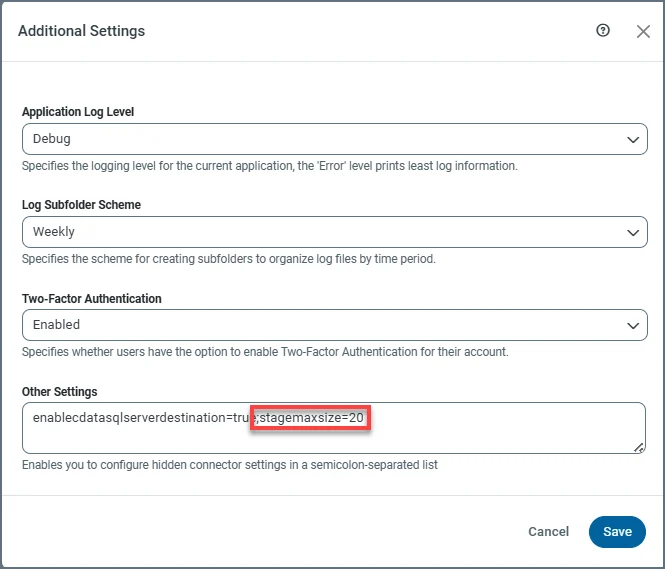
Because all CDC jobs share the same staging area, it is essential to manage the staging area’s size carefully. By default, the stage is limited to 10 GB to prevent disk overloading. You can modify this limit by adjusting thestagemaxsize property. To do so, navigate to Settings > Advanced > Additional Settings > Other Settings and configure the property to an appropriate value (for example, stagemaxsize=20), as shown below.
The
stagemaxsize property accepts only integer values, which are interpreted in gigabytes (GB) by default.Because the CDC engine operates continuously and streams change events in real-time, you should schedule the job to run frequently as a best practice. This practice ensures near real-time replication while preventing the staging area from reaching its size limit.
Enabling Change Data Capture for CDC Engine Sources
The steps that are required to enable Change Data Capture (CDC) vary by source database. For sources that use the CDC Engine, additional configuration might be required to allow to capture changes from transaction logs or native change tracking mechanisms. For specific setup instructions for your source, select the appropriate link below.Creating a Job that uses the CDC Engine
Creating a job that uses the CDC Engine requires pre-configured source and destination connections. See Connections for information about adding source and destination connections. After you define connections to your data source and your destination database, follow these steps to create a new job.- Click Add Job > Add New Job on the Jobs tab in . This action opens the Add Job dialog box.
- Enter your job name and select a source that supports CDC and a destination in the dialog box. For sources that use the CDC Engine, automatically configures the job to use engine-based CDC.
- Depending on your source, fill in the appropriate properties.
- Click Add Job.
- Return to the Jobs page to access your job.
Understanding CDC Job Execution and Engine Behavior
manages CDC job execution based on the state of the CDC engine and the availability of staged data. When you run a CDC job, coordinates execution between the job and the CDC engine. Job behavior depends on the state of the CDC engine and the availability of staged change data.CDC Engine Availability During Job Execution
determines how a CDC job runs based on the state of the CDC engine and the availability of staged data:- CDC engine is running: The job runs normally and processes any available changes. If no changes are available, the job can complete successfully with no records affected.
- CDC engine is not running, but stage files exist: The job runs and processes the existing stage files. This behavior enables previously captured changes to be applied even if the engine is not currently active.
-
CDC engine is not running and no stage files exist: The job fails because there is no data available to process, and the following error is displayed:
There are no stage files to consume.
Automatic CDC Engine Restart
Before a CDC job runs, attempts to ensure that the CDC engine is available. The following conditions determine how responds:- If the CDC engine stops because of an error or an unexpected condition (and you did not stop it explicitly), automatically attempts to restart the engine before the job runs.
-
If cannot restart the CDC engine, job execution proceeds based on the availability of stage files. If no stage files are available, the job fails with the following error:
There are no stage files to consume.
Resetting the CDC Engine
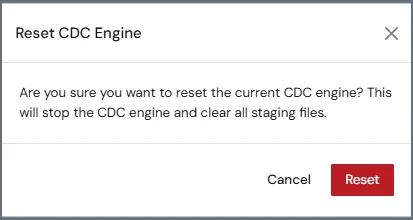
In some cases, the Change Data Capture (CDC) engine cannot resume processing from its last recorded position. This situation can occur when required source database logs are no longer available or when the stored offset is no longer valid. To simplify recovery, provides a Reset option in the user interface that allows you to reset the CDC engine without manually accessing the server or deleting offset files. This Reset option is available for supported CDC sources. You can reset the CDC engine for a job from the CDC Engine settings (JobName > Overview > CDC Engine), as follows:- Open your job in .
- On the Overview tab, locate the CDC Engine section.
-
Click the Reset button.

After You Reset the CDC Engine
When you reset the CDC engine, performs the following actions:- stops the CDC engine if it is running
- clears the stage folder of captured events
- clears the stage table for the job
- deletes the offset file
- resets the number of processed rows to 0
- removes CDC engine status records for the job’s tasks
When to Reset the CDC Engine
You might need to reset the CDC engine in the following situations:- The CDC engine fails with errors indicating that required log files are no longer available.
- Source database logs are removed because of retention policies or system changes.
- The stored offset is no longer valid and the job cannot resume.
- Automatic recovery does not resolve the issue.
Automatic Recovery for Out-of-Range Errors
For supported connectors, can automatically recover from certain CDC failures. When the CDC engine detects an out-of-range condition (for example, when required logs are no longer available), performs the following actions:- sets the CDC engine status to indicate the out-of-range condition
- clears the stage
- displays an error message in the user interface and temporarily disables the Start option while preparing for recovery
Automatic out-of-range recovery is currently supported only for the Oracle and Informix source connectors.