

- Extract data from a central data warehouse or data lake where that data has been aggregated and transformed for analytical purposes.
- Transform the extracted data to make it suitable for consumption by your systems. Transformations can include reformatting, filtering, or enhancing your data.
- Load the transformed data back into operational databases, applications, or other systems where you can use it for various purposes (for example, updating records or triggering workflows).
Source databases that you can use for reverse ETL capability are restricted to those for which the Delta Snapshot replication type is implemented (that is, source databases that accept the SQL EXCEPT statement).
Understanding the Reverse ETL Process
Reverse ETL works by querying your data warehouse for changes and writing the results of that query to your destination. When you run the reverse ETL job for the first time, the application creates an initial snapshot of the source table in your data warehouse and the loads the results into your destination. During subsequent runs, creates a new snapshot and compares it against the previous snapshot to capture the changes. Then, those changes are loaded into the destination. Using the Delta Snapshot feature, maintains an error table for logging rows that do not insert or update correctly, and it enables you to see individual errors at the row level. This feature also cleans up any failed rows from the previous snapshot. With reverse ETL, you can choose from four modes to transfer your data:- Insert: Select this mode to insert new records into your source. For Insert mode, your source table must have a unique primary key. Each time you take a new snapshot, that key enables to ensure that you are inserting new identifiers (Ids).
-
Upsert: Select this mode both to update existing records and to insert new records into your source. For Upsert, you must define a key that matches a record from your source table to your destination table.
When you run a job in Upsert mode, you can also configure Deletion Behavior settings by navigating to Jobs > JobName > Advanced > Edit Replicate Options > Deletion Behavior. These settings control how handles records that existed in the previous snapshot but are missing from the latest snapshot.
- Skip Deleted (default): No changes are made to the destination.
- Soft Delete: updates the destination record by setting to NULL all fields that are not primary keys.
- Hard Delete: permanently removes the record from the destination.
- Update: Select this mode to update existing records in your source. Update mode uses the Salesforce Id or a Microsoft Dynamics 365 alternate key to match records in your source and destination tables. You must select a source column to map to the Salesforce Id or the Dynamics 365 alternate key.
- Delete: Select this mode to remove records from your destination. When you run a reverse ETL job using Delete mode, compares the latest snapshot with the previous snapshot and deletes any destination records that appear in the snapshot results.
Creating a Reverse ETL Job
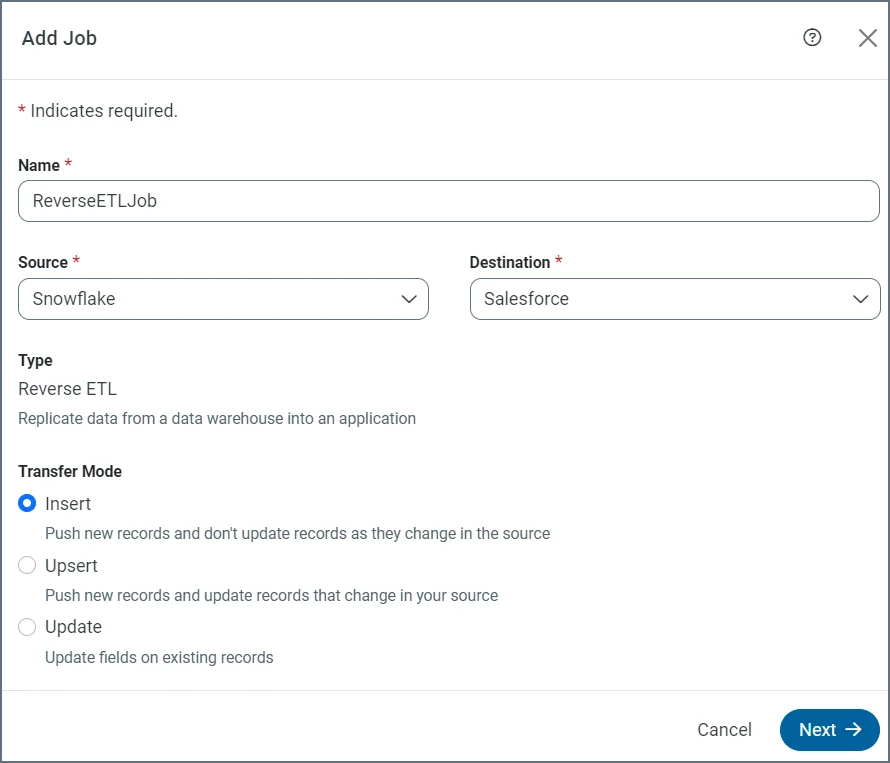
To create a reverse ETL job, you need to define job parameters and then map required and optional columns as well as any keys that are necessary, as follows:- Select Jobs > Add Job > Add New Job. This step opens the Add Job dialog box.
- Enter a job name.
-
Select your destination (Salesforce or Microsoft Dynamics 365) first. Then select your source, as shown in this example:
- Click Next.
-
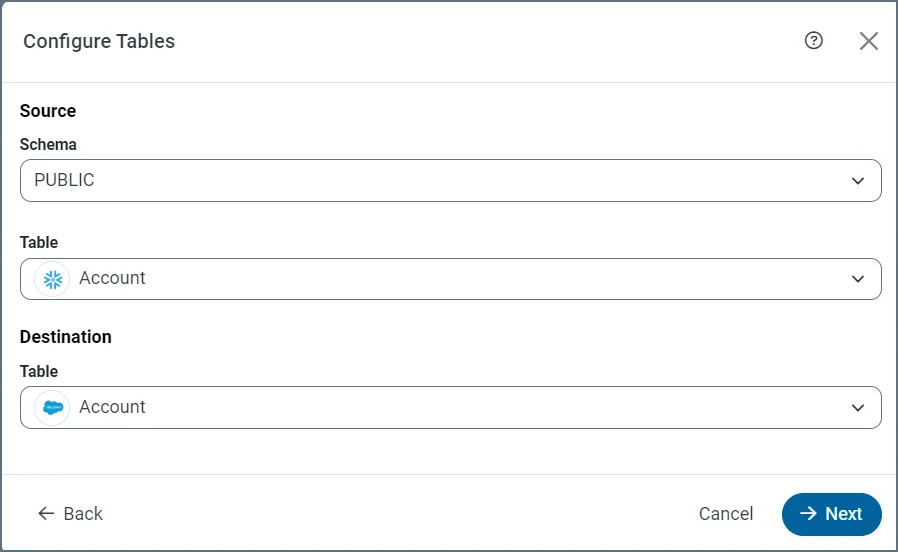
Select your schema, a source table, and a destination table in the Configure Tables dialog box.
- Click Next.
-
Configure your columns and keys in the Configure Mapping dialog box, as follows:
- Choose your key (for Upsert and Update modes only).
- Map any required columns.
- Add any additional columns that you want by clicking Add Column at the bottom of the dialog box.
-
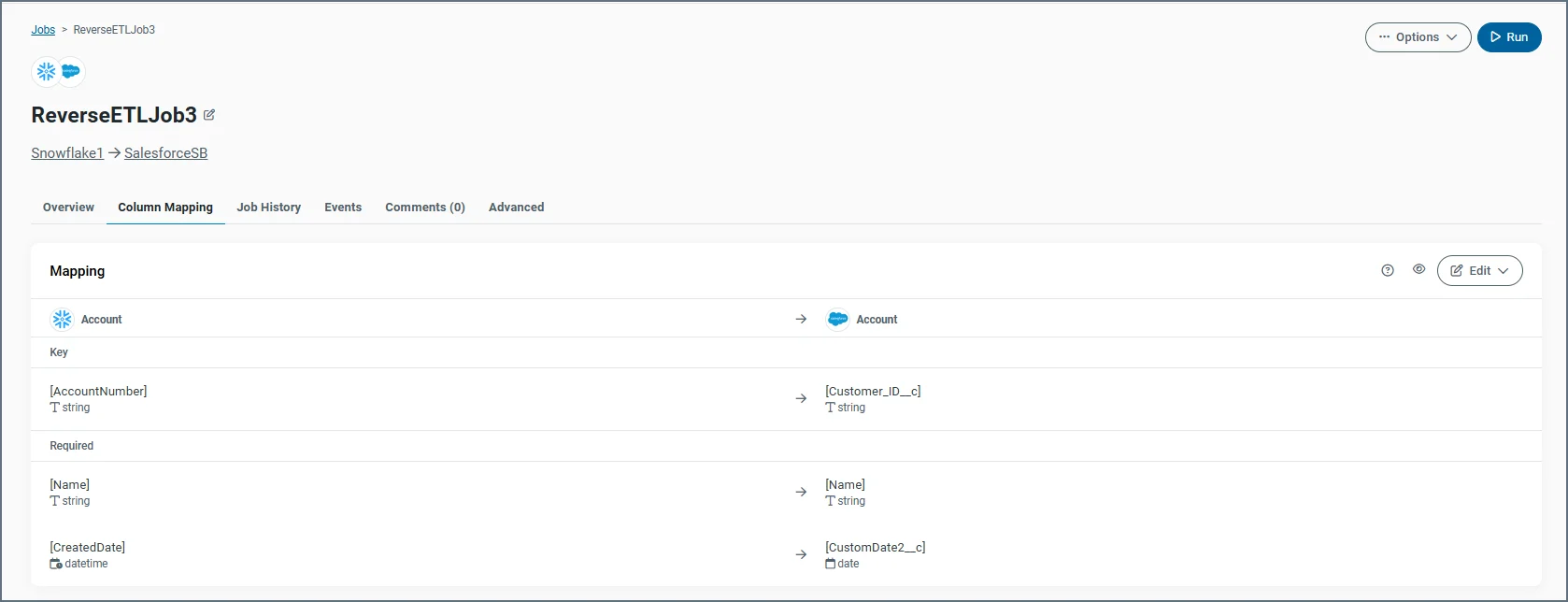
Click Add Job to create your new job. After the job is created, displays your table mappings on the Column Mapping tab, as shown below:
Managing Your Job
Once you add your reverse ETL job, you can run and manage it like any other job it in from the Jobs page. When you click your job in the application, opens your job page with the standard tabs (Overview, Column Mapping, Job History, Events, and Advanced). The following sections explain how to manage settings and mappings for your reverse ETL job on the Overview, Column Mapping, and Advanced tabs.Job Overview
The Overview tab for a job displays a summary of your settings, including the job type and transfer mode. In the example below, the job type is Reverse ETL and the transfer mode is InsertMode.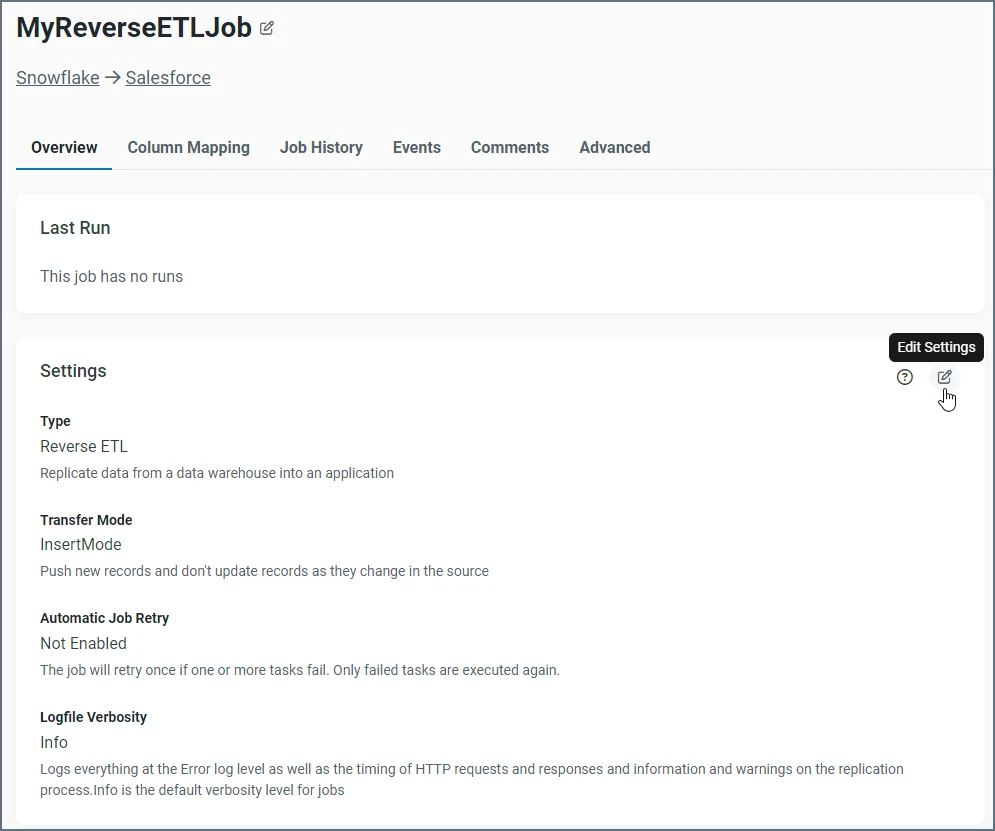
Mapping Columns
As explained earlier, automatically opens the Column Mapping tab when you add a new job. This page shows you the mappings between your source and the Salesforce destination for both the required and optional columns. In addition, the page shows the mapping for keys for Insert mode.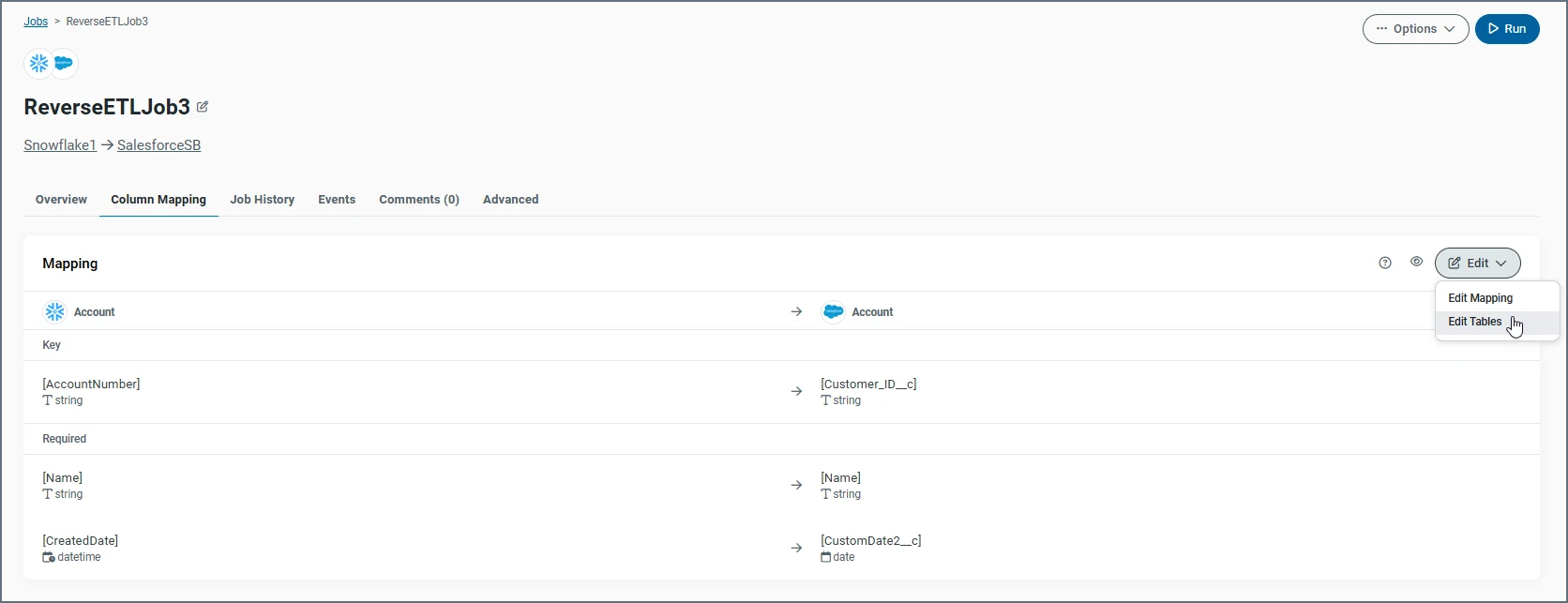
Auto-Mapping Columns
When you create a job and map columns in the Configure Mapping dialog box, you can see that the Auto Map button is disabled. That button is enabled after you select the key columns that you want to use for both the source and destination, as shown below: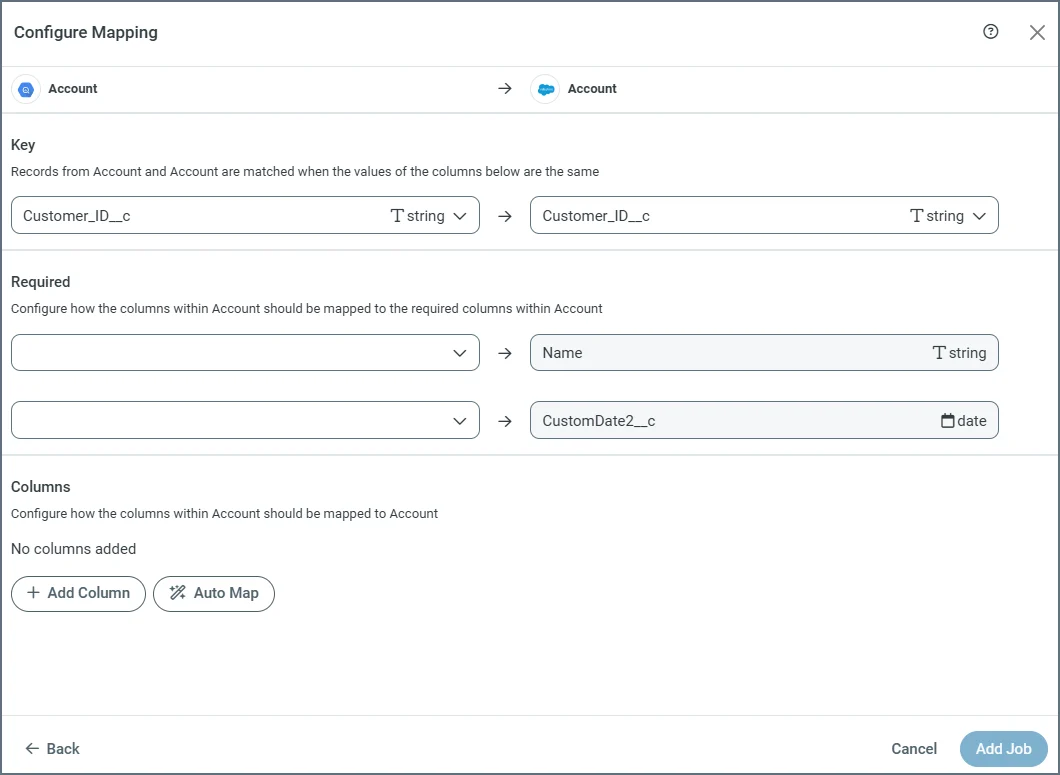
For tables that do not have a key or required column, the Auto Map button is disabled. You must add a column manually to enable the button.
-
Click the Auto Map button (after you select the key columns). When you click the button, scans all unmapped source columns (both required and optional) and matches them automatically to destination columns with the same name, regardless of letter casing.
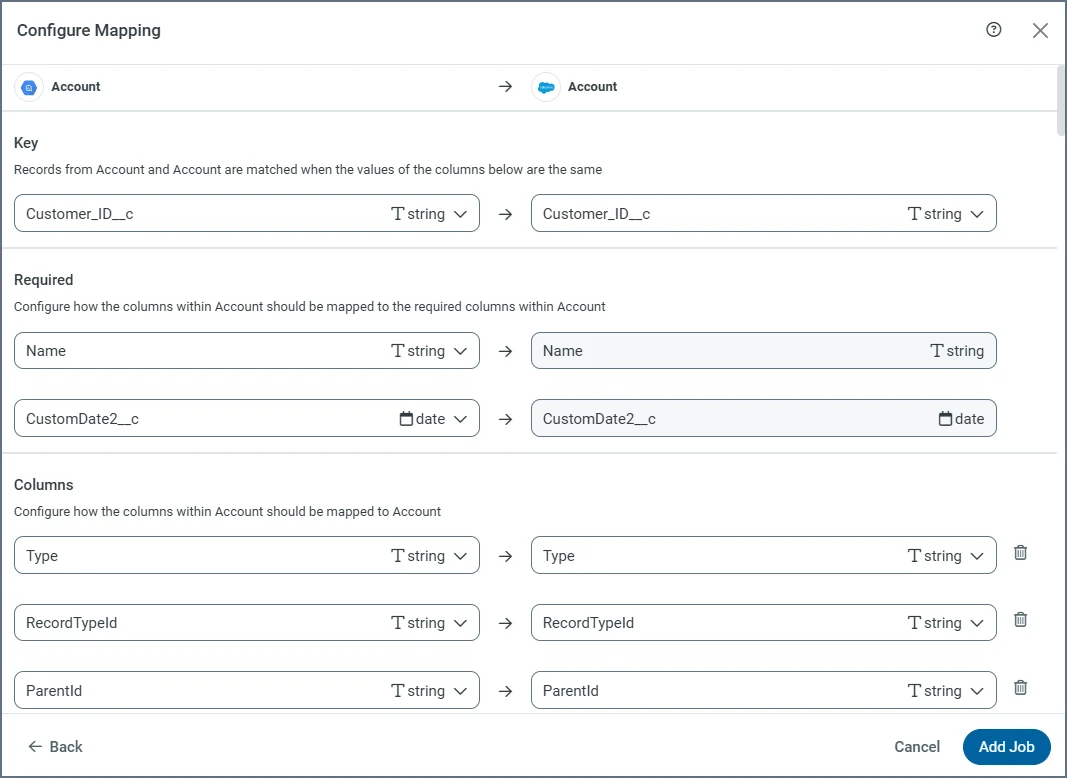
- Click Add Job to create your new job. After the job is created, displays your table mappings on the Column Mapping tab.
Editing Column Mappings and Tables
To edit your mappings:-
Select Edit > Edit Mapping.
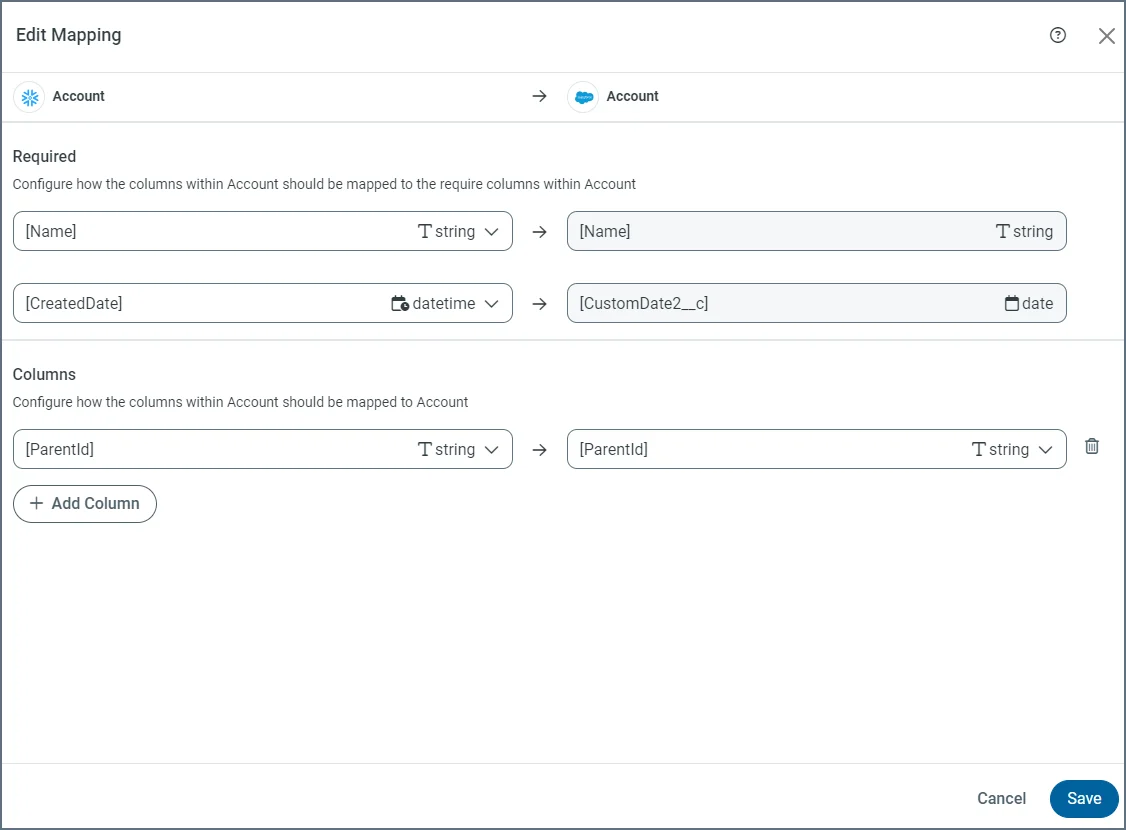
- Add new columns or change any columns and keys that you want.
- Click Save to save your changes and return to the Column Mapping page.
-
Select Edit > Edit Tables. This selection takes you back to the Edit Tables dialog box.
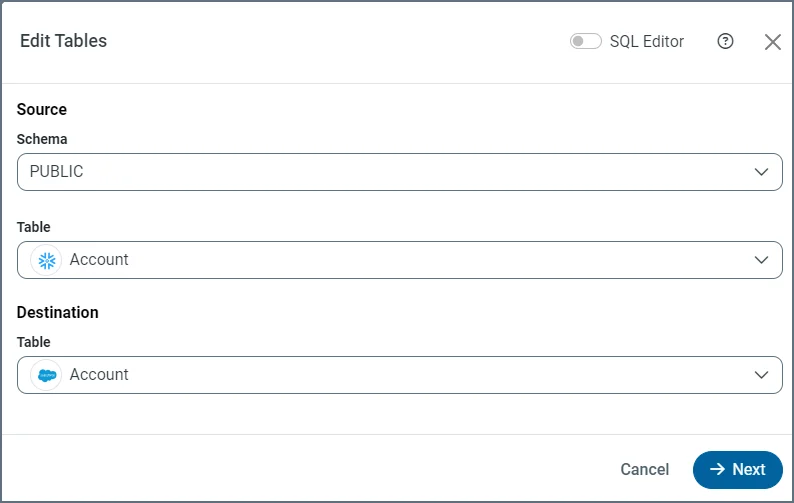
- Update the source or destination table. For example, select User for both the destination and source. Click Next.
- Rebuild the column mapping for your job in the Edit Mapping dialog box.
- Click Save to save your changes and return to the Column Mapping page.
Advanced Options
The Advanced tab contains advanced replication options for your job. Currently, for reverse ETL jobs, the tab contains one option, Reset Strategy. uses primary keys to identify when rows in a table are added, modified, or deleted. For reverse ETL jobs, the Reset Strategy replication option defines how you should manage situations where the key is changed in the query.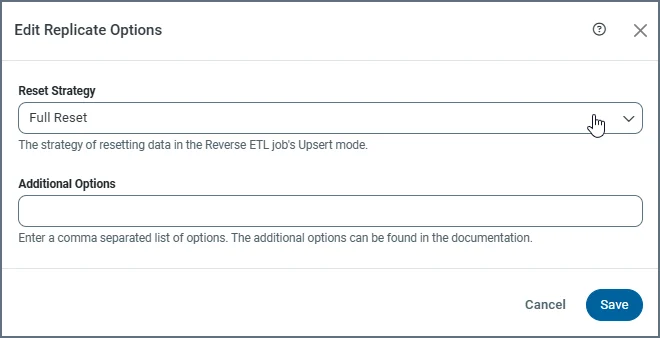
- Full Reset: When you use this setting, replaces the snapshot table with a full replication of the source table, including previously replicated rows. Avoid using this option with Insert mode because it might create duplicate entries.
- Sparse Reset: With this setting, updates the snapshot table to match schema changes without altering existing rows or duplicating entries. As such, Sparse Reset is the preferred option for use with Insert mode.