

- access to a Git repository
- valid authentication credentials for that repository
Accessing Version Control Settings
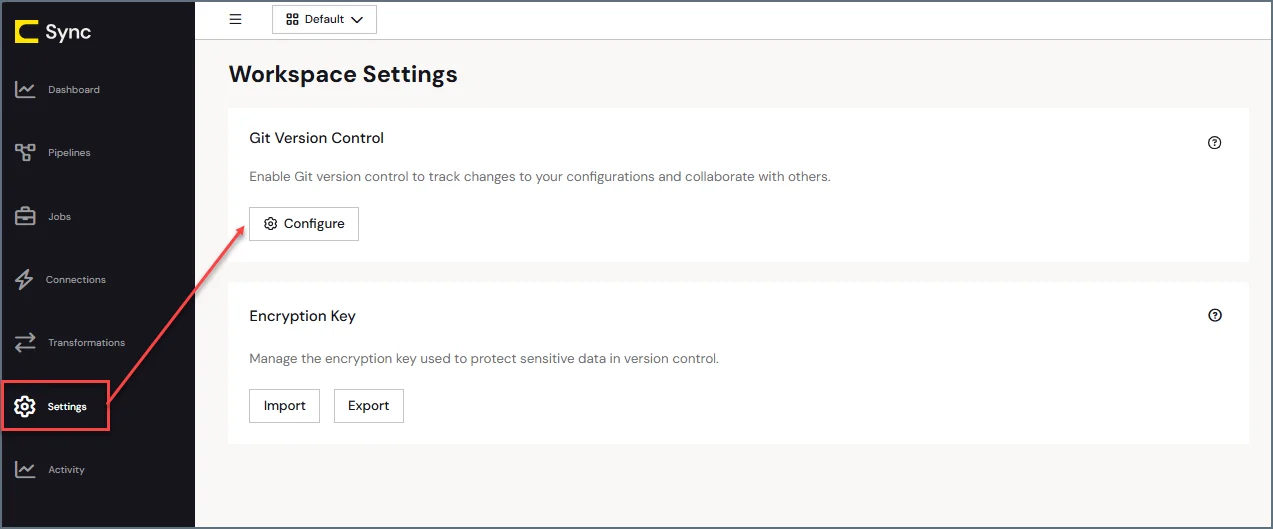
To configure version control for your workspace:- Open your workspace.
-
Navigate to Settings > Git Version Control and click Configure.
-
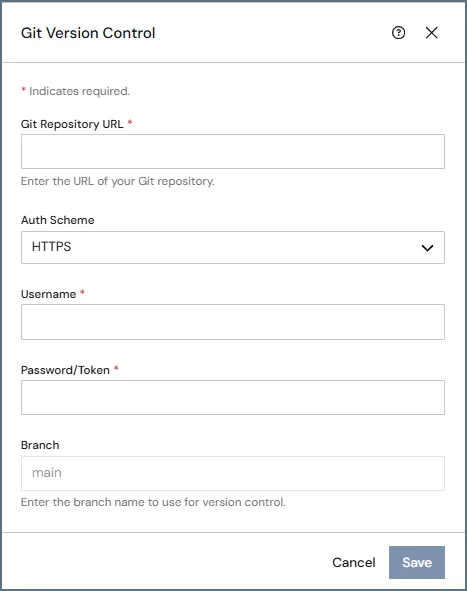
Specify repository connection and authentication details:
- Git Repository URL: Enter the URL for your Git repository.
-
Auth Scheme: Select an authentication scheme.
-
HTTP: For this scheme, specify the following options:
- Username: Enter the account username for your remote Git hosting service (for example, GitHub, GitLab, or Azure DevOps).
- Password/Token: Enter the password or personal access token (PAT) for your remote Git hosting service.
-
SSH: For this scheme, specify the following options:
- SSH Private Key: Click Choose File to select a file that contains your SSH private key.
- (Optional) Passphrase: Enter the passphrase that was set when the SSH private key was generated. If the private key is encrypted with a passphrase, you must enter it here so can decrypt and use the key. If the key was generated without a passphrase, leave this field blank.
-
HTTP: For this scheme, specify the following options:
- Branch: Enter the branch name for which you want to use version control.
- Click Save.
Removing Version Control
To remove version control:-
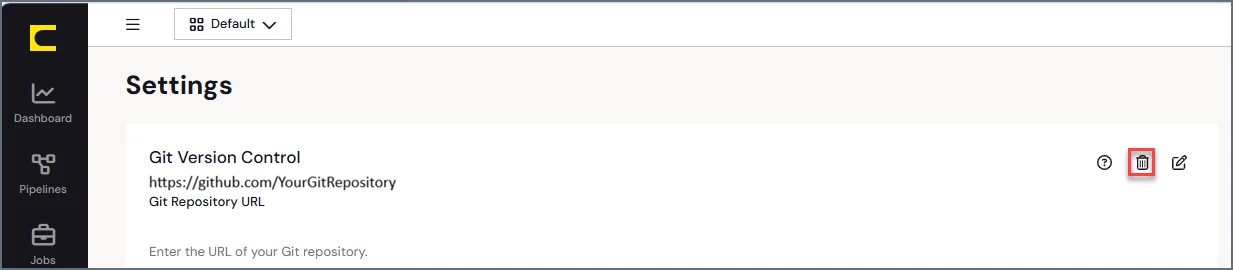
Navigate to Settings > Version Control.
-
Click the Remove icon (
 ).
).
Importing an Encryption Key When You Connect to an Existing Git Repository
When you connect to a Git repository that already contains workspace settings, you must import the encryption key that was used by the original instance. encrypts sensitive configuration data before committing it to the repository. This encryption key is created the first time a instance initializes version control for a repository, and it is specific to that repository. If another instance connects to the same repository, it cannot read or apply the existing settings until the correct encryption key is imported. To use an existing repository with another instance, export the key from the original instance and import it into the new one.- Open the instance that originally initialized the repository and navigate to the Git configuration area on the Workspace Settings page.
-
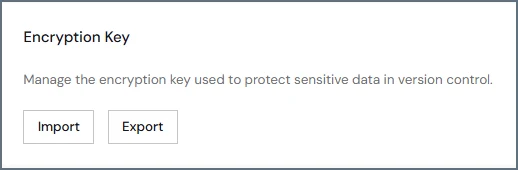
In the Encryption Key section, click Export.
-
In the Export Encryption Key dialog box, enter a password to protect the exported key file.
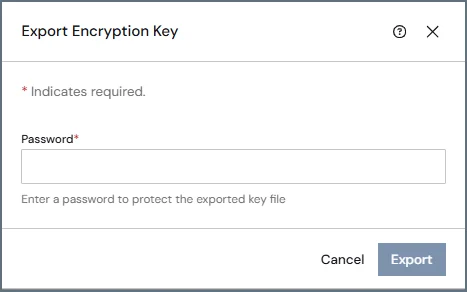
- Click Export.
- Open the new instance that you want to connect to the existing repository and navigate to the Git configuration area.
- In the Encryption Key section, click Import.
-
In the Import Encryption Key dialog box, select the exported key file and enter the password that you used when the key was created.
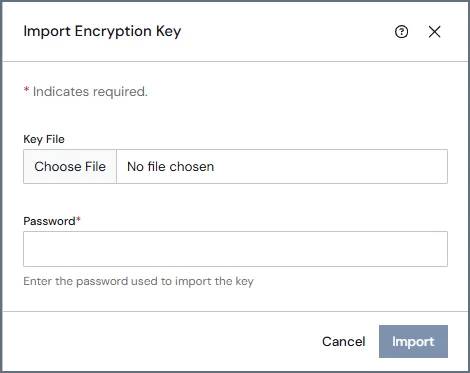
- Click Import to import the encryption key.
Known Limitations and Issues
Git version control has the following limitations:- A workspace can be connected to only one branch.
- Branch switching, creation, and deletion are not supported.
- The configured branch cannot be changed after initialization.
-
In some environments, removing version control can fail if repository files cannot be removed due to file permissions. This situation can occur when files in the
.gitdirectory are read-only. - If this issue occurs, you might need to manually remove the repository files before reconnecting version control.