

The first user that you create defaults to the Admin role because this role has full control over the application. See Roles for more information about built-in (predefined) and custom roles.
Viewing Your User Accounts
You can view a list of all your user accounts (or, users) from the Users tab on the Settings page. The table on this page summarizes your users and enables you to manage those accounts from one access point.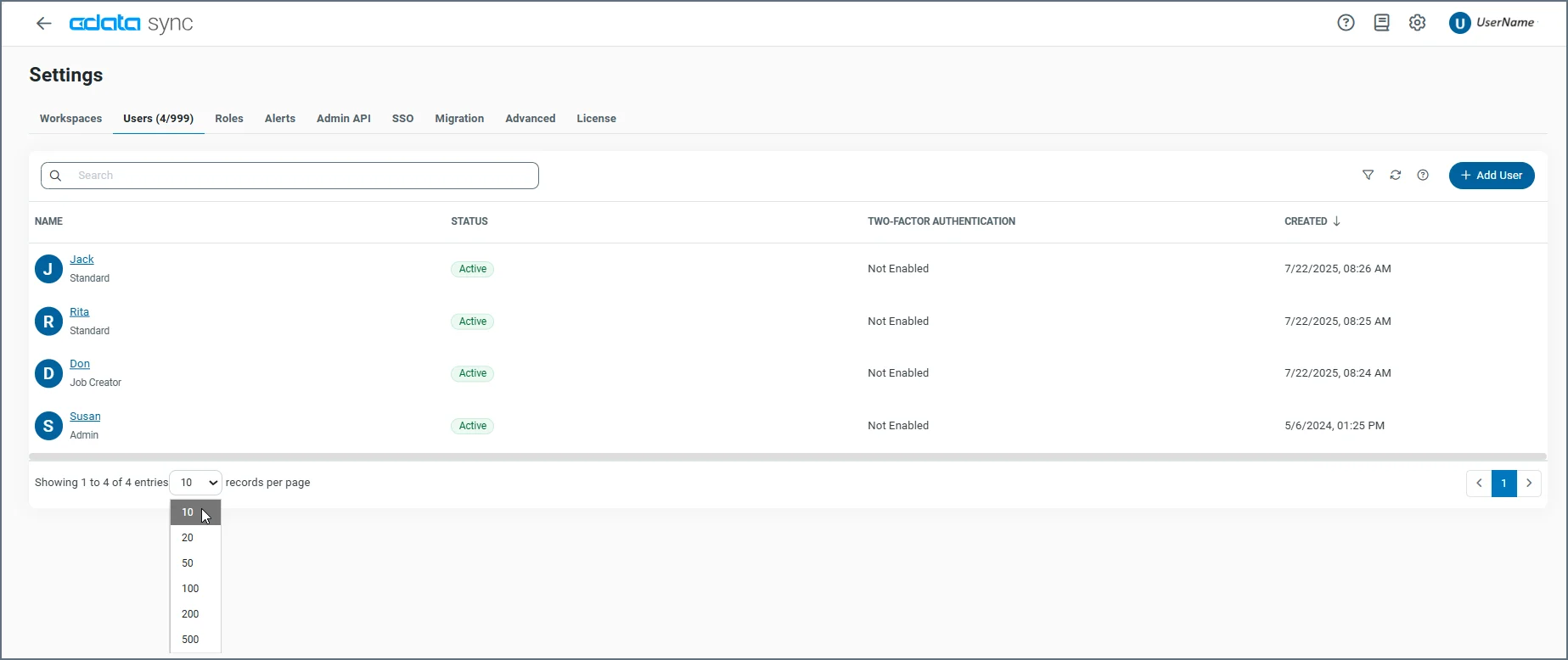
- NAME—Shows the user’s name and role.
- STATUS—Indicates whether the user is active or inactive.
- TWO-FACTOR AUTHENTICATION—Specifies whether two-factor authentication is enabled for the user account.
- CREATED—Shows the date and timed when the user account was created.
Adding a User
To add a user:- Select Settings > Users to open the Users tab page.
- Click Add User to open the Add User dialog box.
-
Configure the following properties:
- User Name—Enter the user name.
- Email Address—(Optional) Add the user’s email address.
- Password—(Optional) Enter a password for the account
- Roles—(Optional) Select a role from the drop-down list. You can also add one or more roles by clicking the Add Role button below the Role property.
- Federation Id—(Optional) Enter a federation identity only if you are using single sign-on.
-
Options—Select the API Access checkbox if you want to access the REST API. When you select this checkbox, an Authtoken text box is displayed that contains an authentication (auth) token. To generate a different auth token, click the Refresh icon (
 ).
).
- Active—Select this checkbox to activate the user.
- Click Add User to create the user and close the dialog box. Once the dialog box closes, the new user appears in the Users table.
Managing User Settings
From the Users table, you can edit user settings or delete a user by clicking the options menu (…) at the end of a user row.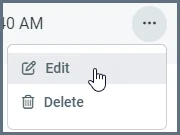
Creating Users on External Java Servlets
When is deployed to an external servlet (that is, is not using the embedded server that is included), additional Java Authentication and Authorization Service (JAAS) configuration is required to enable to create users dynamically within the application. For more information about JAAS configuration for specific Java servlets, see Deploying CData Sync to External Servlets.API Access
Each user can be granted an auth token that enables access to the API. For more information about authenticating against the API, see Authentication. The specific actions that a user can perform via the API mirrors the actions that the same user can perform via the UI. For example, a user that cannot delete connections via the UI cannot use the API to delete connections. To perform any arbitrary action via the API, use an auth token from an Admin user when you invoke the API.Resetting Passwords
If you forget your password, you can reset it directly from the login page.- On the login screen, click Forgot Password.
-
Enter your username and click Submit. You should receive the following message:
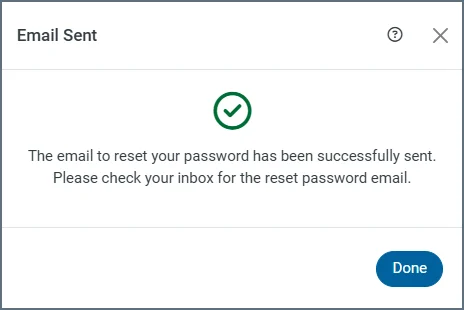
- Check your inbox for an email from that includes a password reset link.
- Click the link in the email to open the Reset Password page.
- Enter a new password and save your changes.
- Passwords are never sent by email. The reset link is secure and valid for a limited time.
- If you do not receive the email with a reset link, contact your system administrator. The Forgot Password feature is available only when the administrator configures the email server and adds email addresses for existing users.
-
Administrators can also generate a password reset link manually by submitting the following command: