

- A credential that you already know: Your password.
- A credential that you retrieve: A time-sensitive code from an authenticator application (app).
Enabling Two-Factor Authentication for Your Account
To enable 2FA in :- Click your user avatar in the upper-right corner of the window.
- On the User Details page, click Set Up under Two-Factor Authentication.
- Enter your password in the dialog box to verify your identity. Then, click Next.
-
Open your preferred authenticator app. Then scan the QR code that is provided in the Set Up Two-Factor Authentication dialog box that is displayed in .
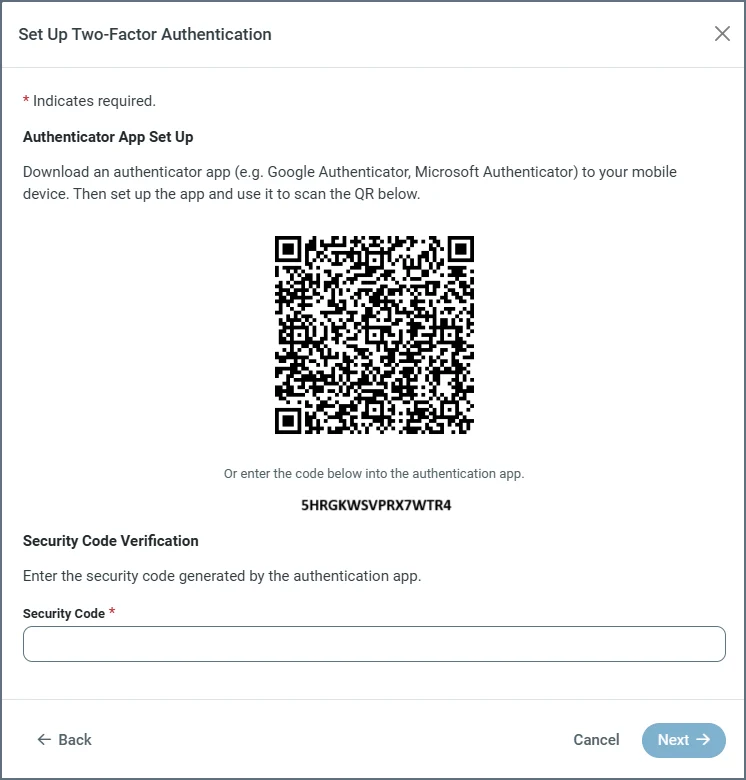
- Enter the security code that is generated by your authenticator app into the Set Up Two-Factor Authentication dialog box. Then, click Next. If the code is valid, a success message confirms that 2FA was configured successfully.
- You must set up your own 2FA.
- You can verify whether 2FA is enabled for your account by clicking your avatar in the top right of the window.
- You can remove 2FA from your own account by navigating to Users > UserName > Two-Factor Authentication > Remove.
Managing Two-Factor Authentication as an Admin User
Admin users can control whether 2FA is available for users from the Additional Settings category on the Advanced tab (Settings > Advanced). In the Additional Settings dialog box, Admin users can choose from these control options:- Enabled: The default option. This option allows users to enable 2FA for their accounts.
- Required: When you select this option, users are required to setup 2FA for their account. The next time that a user signs in and 2FA is not setup on their account, they are prompted to enable it.
- Disabled: When you select this option, 2FA cannot be enabled for any user.