

Add the API Connector
To enable to use data from , you first must add the connector, as follows:- Open the Connections page of the dashboard.
- Click Add Connection to open the Select Connectors page.
- Click the Sources tab and locate the API row.
- Click the Configure Connection icon at the end of that row.
- Enter a name for your connection in the Add Connection dialog box.
- Click Add to open the Settings tab for your connector.
Authenticate to API
After you add the connector, you need to set the required properties. supports authenticating to in several ways. Select your authentication method below to proceed to the relevant section that contains the authentication details.None
Basic
To connect with your user credentials, specify the following properties:- Auth Scheme: Select Basic.
- User: Enter the username that you use to authenticate to your API account.
- Password: Enter the password that you use to authenticate to your API account.
Digest
To connect with your user credentials, specify these settings:- Auth Scheme: Select Digest.
- User: Enter the username that you use to authenticate to your API account.
- Password: Enter the password that you use to authenticate to your API account.
Bearer Token
To connect with an OAuth access token, specify these settings:- Auth Scheme: Select Bearer Token.
- OAuth Access Token: Enter the access token that you use for connecting when you use OAuth.
OAuth
To connect with OAuth custom credentials, specify the following properties:- Auth Scheme: Select OAuth.
- OAuth Client Id: Enter the client Id that you were assigned when you registered your application with an OAuth authorization server.
- OAuth Client Secret: Enter the client secret that you were assigned when you registered your application with an OAuth authorization server.
- OAuth Authorization URL: Enter the OAuth authorization URL that you need to authorize request tokens when you sign in.
-
OAuth Access Token URL: Enter the URL where the request for the access token is made.
In OAuth 1.0, the authorized request token is exchanged for the access token.
-
OAuth Refresh Token URL: Enter the URL where the refresh token is exchanged for a new access token when the old one expires.
For your data source, this URL might be the same as the access-token URL.
- (Optional) Scope: Enter the scope that is required in order to obtain the initial access token and the refresh token.
OAuth Password
To connect with OAuth custom credentials, specify the following properties:- Auth Scheme: Select OAuthPassword.
- User: Enter the username that you use to authenticate to your API account.
- Password: Enter the password that you use to authenticate to your API account.
- OAuth Client Id: Enter the client Id that you were assigned when you registered your application with an OAuth authorization server.
- OAuth Client Secret: Enter the client secret that you were assigned when you registered your application with an OAuth authorization server.
-
OAuth Access Token URL: Enter the URL where the request for the access token is made.
In OAuth 1.0, the authorized request token is exchanged for the access token.
-
(Optional) OAuth Refresh Token URL: Enter the URL where the refresh token is exchanged for a new access token when the old one expires.
For your data source, this URL might be the same as the access-token URL.
- (Optional) Scope: Enter the scope that is required in order to obtain the initial access token and the refresh token.
OAuth Client
To connect with OAuth custom credentials, specify the following properties:- Auth Scheme: Select OAuthClient.
- OAuth Client Id: Enter the client Id that you were assigned when you registered your application with an OAuth authorization server.
- OAuth Client Secret: Enter the client secret that you were assigned when you registered your application with an OAuth authorization server.
-
OAuth Access Token URL: Enter the URL where the request for the access token is made.
In OAuth 1.0, the authorized request token is exchanged for the access token.
-
(Optional) OAuth Refresh Token URL: Enter the URL where the refresh token is exchanged for a new access token when the old one expires.
For your data source, this URL might be the same as the access-token URL.
- (Optional) Scope: Enter the scope that is required in order to obtain the initial access token and the refresh token.
Complete Your Connection
To complete your connection:- For Test URL, enter a URL in order to verify the authentication scheme.
- Define global headers that apply both to your connection and to any tables that you create. For detailed steps, see Add Headers.
- Specify, if necessary, any additional settings for the Other property (under the Miscellaneous section). This property is not required in normal use. However, if it is required, enter a semicolon-separated list of additional settings.
- Define advanced connection settings on the Advanced tab. (In most cases, though, you should not need these settings.)
- If you authenticate with , click Connect to to connect to your account.
- Click Create & Test to create your connection.
Add Headers
The Add Headers section on the connection page enables you to define global headers that apply both to your connection and to any tables that you create. To add HTTP headers that are sent with all API calls, specify the following properties:- Name: Enter the header name in the Name field (for example, Token).
- Value: Enter a value for the header (for example, a token).
Add Tables
After you connect to your API, you can create, view, and configure the API data in the form of tables. To create a table:- Open your API connection and click the Tables tab to open the New Table page.
- Click Add Table to begin creating a new table.
-
In the Request URL section:
- Select the request method (GET or POST) from the Request URL list.
-
Enter the URL of your API endpoint in the blank field to the right of the method that you selected, as shown in this example:
 If you select POST as your method, you must supply both the body and the content type.
- Select an option for Format (either JSON or XML).
-
Add URL parameters that will be sent with all API requests for this table.
To add parameters:
- Click Add Parameter on the Parameters tab.
- Enter a parameter name (for example, Country) in the Name field.
- Enter a parameter value (for example, United States) in the Value field.
-
Add HTTP headers that are sent with all API requests for your table. These headers are in addition to those that you add when you configure the API connector itself.
To add headers:
- Click Add Header on the Headers tab.
- Enter a name (for example, Year) in the Name field.
- Enter a value (for example, 2020) in the Value field.
-
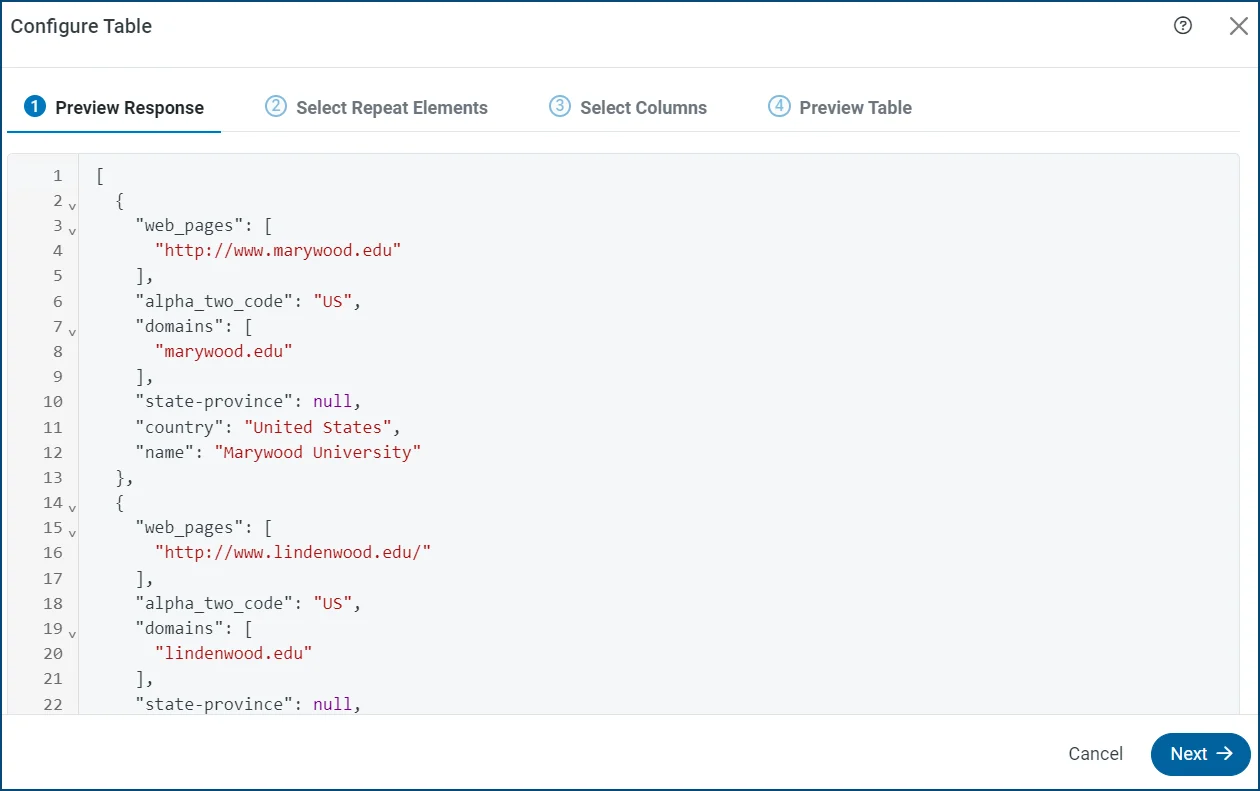
In the Table Details category, click the Configure Table button. This action opens the Configure Table dialog box where you can preview the API response, as shown in this example:
- Click Next.
-
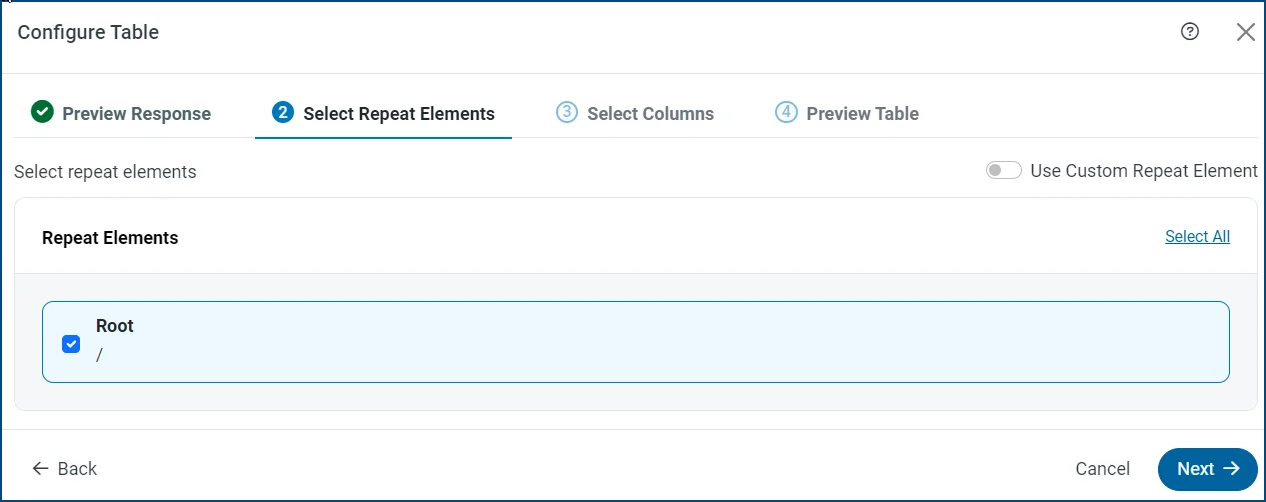
Select at least one repeat element for your table. A repeat element is the path of the element in the API response that contains repeating items that are to be used as rows. returns each detected array in the response data, which allows you to choose multiple paths. In this example, source is the repeat element.
- Click Use Custom Repeat Element (upper right of the dialog box).
- Click Add Repeat Element.
- Enter the path of the element that you want to repeat.
- Click Next.
-
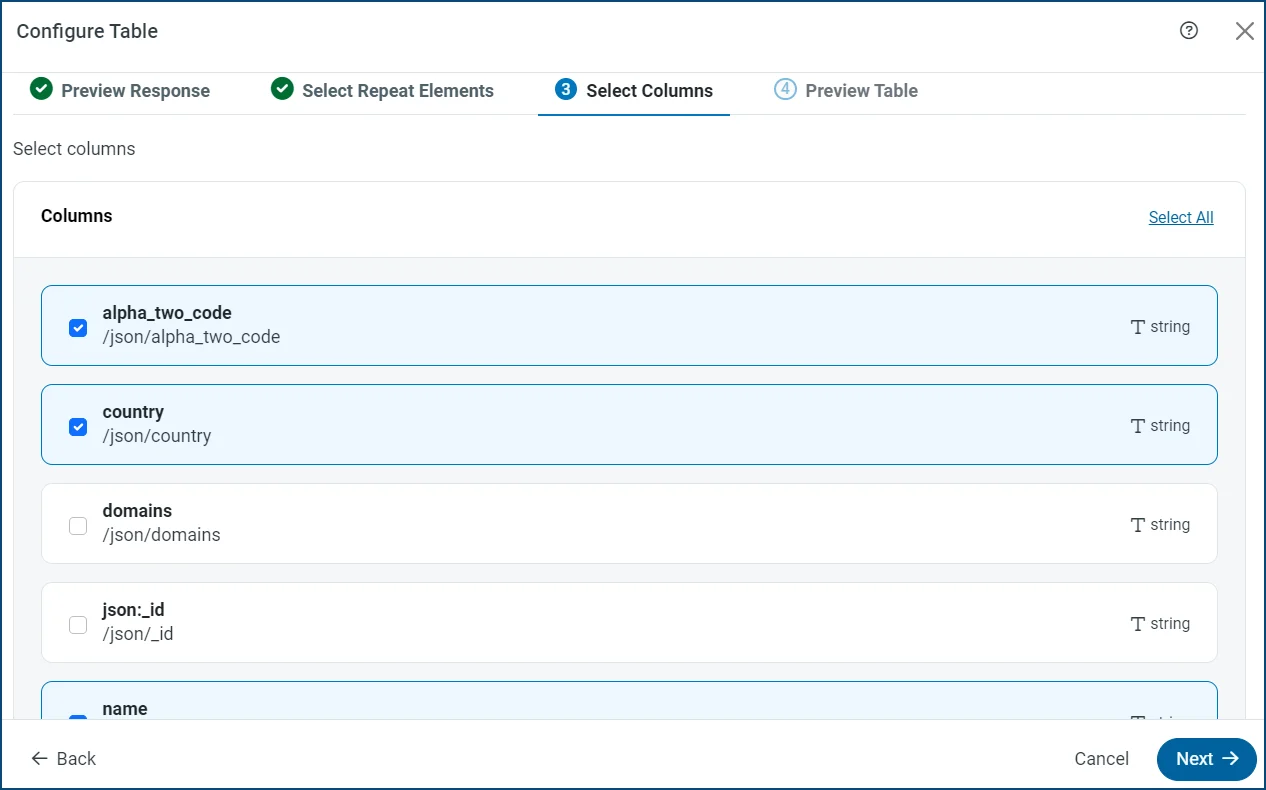
Select the specific columns that you want to include.
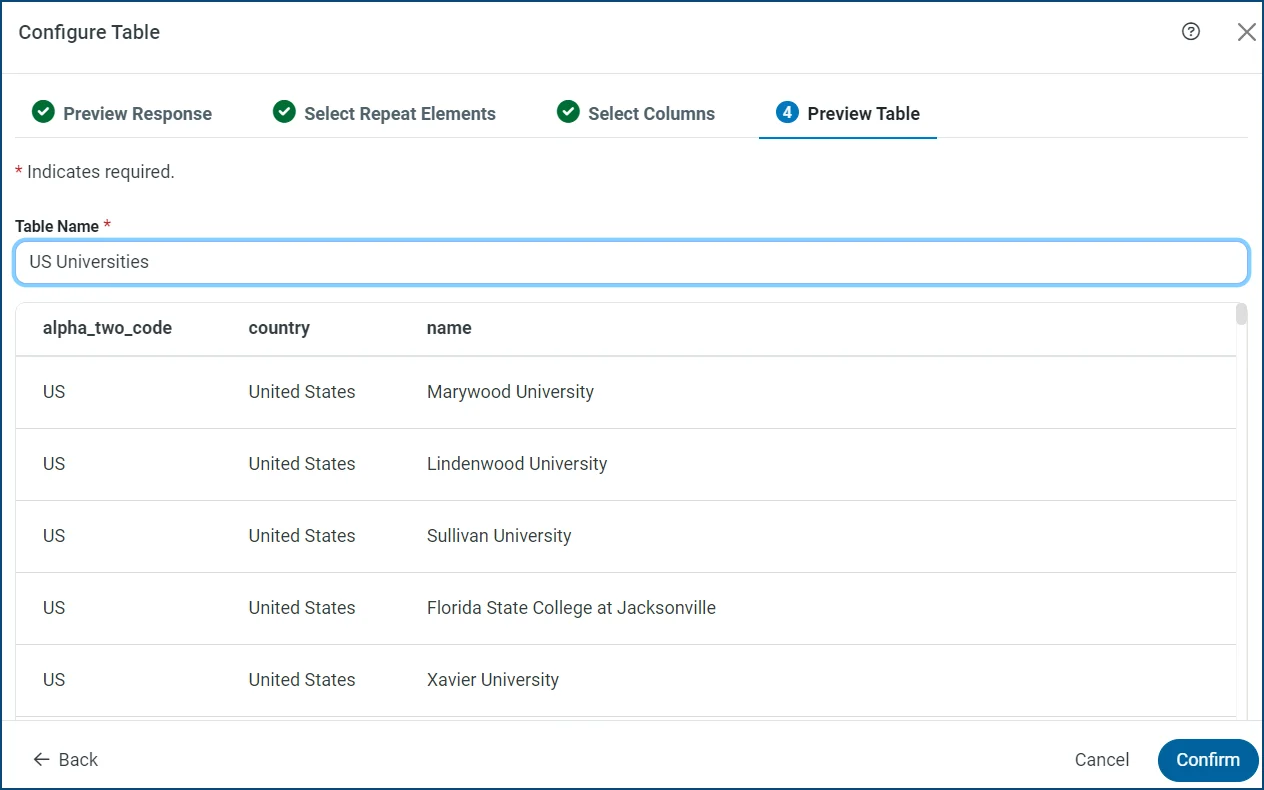
- Click Next. This opens a Preview Table tab in the dialog box where you can see the table with the columns that you selected.
-
Enter a name for your table in the Table Name field.
- Click Confirm to save the selections for your table.
-
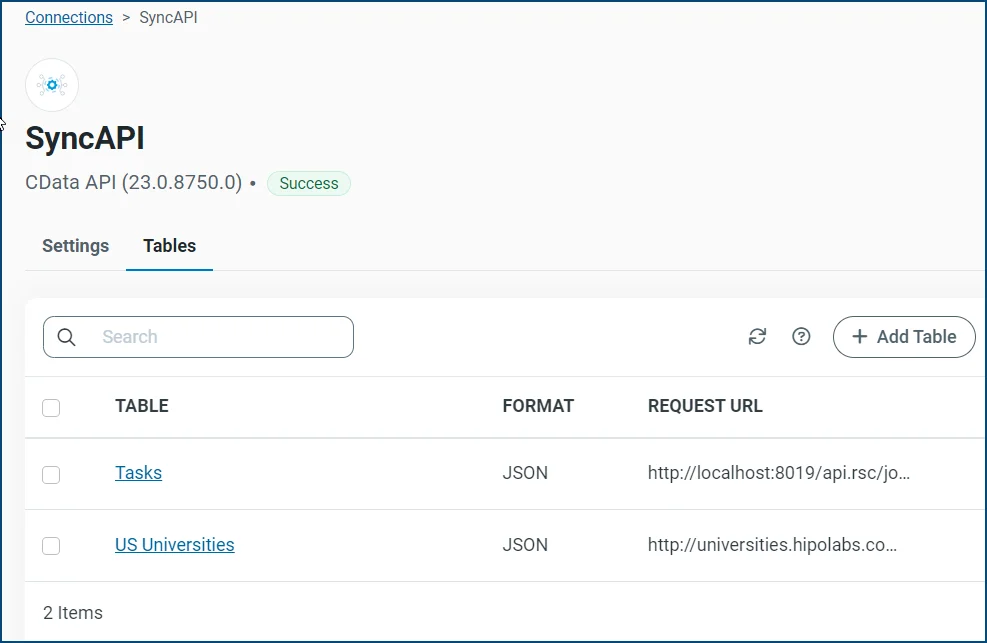
Click Save (upper right corner of the New Table page) to save a link to your table on the API connector page.
Add Pseudocolumns
A pseudocolumn imitates the behavior of a table column, but the pseudocolumn is not stored physically in your source table or API. These columns enable you to modify the requests that are sent to your API (via an SQL WHERE clause), but the values will not be replicated to your destination table. To create a pseudocolumn in :- From your API connector, select Tables > Tasks.
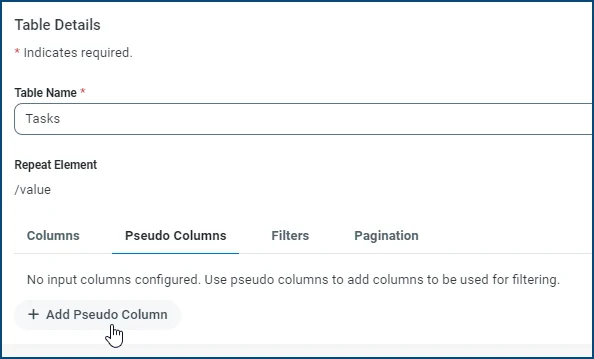
- Navigate to the Table Details section at the bottom of the Tasks page and click the Pseudocolumns tab.
-
Click Add Pseudocolumn.
-
Enter a name for your pseudocolumn in the COLUMN NAME text box. Then, select an appropriate data type from the DATA TYPE list.


- Click Save.
Modify Column Attributes in API Connector Tables
In the application, you can edit certain column attributes (column size, precision, and scale) for API connector tables from the Table Details section of your table page. These settings are saved in the connection configuration and are preserved during backup/restore and job import/export processes.- Column Size — Available for the String and Binary types (the default size is 2000).
- Precision — Available for the Time, DateTime, Decimal, Float, and Double types.
- Scale — Available only for the Decimal type.
Replication works correctly with the updated definitions, and upgrading to later builds does not affect existing functionality.
- Click the Tables tab. You can either edit an existing table or create a new table.
- Click the name of the table that you want to edit (or click Configure Table to create a new table).
-
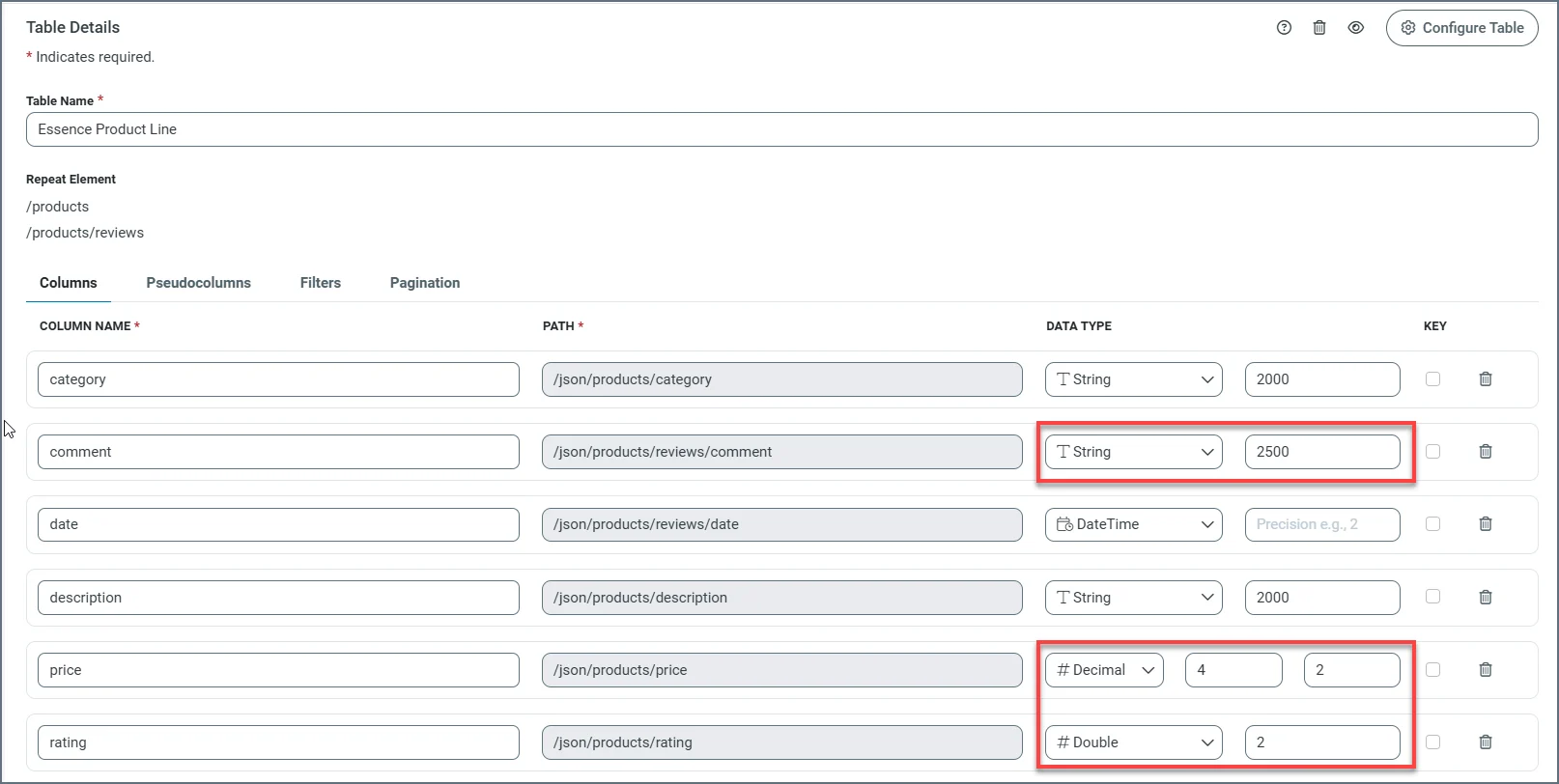
In the Table Details section of your table page, locate the data columns that you want to modify and edit their attributes in the Data Type column of the table.
The following example contains data columns that use String (column size), Decimal (scale), and Double (precision) types, with their default values modified.
- Click Save at the top of the table page to save your modifications.
Add Filters
After you create a table with columns, you can create filters that define the behavior of the API connector when a WHERE clause is issued during a query. Filters improve performance by delegating the filtering process to the API on the server side. If you do not include filters, the query options are processed by instead.Creating a Filter
You can create filters for each column in your table. To create a filter:-
Click the Filters tab on the New Table page, as shown below.

- Click Add Filter under the Columns list.
- Select the column (from the Columns list) that you want to filter.
-
Select criteria from the Operator list. You can choose from these options:
- Is Equal to
- Is Not Equal to
- Is Less Than
- Is Less Than or Equal to
- Is Greater Than
- Is Greater Than or Equal to
- Select a type (Parameter or Header) from the Type list. Then enter the name of the parameter or header if it does not match the column name.
- Click Save (top right of the page) to save your filter.
- Column: CreatedDate
- Operator: Greater Than
- Filter Type: Parameter
- Parameter Name: startdate
Using the Request Per Row Feature to Filter Data
In the application, you can subset your data by using the Request Per Row feature. Request Per Row enables to pass separate requests for each filter value by using an SQL IN clause. This feature is useful when you query a child dataset and that query requires the identifier (Id) of the parent dataset. For example, you might have an invoice dataset (parent) from which you want to split out line items (child) as separate rows into a single destination table. The following query dynamically passes separate requests for an invoice Id value:- Modify the request URL to include the name of the unique record-identifier column inside curly braces. After you add the column name in curly braces, the message Request Per Row Detected is displayed above the right end of the Request URL text box.
- Click Configure Table.
- Enter an example value for the unique record-identifier column.
-
Follow steps 7–13 in the Add Tables section.
Ensure that a column or pseudocolumn exists that matches the unique record-identifier column (case-sensitive). If they do not match, displays a warning.
- Click Save (top right of the New Tables page).
Add Pagination
supports multiple types of paging implementations. To add a pagination type:- Click the Pagination tab.
-
Select a pagination type from the Type list. You can choose from these types:
- None: Select this type if the API request returns the full data set in one response.
- Offset: Select this type when the API request provides a record offset parameter for paging. For more details, see Offset.
- Number: Select this type when the API request includes a parameter to specify the current page number. For more details, see Number.
- Token: Select this type when the API response includes a token for the next page. For more details, see Token.
- URL: Select this type when the API response includes a URL for the next page. For more details, see URL.
- Click Save (top right of the page) to save your pagination setting.
Offset
When you select Offset, you must specify the following properties:- Offset Parameter: Enter the name of the URL parameter that defines the offset in the API request.
- Page Size: Enter the number of records that you want to retrieve per page. The API connector uses this value to calculate the offset.
- (Optional) Page Size Parameter: Enter the name of the URL parameter that defines how many records to retrieve per page. If there is no parameter to control page size, the Page Size Parameter does not need to be set. However, in that case, you must set Page Size to the default page size.
Number
When you select Number, you must also specify the following settings:- Page Number Parameter: Enter the name of the URL parameter that defines the page number.
- (Optional) Page Size Parameter: Enter the name of the URL parameter that defines the page size.
- (Optional) Page Size: Enter the number of records that you want to retrieve per page.
Token
When you select Token, you must specify the following settings:- Token Path: Enter the path in the API response that defines the next-page token.
- (Optional) Has More Path: Enter the path in the API response that defines whether records are available.
- Token Source: This setting determines whether the token should be sent in the request as a URL parameter or whether it should be sent in the request body. Select the option that you want:
- Request Path: Enter the path in the request body where should set the paging token.
- URL Parameter: Enter the name of the URL parameter that should pass to the paging token.
https://myapi?pageToken=123456
Response:
URL
When you select URL, you also need to select the URL source:- Header Name: Enter a header name if the next page URL is passed in the response headers along with a link header.
- Request Path: Enter the path in the API response that defines the next page URL. This value should be supplied in XPath notation. See the following example.
Edit the RSD Script
In , you can directly edit the RSD script for an API connector table from the UI. An RSD script is a schema definition that controls how represents API response data as a table. Editing this script allows you to override the automatic table configuration and define exactly how columns map to elements in the API response. This capability is useful when the standard table builder cannot correctly map response values to columns, particularly for complex XML structures.When to Edit the RSD Script
The standard table configuration in the UI uses repeat elements to map API responses into rows and columns. This approach works for most JSON and XML responses where each row contains both column names and values in a consistent structure. However, some APIs return XML where column names and data values are separated into different sections. For example, column names might appear in a<header> element while row data appears in a <body> element. In this structure, the repeat-element configuration cannot associate header labels with the corresponding data values.
In these cases, editing the RSD script allows you to manually define the column-to-data mapping by using XPath expressions.
How to Map Columns with XPath
In the RSD script, each column is defined as an<attr> element. This element specifies the column name, data type, and the XPath expression that identifies the corresponding value in the API response.
To define a column:
- Set the name attribute to the column name that should appear in the output table.
- Set the
xs:type=attribute to the appropriate data type (for example,"string"). - Set the
other:xPath=attribute to an XPath expression that points to the column value within each row.
XPath attribute in the RSD script to the element that represents each row.
Consider the XML response in the following example:
<header> section, while the row data is defined in the <body> section.
To map this data in the RSD script, define the row-level XPath as follows: /result/body/row
Then define the columns as shown here:
col[1], col[2], and so on) corresponds to the order of the columns that is defined in the header. This approach enables you to map each column name to the correct value in the row data.