

Prerequisites
Before you add and set up the DB2 for i source connector, you need to set up the DB2 for i database for change data capture (CDC), as explained in the following sections. Limitations: The following capabilities are not supported in Sync:- remote journals or failover functionality
- large objects such as CLOB, XML, TEXT, BLOB
Set Up DB2 for i for CDC
Journaling records database changes in journal receivers, which the change data capture (CDC) process uses to capture and replicate those changes to other systems in real-time or near real-time synchronization. A journal is a database object that serves as a tracking mechanism, capturing metadata about changes made to specific database objects. Each journal is linked to one or more journal receivers, which physically store the detailed change records, including before-and-after images of the data as well as metadata and transaction details. Because CDC depends on journaling to supply detailed change records, creating a journal and journal receiver and setting user permissions are the first steps in enabling CDC for DB2 for i, as explained in the next sections.Create the Journal Receiver and Journal and Enable Journaling on Tables
Run the following command-line (CL) commands to create the journal receiver, journal, and enable journaling on tables:Set Required User Permissions
To verify all permissions for the user to which you are connected, submit the following query:To execute the commands through a Java Database Connectivity (JDBC) tool, use this command:
CALL QSYS2.QCMDEXC(‘CL COMMAND’);Add the DB2 for i Connector
Authenticate to DB2 for i
After you add the connector, you need to set the required properties.- Server: Enter the address or host name of the DB2 for i server. The default server is localhost.
- Database: Enter the name of your DB2 for i database.
- Port: Enter the port number for your server. The default port is 446.
- User: Enter the username that you use to authenticate to the DB2 for i database.
- Password: Enter the password that you use to authenticate to the DB2 for i database.
Complete Your Connection
To complete your connection:- Define advanced connection settings on the Advanced tab. (In most cases, though, you should not need these settings.)
- Click Create & Test to create your connection.
Create a Change Data Capture (CDC) Job with Journal and Schema Selections
This section explains how to create a change data capture (CDC) job for DB2 for i and how to configure row identification for tables without primary keys.Create the CDC Job
Follow these steps to create a CDC job for DB2 for i:- Enter a name for your job.
- Select your DB2 for i source.
- Select your destination.
-
Specify values for the following fields:
- Journal Library
- Journal Name
- Source Schema
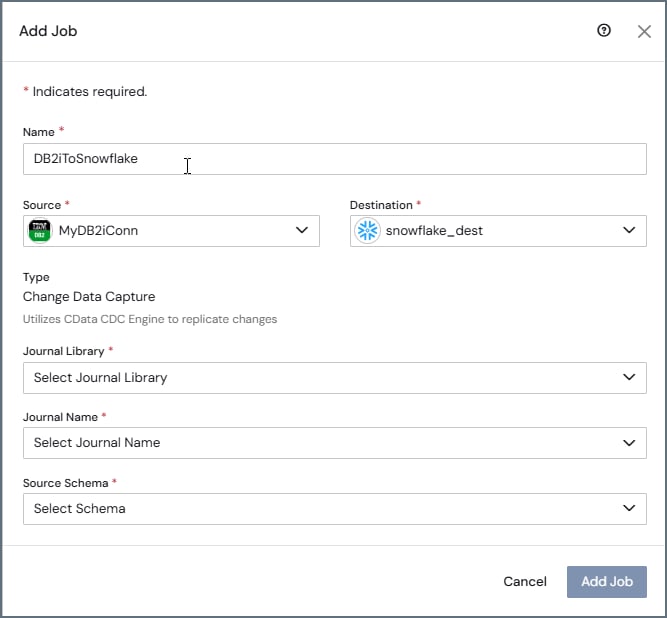
- Click Add Job. After the job is created, the journal settings are displayed in the CDC engine settings and cannot be modified.
-
Continue to the job’s Task tab for table selection. Only tables that meet the following criteria are displayed:
- The table is journaled.
- The table is associated with the selected journal.
- The table belongs to the selected schema.
When you create DB2 for i CDC jobs through the API, you must provide the journal library and journal name.
Configure Row Identification for Tables without Primary Keys
When you configure a change data capture (CDC) job for DB2 for i, you can use the relative record number (RRN) as the value for the_cdatasync_id column. This approach provides a stable identifier for tables that do not have a primary key.
By default, Sync uses the RRN as the identifier for DB2 for i records (the default value is Db2Rrn). To override this and use an MD5-based row hash instead, set the following SyncIdSourceColumn job option in the Additional Options field on the job’s Advanced tab:
- The
_cdatasync_idcolumn is represented as a BigInt data type. - The identifier is derived directly from the physical row location in the source table.
- The
_cdatasync_idcolumn can be used as a partition key for destinations that support partitioning.
Replicate Members of Multi-Member Physical Files
Sync replicates each member of a multi-member physical file as its own table. To choose a member, create an SQL alias that references that member.Configure Replication
To configure replication for multi-member physical files:-
Journal the physical file, as shown below. Journaling applies to all members, including those added later. Aliases do not require separate journaling.
-
Create an alias for each member you want to replicate:
- Add the aliases as tasks. The aliases appear in the table list next to their associated physical file.
Replication Behavior
Replication depends on whether you select an alias or the physical file:- Alias: Using an alias replicates only the member that is referenced by the alias, including the initial load and subsequent changes. The target table uses the alias name.
- Physical file: Using a physical file replicates only the default member (the member with the same name as the physical file).
- Members without selected aliases: These members are ignored.