

Configuring the Scheduler
To configure the scheduler:-
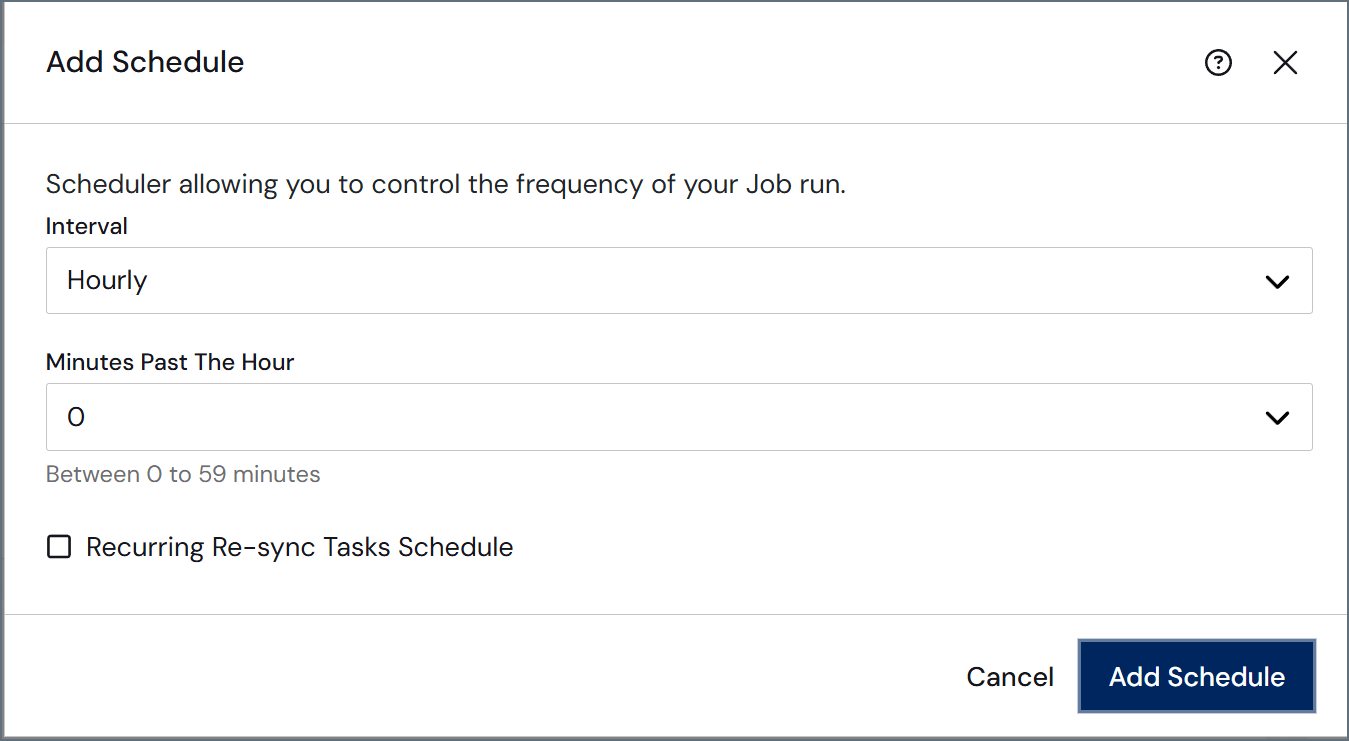
Click Add Schedule in the Schedules category to open the Add Schedule dialog.
-
Select the interval type and frequency. The name of the frequency drop-down list changes based on your selected interval type (for example, if the interval is Minute, the frequency list is named Every; if the interval is Daily, the frequency list is named Time of Day; and so on).
The following list provides the values that you can select for each interval type:
- Minute: Choose intervals of 1, 5, 10, 15, 20, or 30 minutes in the Minutes field. The Minute interval starts on the hour. For example, if you choose Every 10 Minutes, your job will be scheduled to execute at :00, :10, :20, :30, and so on.
- Hourly: Choose specific minutes past an hour in the Minute Past the Hour field.
- Daily: Choose a specific time of day in the Time field.
- Weekly: Choose a specific day of the week and a time from the Day and Time fields.
- Monthly: Choose a specific day of the month and time from the Day and Time fields.
- Custom: Enter a Cron statement in the Cron Expression field.
When the job that is currently running takes longer than the scheduled interval, Sync skips the next run. For example, if you set a job to run every 10 minutes but one run takes 15 minutes to complete, the next run is skipped. The following table illustrates this particular example, but the skip concept applies to all of the interval types. - Click Add Schedule to save your configuration.

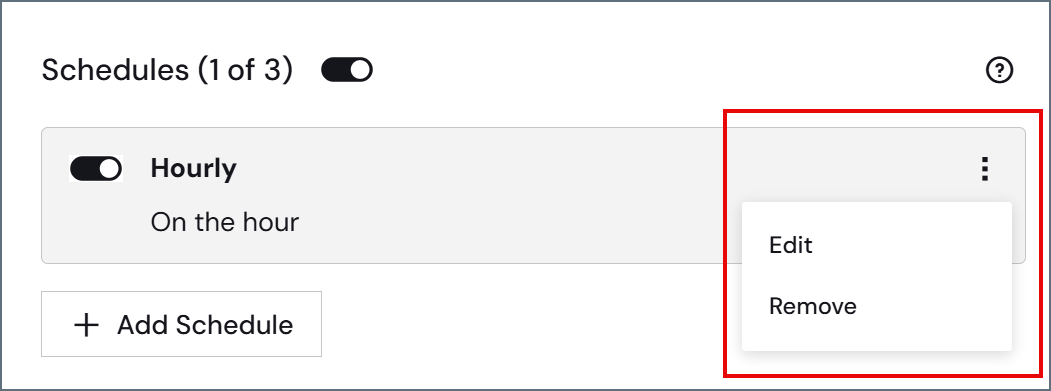
Configuring Multiple Schedules for a Job
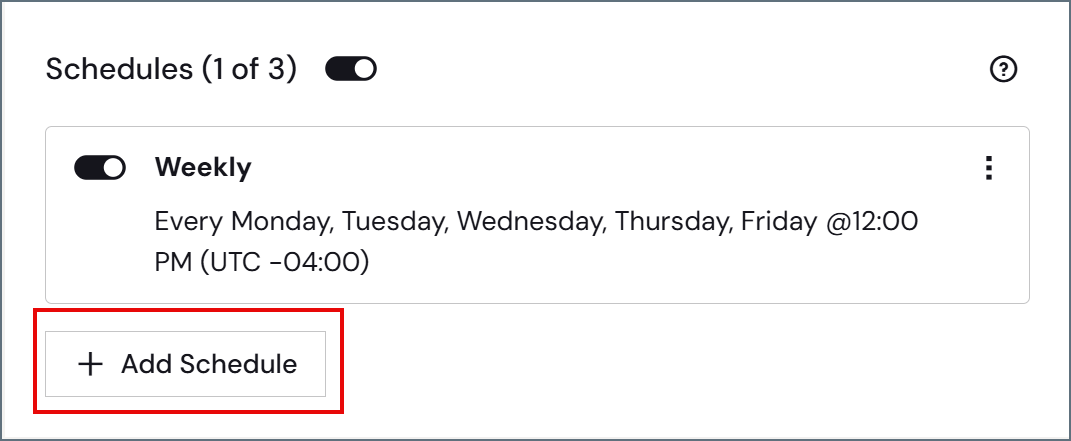
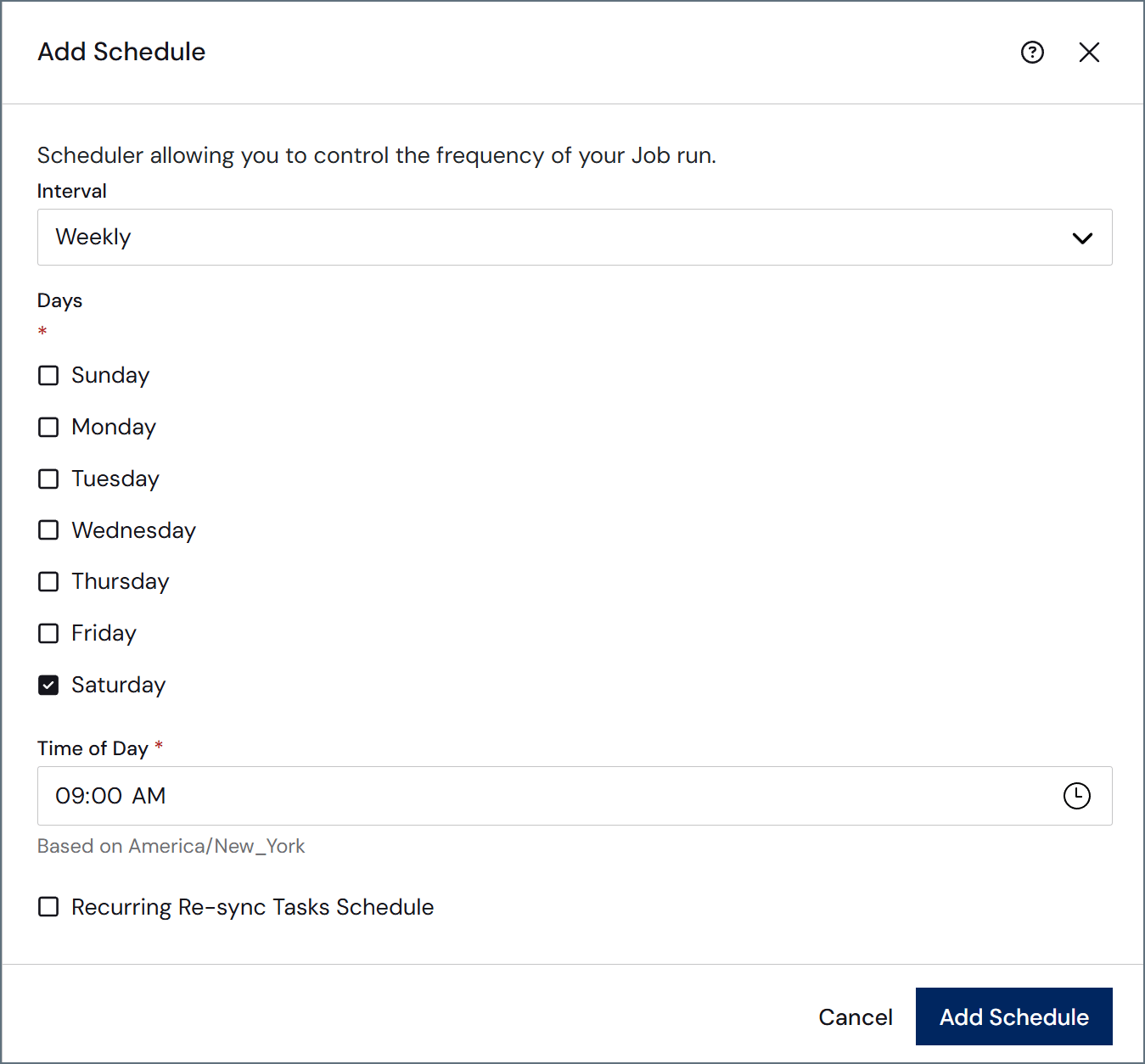
You can configure up to three schedules for a Sync job, allowing it to run at different frequencies based on the day or time. For example, you can configure a job to run hourly on weekdays and once a week on Saturdays. To add another schedule to your job:-
Click Add Schedule in the Schedules category on the job’s Overview tab.
-
Configure the new schedule rule that you want to add in the Add Schedule dialog, as shown in this example:
-
Click Add Schedule and the new schedule appears in the Schedules category.
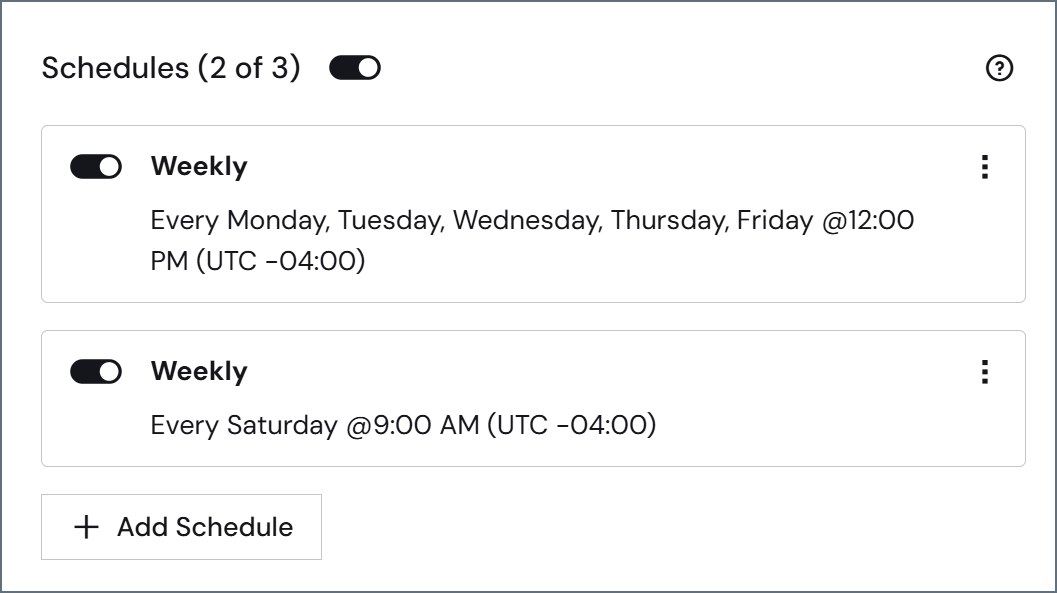
When a job has multiple schedules, more frequent schedules can prevent less frequent schedules from running as expected. For example, if you configure a job to run every 5 minutes and also every hour, the hourly schedule might never run because each 5-minute execution resets the time used to determine when the job should run next. Keep this behavior in mind when configuring multiple schedules.
Scheduling a Recurring Re-Sync
When you configure a schedule rule, you can specify that rule to trigger a re-sync instead of a regular job run. This automates data-integrity maintenance for sources that do not report deletes, eliminating the need to manually pause and resume your schedule to run periodic full re-syncs. To enable recurring re-sync:-
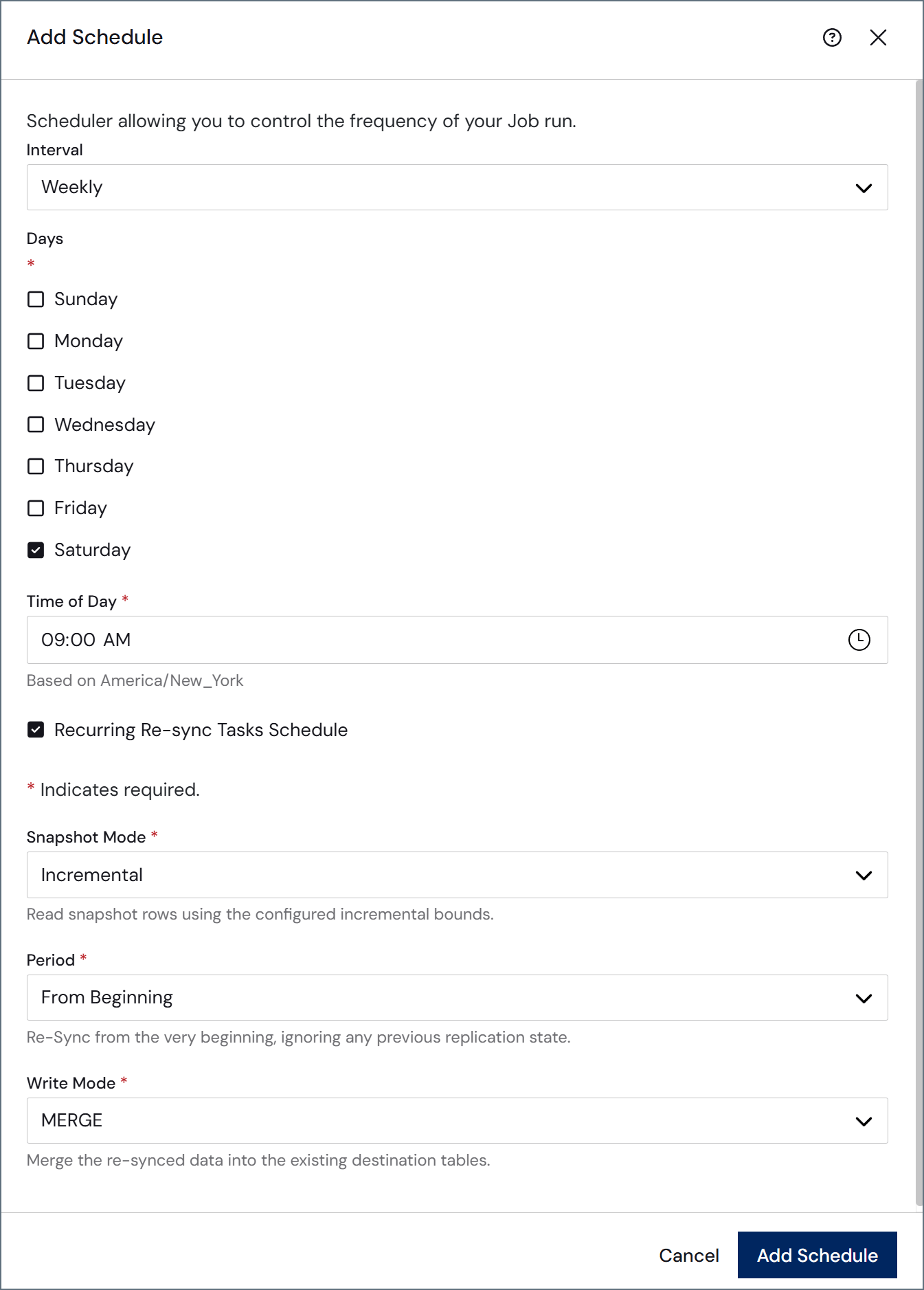
Add a schedule as described in the previous sections. After you set your schedule in the Add Schedule dialog, select the Recurring Re-Sync Tasks Schedule checkbox. With this selection, three additional required fields appear in the dialog.
-
Select options from the Snapshot Mode, Period, and Write Mode drop-down lists:
- Snapshot Mode: Specifies how the re-sync process reads source data during the snapshot phase. You can select from these options:
- Incremental: Reads snapshot rows by using the configured incremental bounds.
- Full: Reads all snapshot rows without applying incremental bounds.
- Skip: Skips the reading of snapshot rows.
- Period: Specifies the starting point from which the re-sync process begins. You can select from these options:
- From Beginning: Re-syncs the snapshot from the very beginning, ignoring any previous replication state.
- From Position: Re-syncs the snapshot from a specific position that is defined by date or row number.
- From Now: Re-syncs the snapshot starting from the current point in time.
- Write Mode: Specifies how the re-sync process writes data to the destination. You can select from these options:
- DROP: Drops the existing destination tables and re-creates them.
- TRUNCATE: Truncates the existing destination tables before the re-syncing process.
- MERGE: Merges the re-synced data into the existing destination tables.
- Snapshot Mode: Specifies how the re-sync process reads source data during the snapshot phase. You can select from these options:
- Click Add Schedule to save the schedule with recurring re-sync enabled.
Using UNIX Cron Syntax
The cron command-line utility is a time-based job scheduler that is used by UNIX systems. It is used to schedule jobs to run at certain times or intervals. Cron syntax supports the following values:
The special characters map to the following meanings:
Some example cron expressions are shown below.