

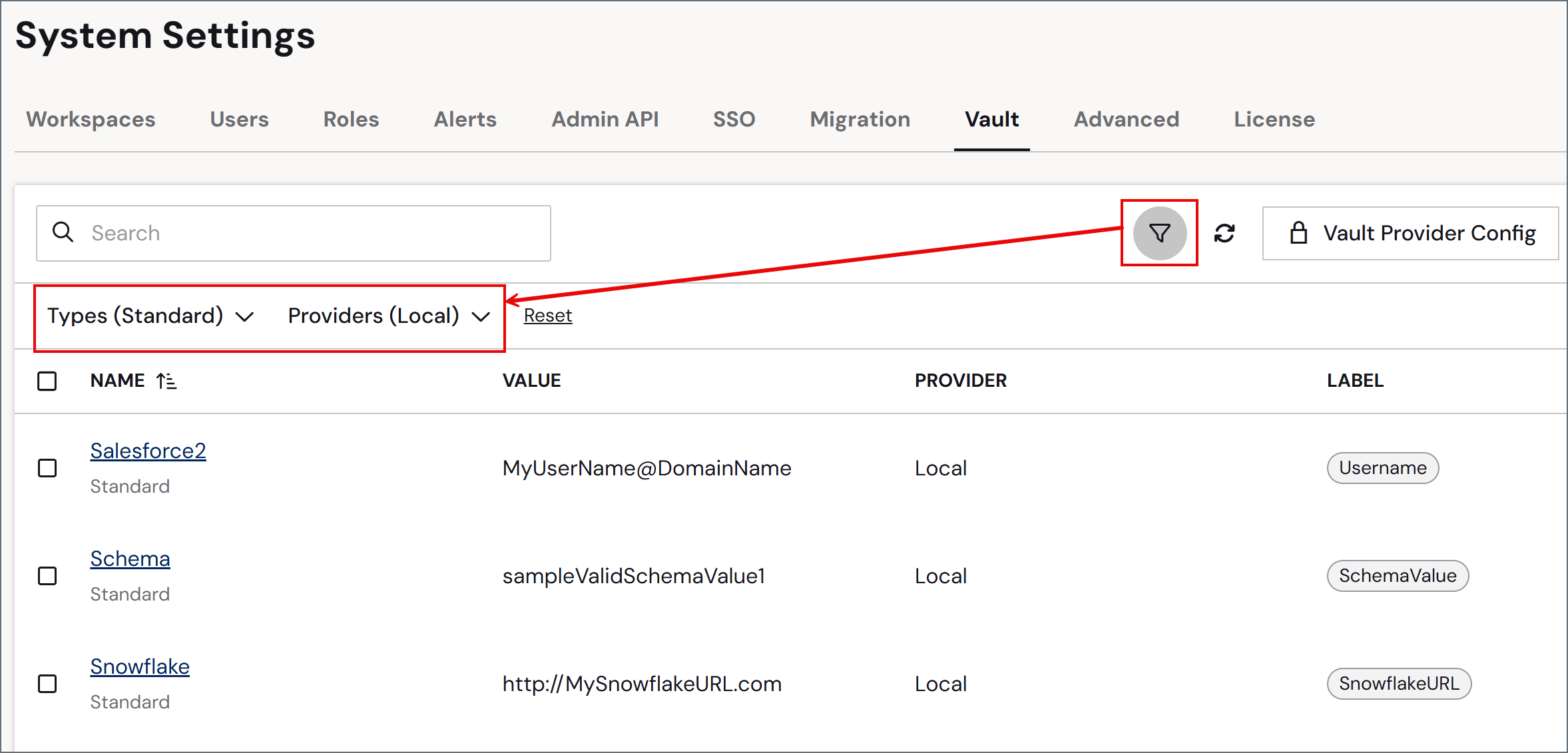
- Click the filter icon.
- Choose filter options for Type, Provider, or both.
Managing Vault Providers
Vault providers determine where Sync resolves vault item values. The local vault is always present, and it is the only provider you can write to. External providers are read-only, and they allow you to reference secrets that already exist in your infrastructure without duplicating them in Sync. To open the provider list, click Vault Provider Config on the Vault tab. The Vault Provider Config dialog opens, listing each configured provider with its Name and Provider type. The Local provider is always the first row and it cannot be edited or removed.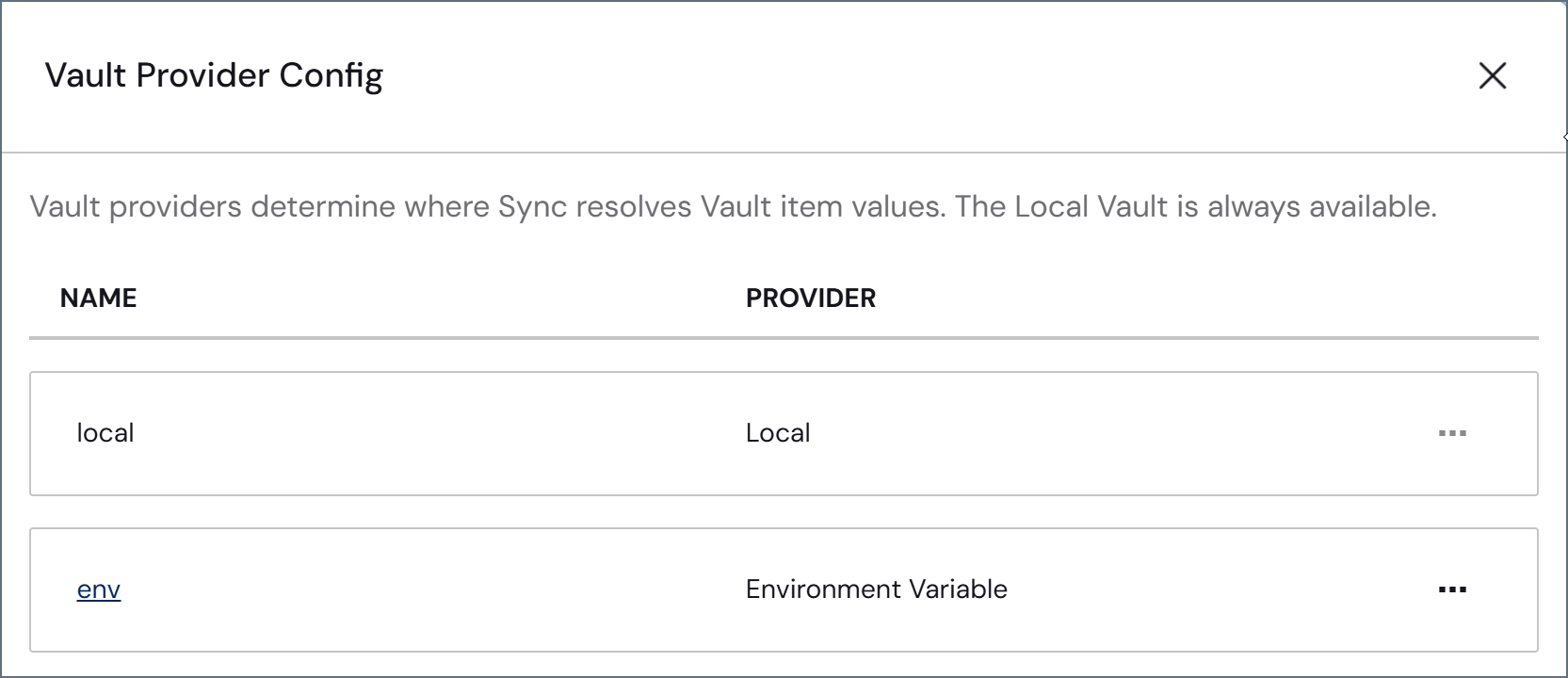
-
Select … > Edit at the end of the row to open the Edit Environment Variable dialog.
 You can only edit the Included Patterns for the Environment Variable provider.
 -
Under Included Patterns, select the appropriate checkboxes and enter at least one pattern in Standard Patterns, Encrypted Patterns, or both. Each field accepts a comma-separated list of names or wildcard patterns using
*and?.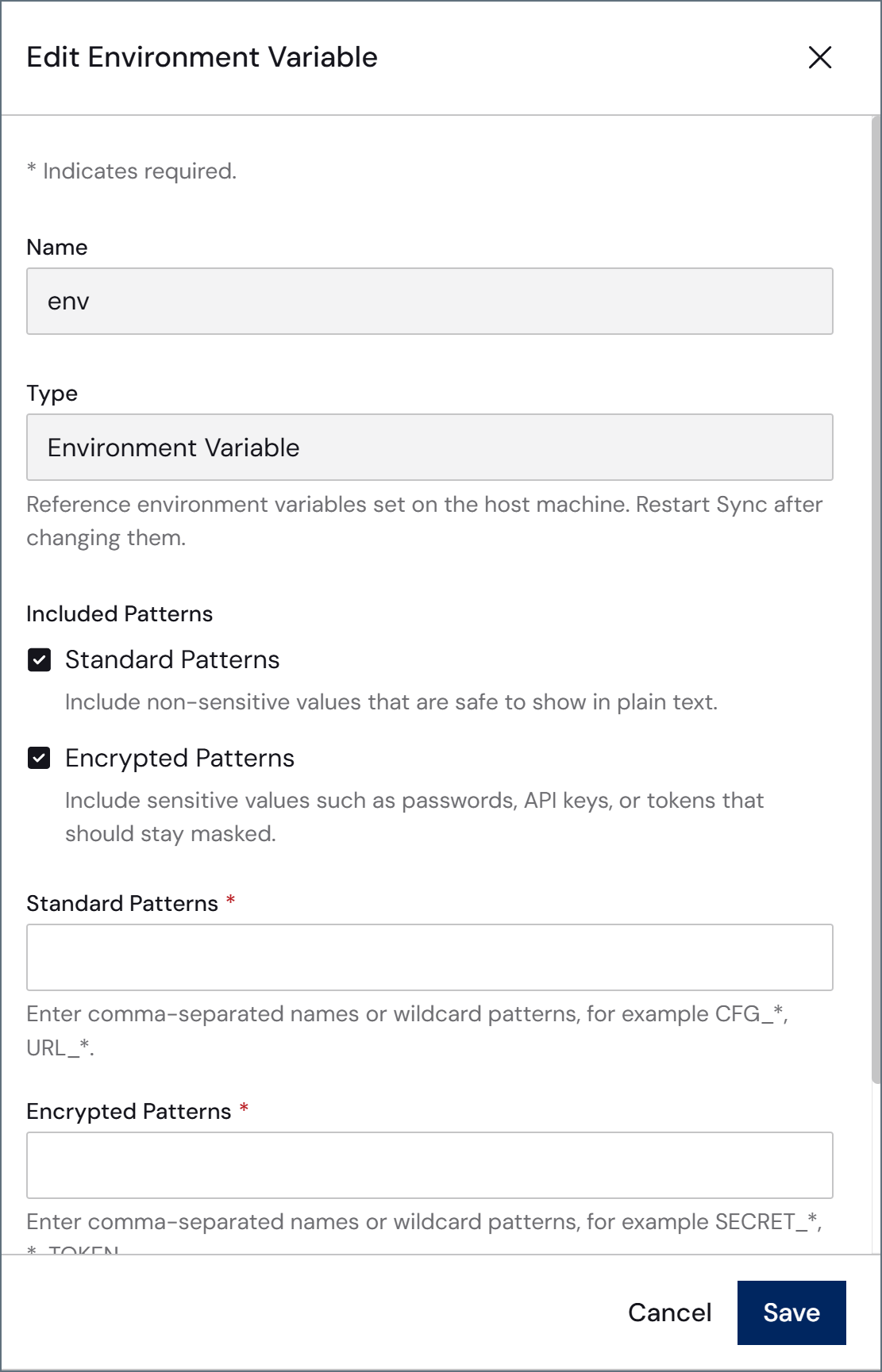
- Standard Patterns: Matched variables are treated as Standard items and can be used in any non-sensitive field.
- Encrypted Patterns: Matched variables are treated as Encrypted items and can only be used in sensitive fields.
Variable names are matched case-insensitively on Windows and case-sensitively on all other platforms. - Click Save to save your changes and close the dialog.
Managing Local Vault Items
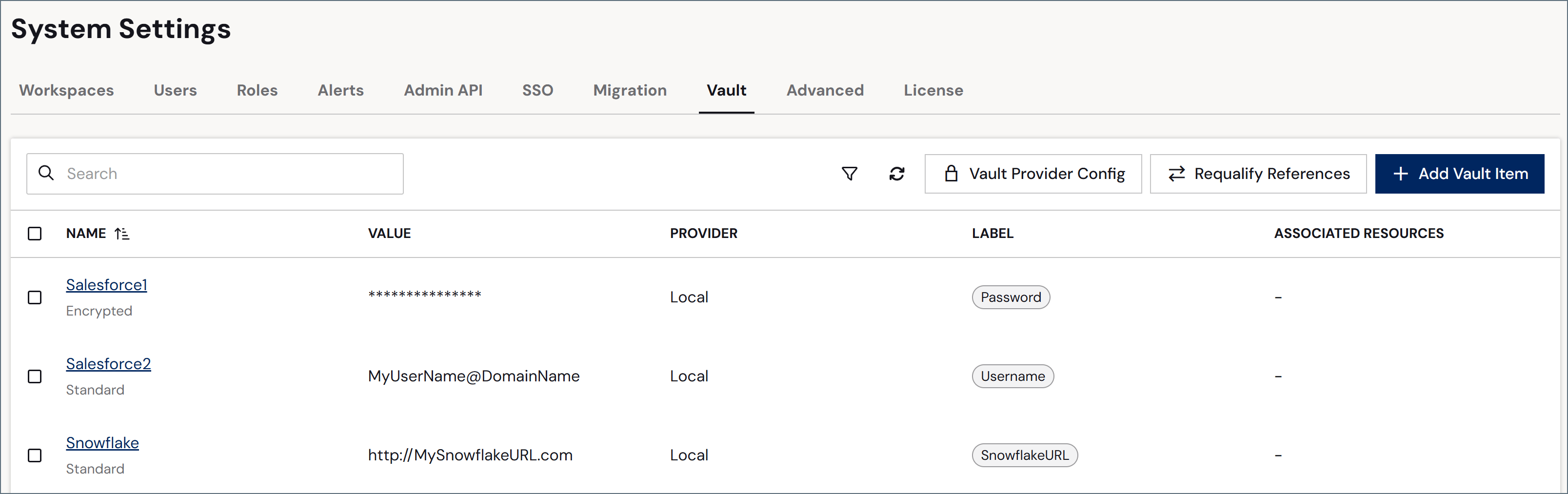
You can add, edit, and remove vault items from the Vault table.Adding Items to the Vault
To add an item to your vault:-
Add an item in either of two ways:
- Click Add Vault Item at the top of the vault table.
-
Enter a value in a field elsewhere in Sync (for example, on a connector page), click the key symbol, and select Add to Vault.
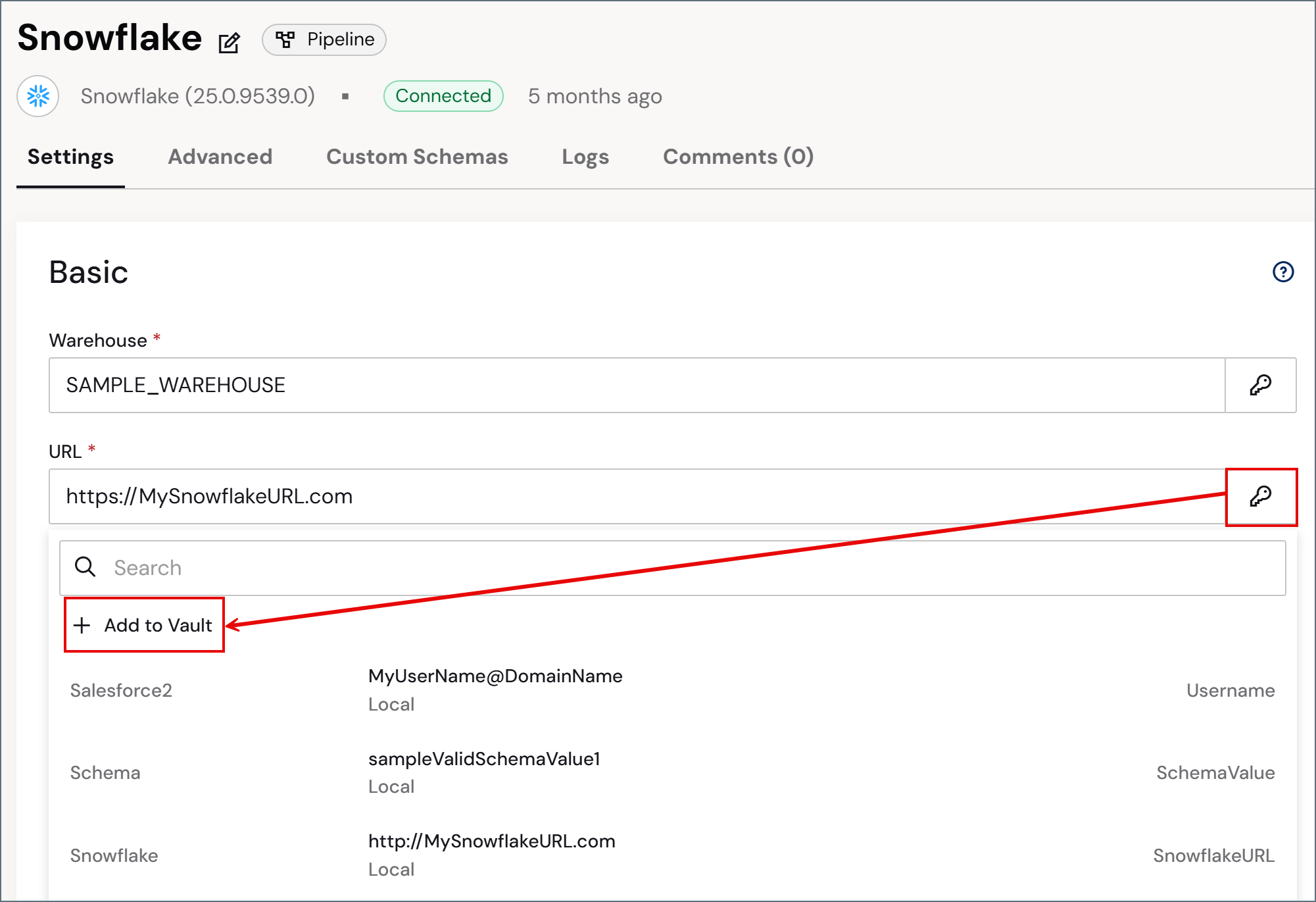
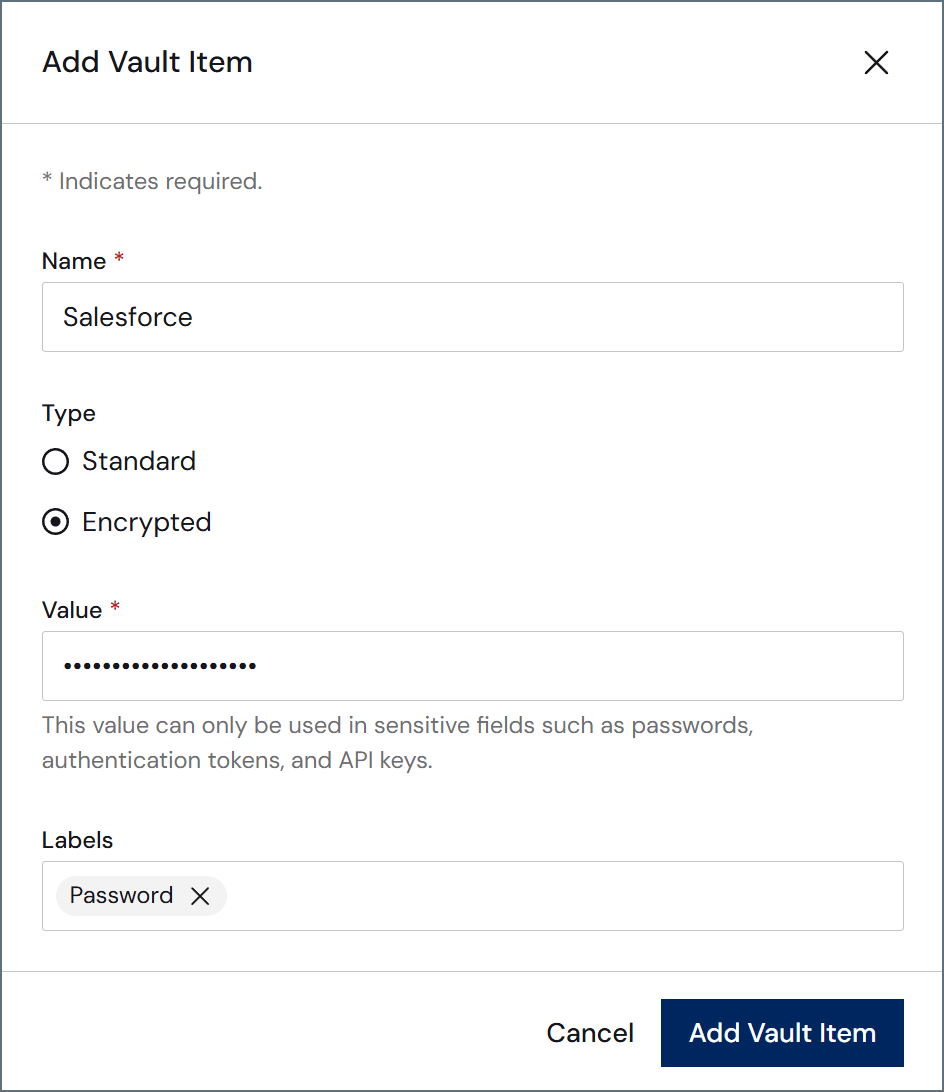
- Name: The name of the vault item as it appears when you use it.
-
Type: The classification for the vault item.
- Standard: This type is for items that can be used in all non-sensitive fields (for example, URLs, usernames, and ports).
- Encrypted: This type is for items that can be used only in sensitive fields (for example, passwords and authentication tokens).
- Value: The actual value that the vault item contains (for example, the URL, username, or password that you want to use when this vault item is selected).
- (Optional) Labels: Labels for the vault item that make it easier to manage and search through large vaults. Separate each label with a comma or a new-line character.
-
Click Add Vault Item to save the item to your vault.
Editing Vault Items
To edit a vault item:- Click the vault item’s name in the Vault table or hover over the row and select … > Edit at the end of the row. Either of these methods opens the Edit Vault Item dialog.
-
Edit the name, value, and labels for the item, as necessary.
- You cannot edit Vault ID values and types (standard or encrypted) after an item is created.
- Items that are sourced from an external provider cannot be edited in Sync.
- Hovering over an external item shows the tooltip: “This item is managed by an external vault provider and cannot be edited or removed.”
- To change or remove an external item, update it in the originating system.
Removing Vault Items
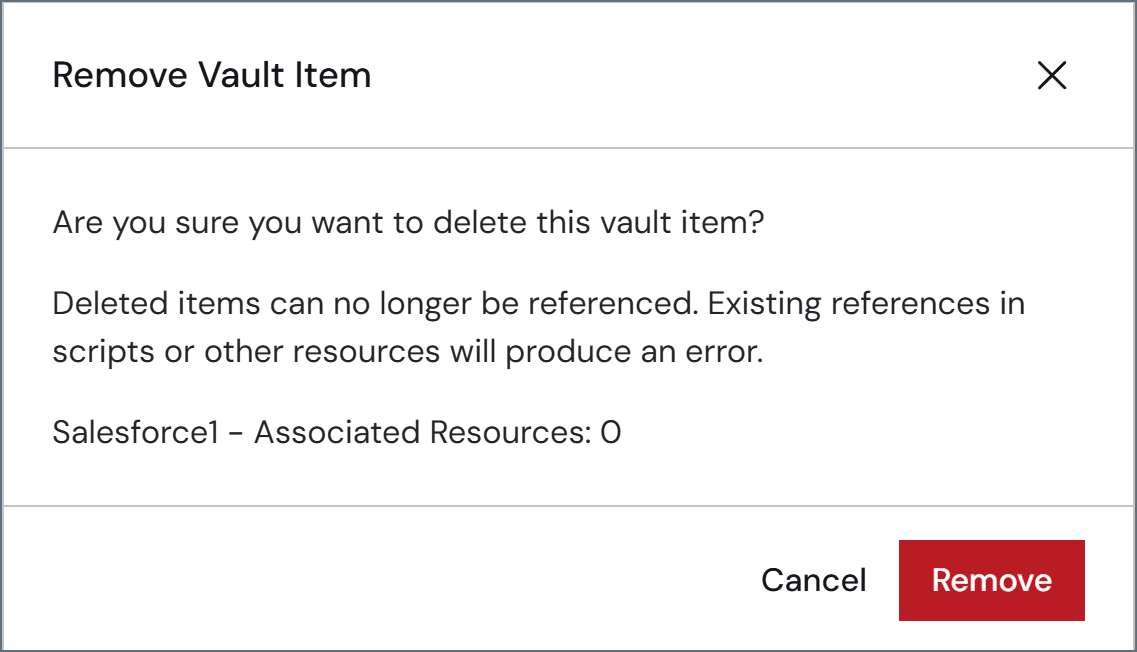
To delete a vault item:- Hover over an item row and select … > Remove to open the Remove Vault Item dialog.
-
Verify that you want to delete the item. Then, click Remove.
- Hovering over an external item shows the tooltip: “This item is managed by an external vault provider and cannot be edited or removed.”
- To remove an external item, update it in the originating system.
Using Vault Items
When an item is added to the vault, you can use it in fields that match the item type (Standard or Encrypted) and that display a key symbol in the Sync UI:
-
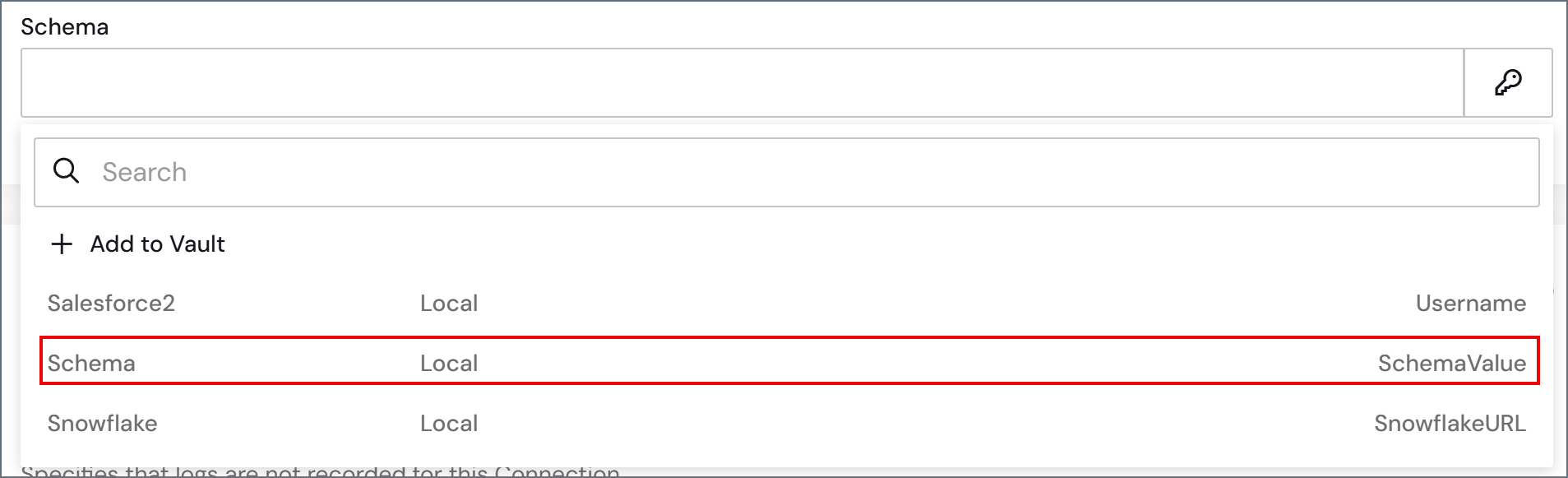
Click the key to open a list of matching vault values for a field.
-
Select one of the existing values (for example, the Schema value shown in the previous image) to populate the field.
The list includes items from all configured providers. Each item shows the provider it comes from.
If you already have a value in the field, you can click Add to Vault to open the Add Vault Item page as explained in Adding Items to the Vault.
Requalifying Vault References
When you move vault items to a different provider, you can update all existing job event and connection property references to point to a different vault provider. References that cannot be resolved in the target provider remain unchanged. To requalify vault references:-
Click Requalify References on the Vault tab to open the Requalify Vault References dialog.
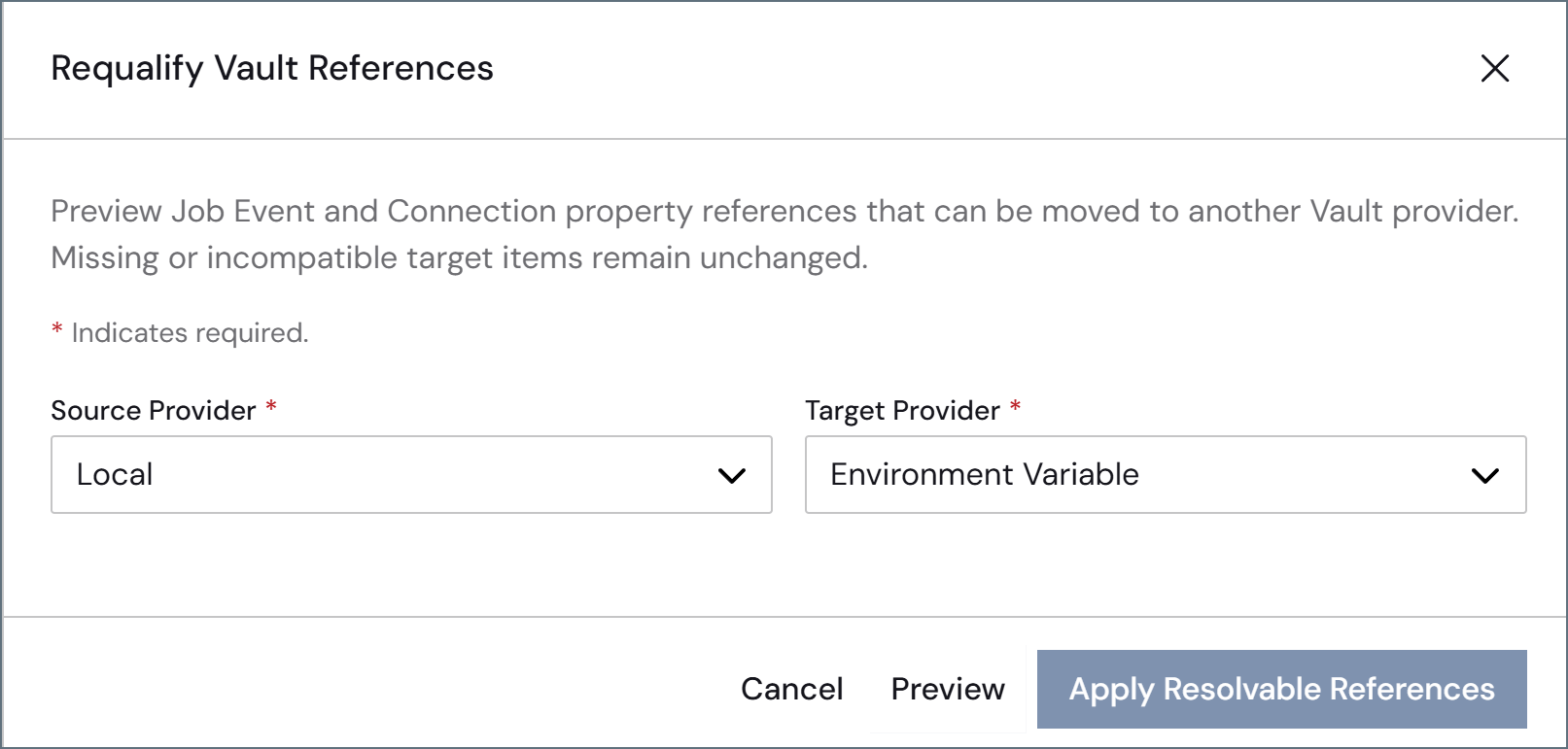
- Select the source provider and target provider.
- Click Preview to see which references can be moved to the target provider.
- Click Apply Resolvable References to update the references that can be resolved. References to missing or incompatible items in the target provider are not changed.
Requalifying references does not copy item values between providers. Items must already exist in the target provider before you apply the requalification.