> ## Documentation Index
> Fetch the complete documentation index at: https://docs.sync.cdata.com/llms.txt
> Use this file to discover all available pages before exploring further.
# Alerts
export const cloudEnv = false;
export const siteNameShort = "Sync";
export const siteName = "CData Sync";
You can configure {siteName} to notify you via email after a job run is completed. Email alerts contain information regarding the overall job run, including the status of each query.
The following sections explain how to enable email alerts for your job.
{!cloudEnv && (
Before you enable alerts, make sure that you configure your email server.
)}
## Enabling Email Alerts for a Job
Each job that you create automatically uses your global alert settings for that job. Those settings include the following:
* **To:** This text box specifies your default email address.
* **Subject:** This text box specifies a subject tag.
* **Errors Only:** This checkbox specifies whether {siteNameShort} sends alerts for all job runs or for only job runs where errors occur. By default, {siteNameShort} sends alerts for all job runs.
By default, email alerts are enabled for a job. To enable or disable alerts for a specific job, use the toggle switch that appears at the top of the **Notifications** category on the **Overview** tab for your job. You also can enable or disable alerts at the global level as explained in the section [Alerts Tab](../getting-started/administration/settings-page/settings-page#alerts-tab).
## Overriding Global Notification Settings
You can override the default global alert settings for a specific job by selecting the **Override Global settings** checkbox in the **Edit Notifications** dialog box.
When you select this option, the inherited email address remains in the **To** text box by default. If you do not want to include this address, clear the checkbox next to that field.
You can also add multiple recipients by entering additional email addresses manually in the **To** text box, as shown below:
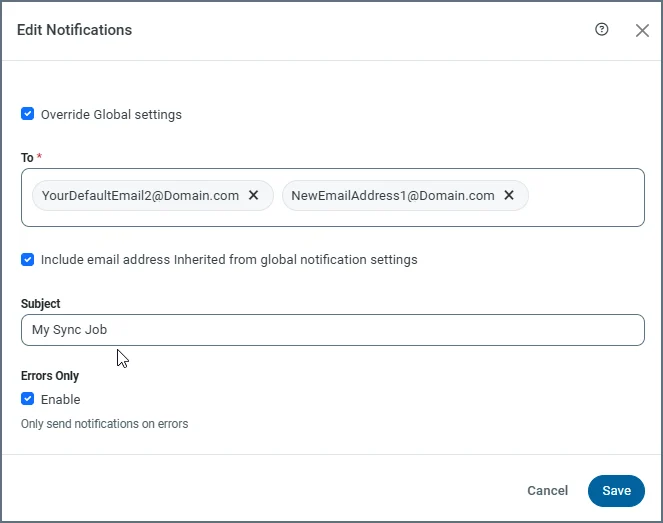 Overriding the global options also enables you to customize the **Subject** tag that precedes your email subject line in alerts. By default, the tag is **{siteName}**. To change the tag, click the **Subject** text box, delete the default tag, and enter a new tag of your choice.
In addition, you can configure {siteNameShort} to send email alerts only when errors occur in a job run. To enable this functionality, select the **Enable** checkbox, as shown in the previous image.
After you click **Save**, the **Notification** category on the **Overview** tab displays the settings that you defined.
## Sending Alerts to a Microsoft Teams Channel
You can send email to a Microsoft Teams channel by using a channel email address in the **To** text box of the mail settings on the **Notifications** tab in {siteName}. Once the channel email is added to a job, {siteNameShort} sends alerts to the channel with the results of the job execution.
You need to configure the connection to your SMTP server to enable {siteNameShort} to send the email alerts. Without that connection, {siteNameShort} cannot send emails.
For details about how to obtain a channel email address for a Teams channel, see Send an email to a channel in Teams.
## Sending Alerts to a Slack Channel
You can send email to a Slack channel by using a channel email address in the **To** text box of the mail settings on the **Notifications** tab in {siteNameShort}. Once the channel email is added to a job, {siteNameShort} sends alerts to the channel with the results of the job execution.
You need to configure the connection to your SMTP server to enable {siteNameShort} to send the email alerts. Without that connection, {siteNameShort} cannot send emails.
For details about how to obtain a channel email address for a Slack channel, see Send emails to Slack.
Overriding the global options also enables you to customize the **Subject** tag that precedes your email subject line in alerts. By default, the tag is **{siteName}**. To change the tag, click the **Subject** text box, delete the default tag, and enter a new tag of your choice.
In addition, you can configure {siteNameShort} to send email alerts only when errors occur in a job run. To enable this functionality, select the **Enable** checkbox, as shown in the previous image.
After you click **Save**, the **Notification** category on the **Overview** tab displays the settings that you defined.
## Sending Alerts to a Microsoft Teams Channel
You can send email to a Microsoft Teams channel by using a channel email address in the **To** text box of the mail settings on the **Notifications** tab in {siteName}. Once the channel email is added to a job, {siteNameShort} sends alerts to the channel with the results of the job execution.
You need to configure the connection to your SMTP server to enable {siteNameShort} to send the email alerts. Without that connection, {siteNameShort} cannot send emails.
For details about how to obtain a channel email address for a Teams channel, see Send an email to a channel in Teams.
## Sending Alerts to a Slack Channel
You can send email to a Slack channel by using a channel email address in the **To** text box of the mail settings on the **Notifications** tab in {siteNameShort}. Once the channel email is added to a job, {siteNameShort} sends alerts to the channel with the results of the job execution.
You need to configure the connection to your SMTP server to enable {siteNameShort} to send the email alerts. Without that connection, {siteNameShort} cannot send emails.
For details about how to obtain a channel email address for a Slack channel, see Send emails to Slack.