> ## Documentation Index
> Fetch the complete documentation index at: https://docs.sync.cdata.com/llms.txt
> Use this file to discover all available pages before exploring further.
# Logs and History
export const siteNameShort = "Sync";
export const siteName = "CData Sync";
The {siteName} application maintains a job-history table containing the results of every job that is executed. In addition to the job history, the execution details of a job are logged to multiple files. You can configure these logs to various levels of verbosity as described in [Enabling Logging](#enabling-logging) below. The level of verbosity can be helpful in tracking connectivity errors or troubleshooting other problems in job execution.
The following sections explain how to enable logging, view your job history, download job logs, and archive logs.
## Enabling Logging
To enable logging:
1. Click the job for which you want to enable logging. This action opens the **Jobs/*YourJobName*** page.
2. Click the **Overview** tab. In the **Settings** category, click the edit icon (shown in the red square below). (For additional help, click the documentation icon that is shown in the blue square.)
 3. Select **Enable** under **Automatic Job Retry** if you want {siteNameShort} to retry a job one more time when one or more tasks fail. {siteNameShort} re-executes only the failed tasks.
4. Enter a schema in the **Destination Schema** field.
5. Select the verbosity level that you want from the **Logfile Verbosity** list. Setting this property determines the amount of information that is included in logs for a job. The following verbosity levels are available:
| **Verbosity Level** | **Logged Information** |
| :------------------ | :--------------------------------------------------------------------------------------------------------------------------------------------------------------------------------------------------------- |
| **None** | Specifies that logs are not recorded for this job. |
| **Error** | Logs the query, the number of rows returned by the query, the start and end of execution, and any errors. |
| **Info** | Logs everything at the **Error** log level as well as the timing of HTTP requests and responses and information and warnings on the replication process. **Info** is the default verbosity level for jobs. |
| **Transfer** | Logs everything at the **Info** log level as well as the headers and transfer data of HTTP requests and responses. |
| **Verbose** | Logs everything at the **Transfer** log level as well as the log-replication details and communications with the destination that might be helpful in troubleshooting problems. |
Setting the verbosity level to **Transfer** or **Verbose** exposes the raw data that is transferred between the source applications and the destination database. Although connection properties (such as passwords) are masked, you should review logs at this level for sensitive information before you share them outside of your organization.
6. Select **Enable** under **Parallel Processing** if you want to run multiple tasks within the job in parallel.
7. Click **Save** to apply the settings.
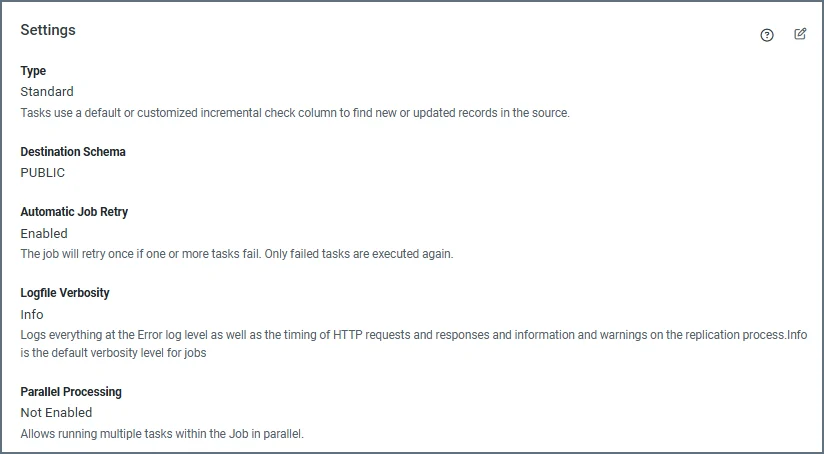
After you save your logging configuration, the **Settings** category on the **Overview** tab displays the settings that you defined, as shown in the example below.
3. Select **Enable** under **Automatic Job Retry** if you want {siteNameShort} to retry a job one more time when one or more tasks fail. {siteNameShort} re-executes only the failed tasks.
4. Enter a schema in the **Destination Schema** field.
5. Select the verbosity level that you want from the **Logfile Verbosity** list. Setting this property determines the amount of information that is included in logs for a job. The following verbosity levels are available:
| **Verbosity Level** | **Logged Information** |
| :------------------ | :--------------------------------------------------------------------------------------------------------------------------------------------------------------------------------------------------------- |
| **None** | Specifies that logs are not recorded for this job. |
| **Error** | Logs the query, the number of rows returned by the query, the start and end of execution, and any errors. |
| **Info** | Logs everything at the **Error** log level as well as the timing of HTTP requests and responses and information and warnings on the replication process. **Info** is the default verbosity level for jobs. |
| **Transfer** | Logs everything at the **Info** log level as well as the headers and transfer data of HTTP requests and responses. |
| **Verbose** | Logs everything at the **Transfer** log level as well as the log-replication details and communications with the destination that might be helpful in troubleshooting problems. |
Setting the verbosity level to **Transfer** or **Verbose** exposes the raw data that is transferred between the source applications and the destination database. Although connection properties (such as passwords) are masked, you should review logs at this level for sensitive information before you share them outside of your organization.
6. Select **Enable** under **Parallel Processing** if you want to run multiple tasks within the job in parallel.
7. Click **Save** to apply the settings.
After you save your logging configuration, the **Settings** category on the **Overview** tab displays the settings that you defined, as shown in the example below.
 ## Viewing the Job History
After each attempt of a job run, {siteNameShort} adds an entry into the **Job History** table that contains the results of the run. Click the **Job History** tab to view a table of the logs for that job.
To see a summary of the details for a job run, do one of the following:
* Click the link for the specific run under the **RUN DATE** column.
* Select **. . . > Run Details** at the end of the row.
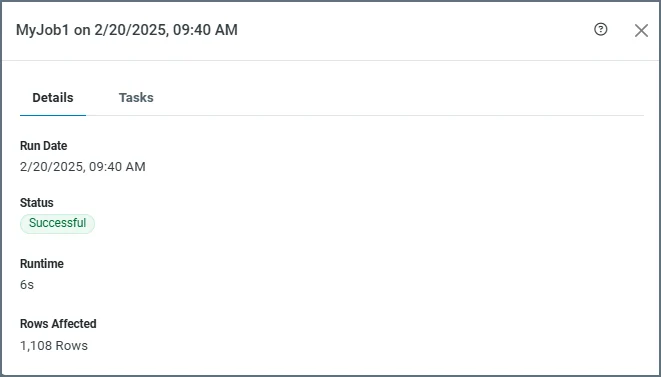
The details are displayed in an information window, as shown below:
## Viewing the Job History
After each attempt of a job run, {siteNameShort} adds an entry into the **Job History** table that contains the results of the run. Click the **Job History** tab to view a table of the logs for that job.
To see a summary of the details for a job run, do one of the following:
* Click the link for the specific run under the **RUN DATE** column.
* Select **. . . > Run Details** at the end of the row.
The details are displayed in an information window, as shown below:
 If job history or logs indicate that a change data capture (CDC) job cannot resume from its last recorded position (for example, because of missing source logs or an invalid offset), you can reset the CDC engine to recover. For details, see [Resetting the CDC Engine](./change-data-capture#resetting-the-cdc-engine) for more information.
## Downloading Job Logs
A job run can produce three separate logfiles:
* **Source**: This file logs any communication with the source connector. Communications include connection issues, metadata retrieval, and errors that are related to raw-data retrieval.
* **Destination:** This file logs any communication with the destination connector. Communications include connection issues, metadata retrieval, and errors that are related to bulk-data loading.
* **Replicate Engine:** This file logs operations that are managed by the engine. Operations include communication with the CDATA\_SYNC\_STATUS table and the generated queries that are sent to the source and destination.
To download a job log:
1. Navigate to the **Job History** table.
2. Locate the run date of the log file that you want to download and review. Then, click the ellipsis that appears in the far right column of that row. (The ellipsis is not visible until you position your cursor over the column.) The ellipsis provides two options:
* **Download Log File:** This option opens a **Downloads** dialog box that enables you to log files that are associated with your job. Click **Open file** for the specific log that you want to download and review.
* **Run Details:** This option opens a dialog box that displays two tabs:
* **Details:** This tab displays the following details: **Run Date**, **Status**, **Runtime**, and **Rows Affected**.
* **Logs:** This tab lists the logs that are available for your job. You can download individual logs here by clicking the download icon (
If job history or logs indicate that a change data capture (CDC) job cannot resume from its last recorded position (for example, because of missing source logs or an invalid offset), you can reset the CDC engine to recover. For details, see [Resetting the CDC Engine](./change-data-capture#resetting-the-cdc-engine) for more information.
## Downloading Job Logs
A job run can produce three separate logfiles:
* **Source**: This file logs any communication with the source connector. Communications include connection issues, metadata retrieval, and errors that are related to raw-data retrieval.
* **Destination:** This file logs any communication with the destination connector. Communications include connection issues, metadata retrieval, and errors that are related to bulk-data loading.
* **Replicate Engine:** This file logs operations that are managed by the engine. Operations include communication with the CDATA\_SYNC\_STATUS table and the generated queries that are sent to the source and destination.
To download a job log:
1. Navigate to the **Job History** table.
2. Locate the run date of the log file that you want to download and review. Then, click the ellipsis that appears in the far right column of that row. (The ellipsis is not visible until you position your cursor over the column.) The ellipsis provides two options:
* **Download Log File:** This option opens a **Downloads** dialog box that enables you to log files that are associated with your job. Click **Open file** for the specific log that you want to download and review.
* **Run Details:** This option opens a dialog box that displays two tabs:
* **Details:** This tab displays the following details: **Run Date**, **Status**, **Runtime**, and **Rows Affected**.
* **Logs:** This tab lists the logs that are available for your job. You can download individual logs here by clicking the download icon ( ) to the right of the log name. You can also download all logs by clicking **Download All Log Files**.
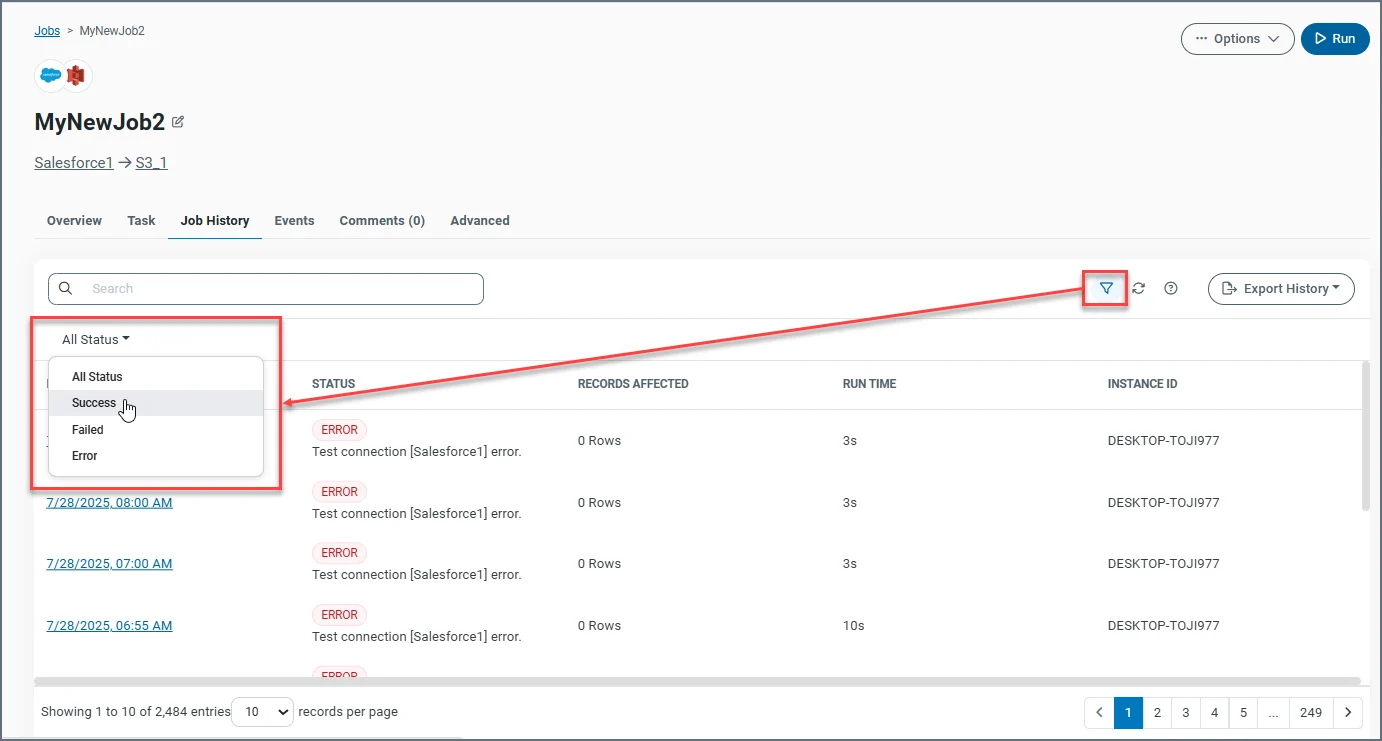
To see a table of log files with a specific run status (**All Status**, **Success**, **Failed**, or **Error**), click the **Show Filter** icon (shown in the small red square below). This action displays the **All Status** menu at the top of the logs table (shown in the larger red square).
) to the right of the log name. You can also download all logs by clicking **Download All Log Files**.
To see a table of log files with a specific run status (**All Status**, **Success**, **Failed**, or **Error**), click the **Show Filter** icon (shown in the small red square below). This action displays the **All Status** menu at the top of the logs table (shown in the larger red square).