> ## Documentation Index
> Fetch the complete documentation index at: https://docs.sync.cdata.com/llms.txt
> Use this file to discover all available pages before exploring further.
# Git Version Control Configuration
export const siteNameShort = "Sync";
export const siteName = "CData Sync";
You can configure Git version control to connect a {siteName} workspace to a Git repository and enable change tracking. Version control is configured per workspace. Each workspace connects to a single repository and branch, and this association cannot be changed after initialization.
Before you can configure version control, ensure that you meet the following requirements:
* access to a Git repository
* valid authentication credentials for that repository
## Configuring Git Version Control
To configure version control for your workspace:
1. Open your {siteNameShort} workspace.
2. Navigate to **Workspace Settings > Git Version Control**.
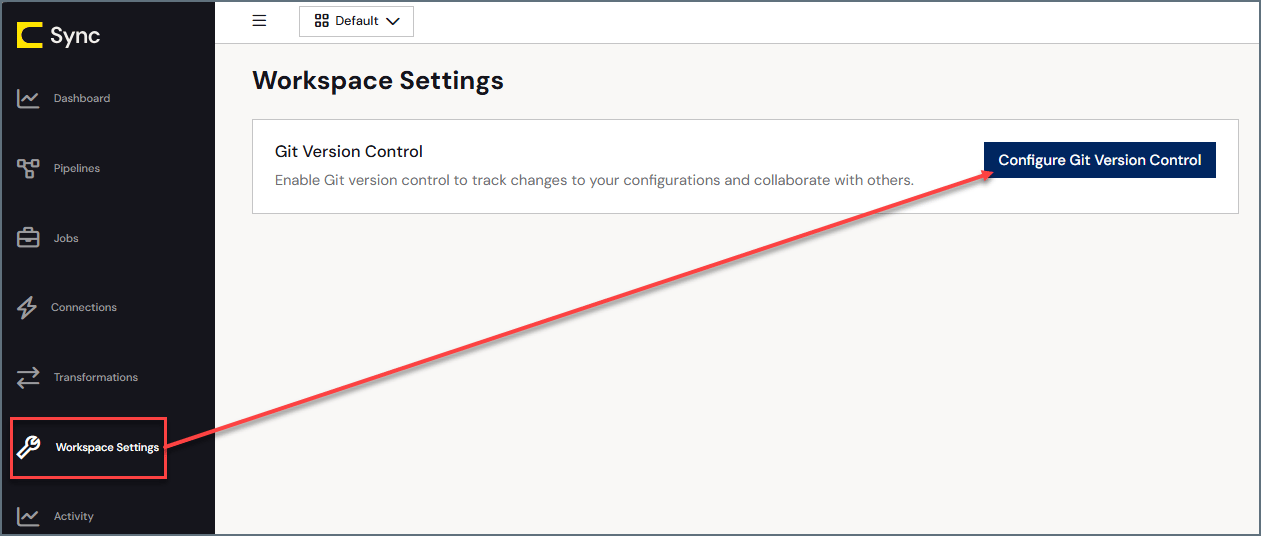 This action opens the **Configure Git Version Control** dialog.
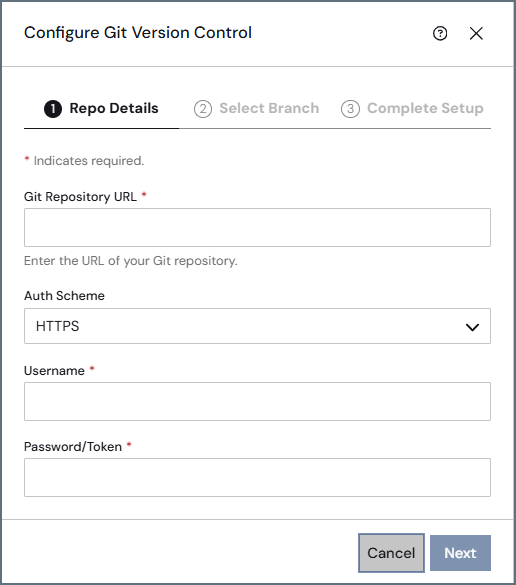 3. On the **Repo Details** page, specify repository connection and authentication details:
* **Git Repository URL:** Enter the URL for your Git repository.
* **Auth Scheme:** Select an authentication scheme.
* **HTTPS:** For this scheme, specify the following options:
* **Username:** Enter the account username for your remote Git hosting service (for example, GitHub, GitLab, or Azure DevOps).
* **Password/Token:** Enter the password or personal access token (PAT) for your remote Git hosting service.
* The PAT must have read and write permissions on your repository contents.
* GitHub account passwords and read-only PATs cannot be used for push operations.
* **SSH:** For this scheme, specify the following options:
* **SSH Private Key:** Click **Choose File** to select a file that contains your SSH private key.
* (Optional) **Passphrase:** Enter the passphrase that was set when the SSH private key was generated. If the private key is encrypted with a passphrase, you must enter it here so {siteNameShort} can decrypt and use the key. If the key was generated without a passphrase, leave this field blank.
SSH authentication is available in {siteNameShort} Self-Hosted deployments only.
* **OAuth:** For this scheme, click **Get Access Token**. If you are not already logged in to your Git hosting service, the Microsoft Azure login screen appears. After you authenticate, the confirmation message **Access token ready - save to apply** appears to the right of the **Get Access Token** button on the **Repo Details** page.
OAuth authentication supports both setup and push operations without any additional configuration.
4. Click **Next** to move to the **Select Branch** page.
5. Select the branch for which you want version control from the **Branch** list, or click **Create New Branch** to create a new one.
3. On the **Repo Details** page, specify repository connection and authentication details:
* **Git Repository URL:** Enter the URL for your Git repository.
* **Auth Scheme:** Select an authentication scheme.
* **HTTPS:** For this scheme, specify the following options:
* **Username:** Enter the account username for your remote Git hosting service (for example, GitHub, GitLab, or Azure DevOps).
* **Password/Token:** Enter the password or personal access token (PAT) for your remote Git hosting service.
* The PAT must have read and write permissions on your repository contents.
* GitHub account passwords and read-only PATs cannot be used for push operations.
* **SSH:** For this scheme, specify the following options:
* **SSH Private Key:** Click **Choose File** to select a file that contains your SSH private key.
* (Optional) **Passphrase:** Enter the passphrase that was set when the SSH private key was generated. If the private key is encrypted with a passphrase, you must enter it here so {siteNameShort} can decrypt and use the key. If the key was generated without a passphrase, leave this field blank.
SSH authentication is available in {siteNameShort} Self-Hosted deployments only.
* **OAuth:** For this scheme, click **Get Access Token**. If you are not already logged in to your Git hosting service, the Microsoft Azure login screen appears. After you authenticate, the confirmation message **Access token ready - save to apply** appears to the right of the **Get Access Token** button on the **Repo Details** page.
OAuth authentication supports both setup and push operations without any additional configuration.
4. Click **Next** to move to the **Select Branch** page.
5. Select the branch for which you want version control from the **Branch** list, or click **Create New Branch** to create a new one.
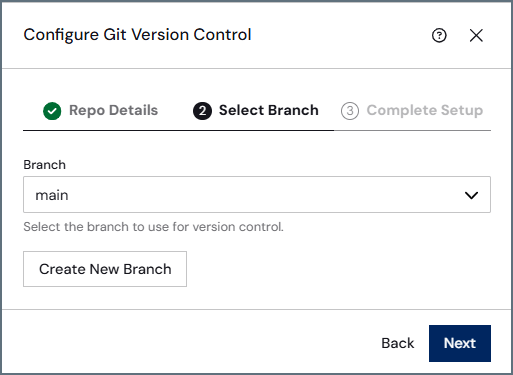 6. Click **Next** to move to the **Complete Setup** page.
7. On the **Complete Setup** page, verify that the selected branch is correct.
6. Click **Next** to move to the **Complete Setup** page.
7. On the **Complete Setup** page, verify that the selected branch is correct.
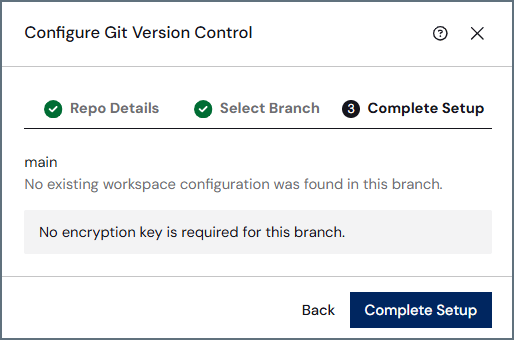 If the selected branch already contains {siteNameShort} workspace settings, {siteNameShort} prompts you to import an encryption key, as shown below.
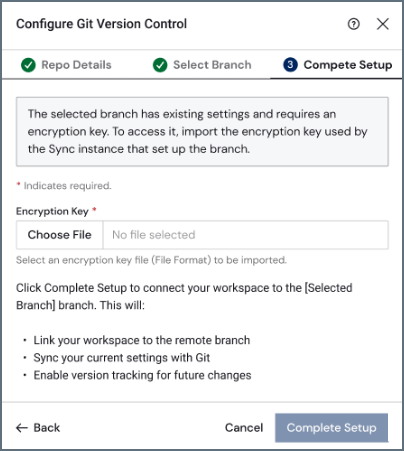 Click **Choose File** and select the encryption key file for this repository.
* If you have not yet exported the key from the original {siteNameShort} instance, see [Exporting an Encryption Key](#exporting-an-encryption-key) before proceeding.
* If you provide the wrong password when you import the encryption key, {siteNameShort} displays an error and does not complete the setup.
8. Click **Complete Setup**.
After you exit the dialog, {siteNameShort} initializes version control for the workspace and connects to the specified repository and branch. You should see a category on the **Workspace Settings** page with your version control settings.
## Removing Version Control
To remove version control:
1. Navigate to **Workspace Settings > Git Version Control**.
Click **Choose File** and select the encryption key file for this repository.
* If you have not yet exported the key from the original {siteNameShort} instance, see [Exporting an Encryption Key](#exporting-an-encryption-key) before proceeding.
* If you provide the wrong password when you import the encryption key, {siteNameShort} displays an error and does not complete the setup.
8. Click **Complete Setup**.
After you exit the dialog, {siteNameShort} initializes version control for the workspace and connects to the specified repository and branch. You should see a category on the **Workspace Settings** page with your version control settings.
## Removing Version Control
To remove version control:
1. Navigate to **Workspace Settings > Git Version Control**.
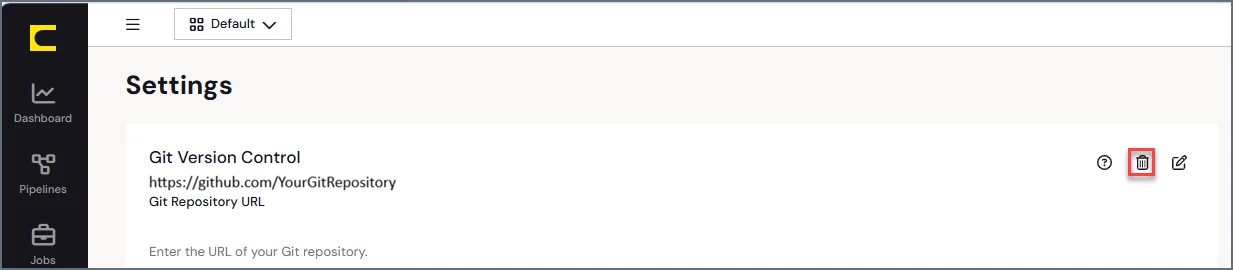 2. Click the **Remove** icon (
 ).
Deleting the connection removes the association between the workspace and the Git repository.
## Exporting an Encryption Key
{siteNameShort} encrypts sensitive configuration data before committing it to the repository. This encryption key is created the first time a {siteNameShort} instance initializes version control for a repository and is specific to that repository.
If you connect a different {siteNameShort} instance to the same repository, that instance does not have access to the original encryption key. To give the new instance access, you must export the key from the original instance so that you can import it during the **Complete Setup** step.
To connect a new {siteNameShort} instance to an existing repository, you need to first export the encryption key from the original instance, then import it during step 7 of the setup process.
To export the encryption key from the original {siteNameShort} instance:
1. Open the {siteNameShort} instance that originally initialized the repository and navigate to the Git configuration area on the **Workspace Settings** page.
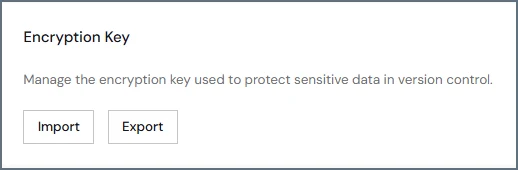
2. In the **Encryption Key** section, click **Export**.
).
Deleting the connection removes the association between the workspace and the Git repository.
## Exporting an Encryption Key
{siteNameShort} encrypts sensitive configuration data before committing it to the repository. This encryption key is created the first time a {siteNameShort} instance initializes version control for a repository and is specific to that repository.
If you connect a different {siteNameShort} instance to the same repository, that instance does not have access to the original encryption key. To give the new instance access, you must export the key from the original instance so that you can import it during the **Complete Setup** step.
To connect a new {siteNameShort} instance to an existing repository, you need to first export the encryption key from the original instance, then import it during step 7 of the setup process.
To export the encryption key from the original {siteNameShort} instance:
1. Open the {siteNameShort} instance that originally initialized the repository and navigate to the Git configuration area on the **Workspace Settings** page.
2. In the **Encryption Key** section, click **Export**.
 3. In the **Export Encryption Key** dialog, enter a password to protect the exported key file.
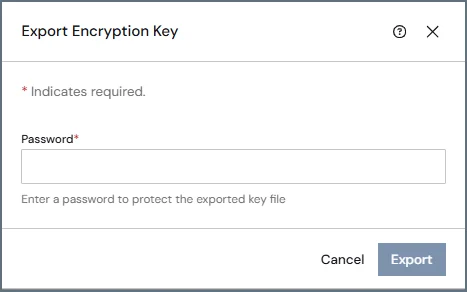 4. Click **Export**.
## Known Limitations and Issues
Git version control has the following limitations:
* A workspace can be connected only to one branch.
* The configured branch cannot be changed after initialization.
The following issue can also occur when you remove version control:
* In some environments, removing version control can fail if repository files cannot be removed due to file permissions. This situation can occur when files in the `.git` directory are read-only.
* If this issue occurs, you might need to manually remove the repository files before reconnecting version control.
4. Click **Export**.
## Known Limitations and Issues
Git version control has the following limitations:
* A workspace can be connected only to one branch.
* The configured branch cannot be changed after initialization.
The following issue can also occur when you remove version control:
* In some environments, removing version control can fail if repository files cannot be removed due to file permissions. This situation can occur when files in the `.git` directory are read-only.
* If this issue occurs, you might need to manually remove the repository files before reconnecting version control.