> ## Documentation Index
> Fetch the complete documentation index at: https://docs.sync.cdata.com/llms.txt
> Use this file to discover all available pages before exploring further.
# Git バージョン管理設定
export const siteNameShort = "Sync";
export const siteName = "CData Sync";
You can configure Git version control to connect a {siteName} workspace to a Git repository and enable change tracking. Version control is configured per workspace. Each workspace connects to a single repository and branch, and this association cannot be changed after initialization.
Before you can configure version control, ensure that you meet the following requirements:
* access to a Git repository
* valid authentication credentials for that repository
## Accessing Version Control Settings
To configure version control for your workspace:
1. Open your {siteNameShort} workspace.
2. Navigate to **Settings > Git Version Control** and click **Configure**.
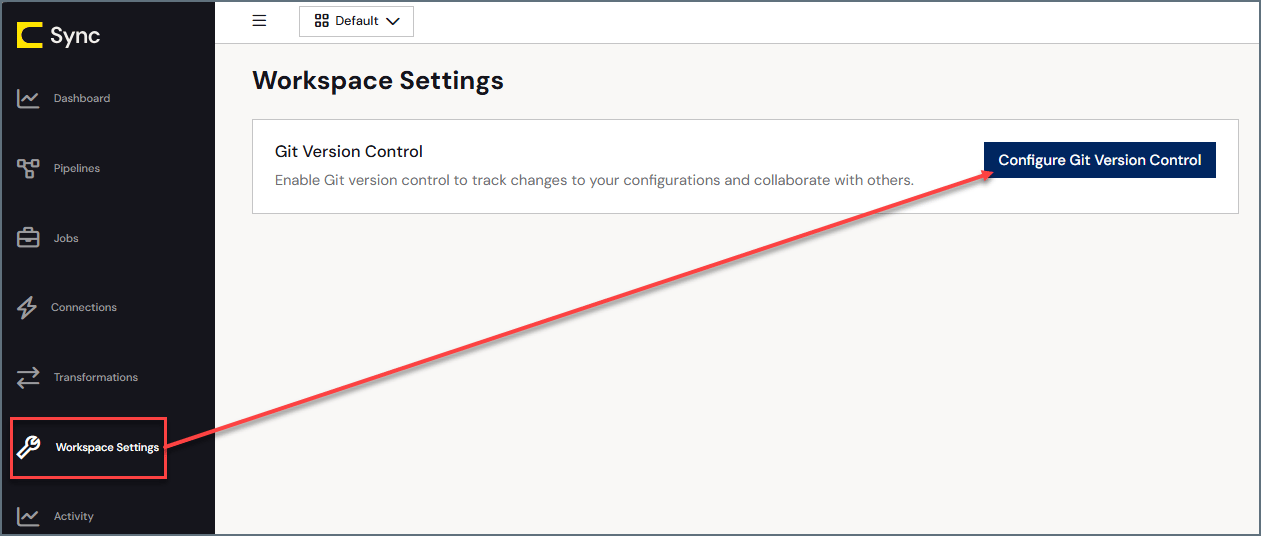 This action opens the **Git Version Control** dialog box.
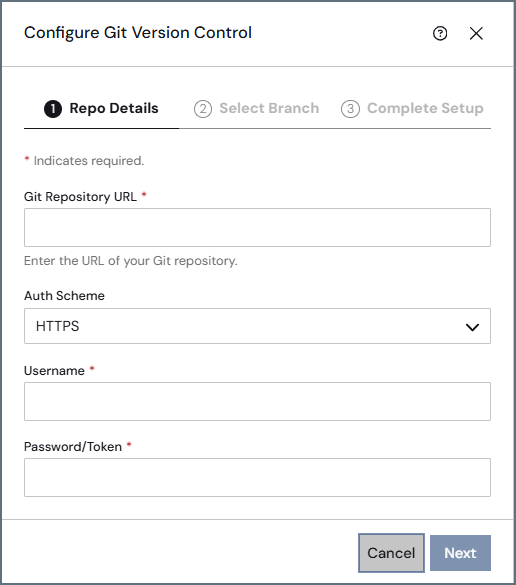 3. Specify repository connection and authentication details:
* **Git Repository URL:** Enter the URL for your Git repository.
* **Auth Scheme:** Select an authentication scheme.
* **HTTP:** For this scheme, specify the following options:
* **Username:** Enter the account username for your remote Git hosting service (for example, GitHub, GitLab, or Azure DevOps).
* **Password/Token:** Enter the password or personal access token (PAT) for your remote Git hosting service.
* **SSH:** For this scheme, specify the following options:
* **SSH Private Key:** Click **Choose File** to select a file that contains your SSH private key.
* (Optional) **Passphrase:** Enter the passphrase that was set when the SSH private key was generated. If the private key is encrypted with a passphrase, you must enter it here so {siteNameShort} can decrypt and use the key. If the key was generated without a passphrase, leave this field blank.
* **Branch:** Enter the branch name for which you want to use version control.
4. Click **Save**.
After you exit the dialog box, {siteNameShort} initializes version control for the workspace and connects to the specified repository and branch. You should see a category on the **Settings** page with your version control settings, similar to the following image:
## Removing Version Control
To remove version control:
1. Navigate to **Settings > Version Control**.
3. Specify repository connection and authentication details:
* **Git Repository URL:** Enter the URL for your Git repository.
* **Auth Scheme:** Select an authentication scheme.
* **HTTP:** For this scheme, specify the following options:
* **Username:** Enter the account username for your remote Git hosting service (for example, GitHub, GitLab, or Azure DevOps).
* **Password/Token:** Enter the password or personal access token (PAT) for your remote Git hosting service.
* **SSH:** For this scheme, specify the following options:
* **SSH Private Key:** Click **Choose File** to select a file that contains your SSH private key.
* (Optional) **Passphrase:** Enter the passphrase that was set when the SSH private key was generated. If the private key is encrypted with a passphrase, you must enter it here so {siteNameShort} can decrypt and use the key. If the key was generated without a passphrase, leave this field blank.
* **Branch:** Enter the branch name for which you want to use version control.
4. Click **Save**.
After you exit the dialog box, {siteNameShort} initializes version control for the workspace and connects to the specified repository and branch. You should see a category on the **Settings** page with your version control settings, similar to the following image:
## Removing Version Control
To remove version control:
1. Navigate to **Settings > Version Control**.
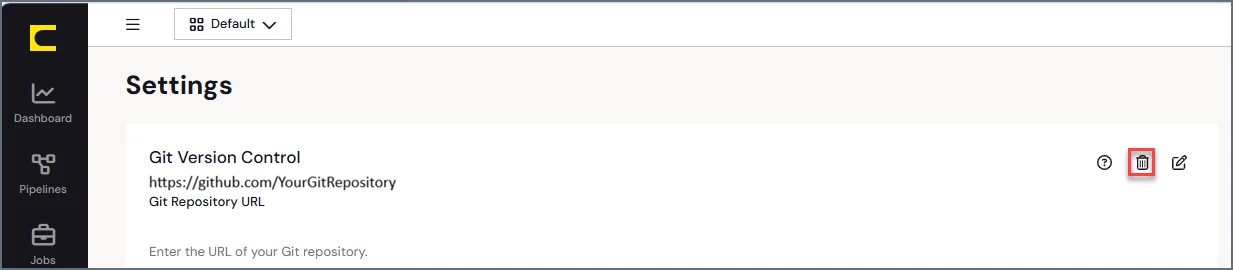 2. Click the **Remove** icon (
 ).
Deleting the connection removes the association between the workspace and the Git repository.
## Importing an Encryption Key When You Connect to an Existing Git Repository
When you connect to a Git repository that already contains {siteNameShort} workspace settings, you must import the encryption key that was used by the original {siteNameShort} instance.
{siteNameShort} encrypts sensitive configuration data before committing it to the repository. This encryption key is created the first time a {siteNameShort} instance initializes version control for a repository, and it is specific to that repository.
If another {siteNameShort} instance connects to the same repository, it cannot read or apply the existing settings until the correct encryption key is imported.
To use an existing repository with another {siteNameShort} instance, export the key from the original instance and import it into the new one.
1. Open the {siteNameShort} instance that originally initialized the repository and navigate to the Git configuration area on the **Workspace Settings** page.
2. In the **Encryption Key** section, click **Export**.
).
Deleting the connection removes the association between the workspace and the Git repository.
## Importing an Encryption Key When You Connect to an Existing Git Repository
When you connect to a Git repository that already contains {siteNameShort} workspace settings, you must import the encryption key that was used by the original {siteNameShort} instance.
{siteNameShort} encrypts sensitive configuration data before committing it to the repository. This encryption key is created the first time a {siteNameShort} instance initializes version control for a repository, and it is specific to that repository.
If another {siteNameShort} instance connects to the same repository, it cannot read or apply the existing settings until the correct encryption key is imported.
To use an existing repository with another {siteNameShort} instance, export the key from the original instance and import it into the new one.
1. Open the {siteNameShort} instance that originally initialized the repository and navigate to the Git configuration area on the **Workspace Settings** page.
2. In the **Encryption Key** section, click **Export**.
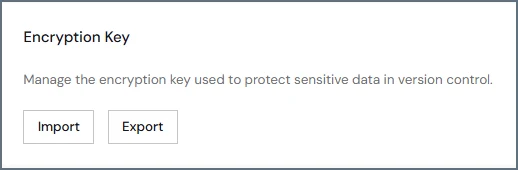 3. In the **Export Encryption Key** dialog box, enter a password to protect the exported key file.
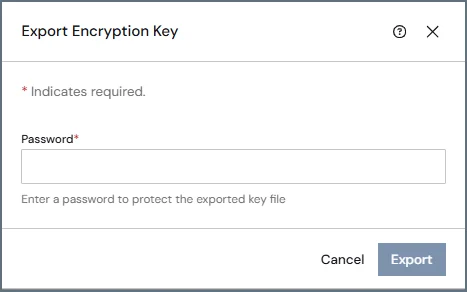 4. Click **Export**.
5. Open the new {siteNameShort} instance that you want to connect to the existing repository and navigate to the Git configuration area.
6. In the **Encryption Key** section, click **Import**.
7. In the **Import Encryption Key** dialog box, select the exported key file and enter the password that you used when the key was created.
4. Click **Export**.
5. Open the new {siteNameShort} instance that you want to connect to the existing repository and navigate to the Git configuration area.
6. In the **Encryption Key** section, click **Import**.
7. In the **Import Encryption Key** dialog box, select the exported key file and enter the password that you used when the key was created.
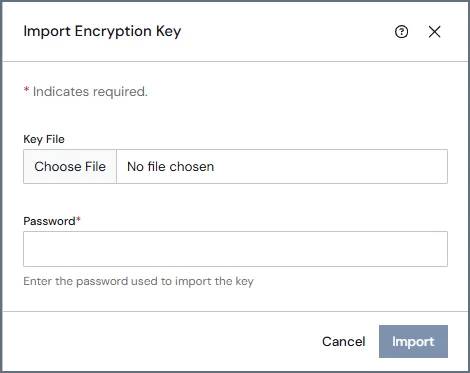 8. Click **Import** to import the encryption key.
After the correct encryption key is imported, {siteNameShort} can decrypt the repository contents and begins pulling and applying the existing workspace settings.
## Known Limitations and Issues
Git version control has the following limitations:
* A workspace can be connected to only one branch.
* Branch switching, creation, and deletion are not supported.
* The configured branch cannot be changed after initialization.
The following issue can also occur when you remove version control:
* In some environments, removing version control can fail if repository files cannot be removed due to file permissions. This situation can occur when files in the `.git` directory are read-only.
* If this issue occurs, you might need to manually remove the repository files before reconnecting version control.
8. Click **Import** to import the encryption key.
After the correct encryption key is imported, {siteNameShort} can decrypt the repository contents and begins pulling and applying the existing workspace settings.
## Known Limitations and Issues
Git version control has the following limitations:
* A workspace can be connected to only one branch.
* Branch switching, creation, and deletion are not supported.
* The configured branch cannot be changed after initialization.
The following issue can also occur when you remove version control:
* In some environments, removing version control can fail if repository files cannot be removed due to file permissions. This situation can occur when files in the `.git` directory are read-only.
* If this issue occurs, you might need to manually remove the repository files before reconnecting version control.