> ## Documentation Index
> Fetch the complete documentation index at: https://docs.sync.cdata.com/llms.txt
> Use this file to discover all available pages before exploring further.
# Scheduling Jobs
export const siteNameShort = "Sync";
export const siteName = "CData Sync";
{siteName} has a built-in scheduler that enables you to control the frequency of your job run. On the **Overview** tab for your job, set the job to run automatically by configuring the scheduler from the **Schedule** category in the right pane.
## Configuring the Scheduler
To configure the scheduler:
1. Click **Configure** to open the **Edit Schedule** dialog box.
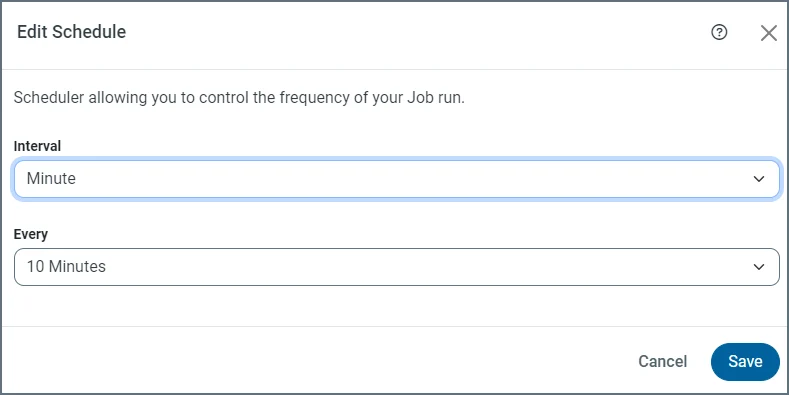 2. Select the interval type and frequency. The name of the frequency drop-down list changes based on your selected interval type (for example, if the interval is **Minute**, the frequency list is named **Every**; if the interval is **Daily**, the frequency list is named **Time of Day**; and so on).
The following list provides the values that you can select for each interval type:
* **Minute:** Choose intervals of 1, 5, 10, 15, 20, or 30 minutes in the **Minutes** field. The **Minute** interval starts on the hour. For example, if you choose **Every 10 Minutes**, your job will be scheduled to execute at :00, :10, :20, :30, and so on.
* **Hourly:** Choose specific minutes past an hour in the **Minute Past the Hour** field.
* **Daily:** Choose a specific time of day in the **Time** field.
* **Weekly:** Choose a specific day of the week and a time from the **Day** and **Time** fields.
* **Monthly:** Choose a specific day of the month and time from the **Day** and **Time** fields.
* **Custom:** Enter a Cron statement in the **Cron Expression** field.
When the job that is currently running takes longer than the scheduled interval, {siteNameShort} skips the next run. For example, if you set a job to run every 10 minutes but one run takes 15 minutes to complete, the next run is skipped. The following table illustrates this particular example, but the skip concept applies to all of the interval types.
| **Run Number** | **Scheduled Start Time** | **End Time** | **Results** |
| :------------: | :----------------------: | :----------: | :---------: |
| 1 | 12:00 | 12:07 | SUCCESSFUL |
| 2 | 12:10 | 12:25 | SUCCESSFUL |
| 3 (skipped) | 12:20 | | SKIPPED |
| 4 | 12:30 | 12:38 | SUCCESSFUL |
3. Click **Save** to save your configuration.
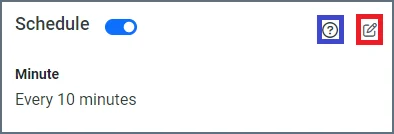
After you save the configuration, the **Schedule** category on the **Overview** tab displays the job-run interval that you defined. A blue switch appears to the right of **Schedule**, which means that the scheduler is enabled. You can toggle that switch to enable or disable the scheduler. When you disable the scheduler, the switch is gray.
If you need to modify the scheduler settings, click the edit icon (shown below in a red square). If you need additional help, click the documentation icon (blue square).
2. Select the interval type and frequency. The name of the frequency drop-down list changes based on your selected interval type (for example, if the interval is **Minute**, the frequency list is named **Every**; if the interval is **Daily**, the frequency list is named **Time of Day**; and so on).
The following list provides the values that you can select for each interval type:
* **Minute:** Choose intervals of 1, 5, 10, 15, 20, or 30 minutes in the **Minutes** field. The **Minute** interval starts on the hour. For example, if you choose **Every 10 Minutes**, your job will be scheduled to execute at :00, :10, :20, :30, and so on.
* **Hourly:** Choose specific minutes past an hour in the **Minute Past the Hour** field.
* **Daily:** Choose a specific time of day in the **Time** field.
* **Weekly:** Choose a specific day of the week and a time from the **Day** and **Time** fields.
* **Monthly:** Choose a specific day of the month and time from the **Day** and **Time** fields.
* **Custom:** Enter a Cron statement in the **Cron Expression** field.
When the job that is currently running takes longer than the scheduled interval, {siteNameShort} skips the next run. For example, if you set a job to run every 10 minutes but one run takes 15 minutes to complete, the next run is skipped. The following table illustrates this particular example, but the skip concept applies to all of the interval types.
| **Run Number** | **Scheduled Start Time** | **End Time** | **Results** |
| :------------: | :----------------------: | :----------: | :---------: |
| 1 | 12:00 | 12:07 | SUCCESSFUL |
| 2 | 12:10 | 12:25 | SUCCESSFUL |
| 3 (skipped) | 12:20 | | SKIPPED |
| 4 | 12:30 | 12:38 | SUCCESSFUL |
3. Click **Save** to save your configuration.
After you save the configuration, the **Schedule** category on the **Overview** tab displays the job-run interval that you defined. A blue switch appears to the right of **Schedule**, which means that the scheduler is enabled. You can toggle that switch to enable or disable the scheduler. When you disable the scheduler, the switch is gray.
If you need to modify the scheduler settings, click the edit icon (shown below in a red square). If you need additional help, click the documentation icon (blue square).
 ## Using UNIX Cron Syntax
The *cron command-line utility* is a time-based job scheduler that is used by UNIX systems. It is used to schedule jobs to run at certain times or intervals.
Cron syntax supports the following values:
| Field Name | Allowed Values | Support Special Characters |
| :---------------- | :-------------- | :------------------------- |
| Minutes | 0-59 | \* , - / |
| Hours | 0-23 | \* , - / |
| Days of the Month | 1-31 | \* , - ? / l w |
| Months | 1-12 or jan-dec | \* , - / |
| Days of the Week | 1-7 or sun-sat | \* , - ? / l # |
The special characters map to the following meanings:
| Character | Meaning |
| :-------- | :-------------------------------------------------------------------------------------------------------------------------------------------------------------------------------- |
| \* | Specifies all possible values for the given field. For example, if this character is specified in the **Minutes** field, the scheduler executes every minute. |
| , | Specifies multiple values in a field. |
| - | Specifies a range of values to a field. |
| / | Defines any increments for a field. For example, a value of **3/15** for the **Minute** field executes the task every fifteenth minute, starting on the third minute of the hour. |
| ? | Marks an unused field. |
| l | Specifies the last day of the field. This specification can mean the last day of the month or the last day of the week. |
| w | Specifies the nearest weekday to the specified day. For example, specifying **1w** in the **Days of the Month** field means the closest weekday to the first of the month. |
| # | Denotes the *n*th day of the month in the **Days of the Week** field. For example, **2#3** executes the task on the third Monday of the month. |
Some example cron expressions are shown below.
| Cron Expression | Meaning |
| :------------------------- | :--------------------------------------------------------------------------------------------------------------------------------------------------- |
| \* \* \* \* \* | Execute every minute. |
| \*/20 \* \* \* \* | Execute every twenty minutes. |
| 0-30/5 \* \* \* \* | Execute every five minutes for the first thirty minutes of every hour. |
| 0 23 ? \* mon-fri | Execute at 11 p.m. every weeknight. |
| 2-59/3 1,9,22 11-26 1-6 \* | Execute from the 11th to the 26th of each month, from January to June, every third minute starting from two minutes past 1 a.m., 9 a.m., and 10 p.m. |
## Using UNIX Cron Syntax
The *cron command-line utility* is a time-based job scheduler that is used by UNIX systems. It is used to schedule jobs to run at certain times or intervals.
Cron syntax supports the following values:
| Field Name | Allowed Values | Support Special Characters |
| :---------------- | :-------------- | :------------------------- |
| Minutes | 0-59 | \* , - / |
| Hours | 0-23 | \* , - / |
| Days of the Month | 1-31 | \* , - ? / l w |
| Months | 1-12 or jan-dec | \* , - / |
| Days of the Week | 1-7 or sun-sat | \* , - ? / l # |
The special characters map to the following meanings:
| Character | Meaning |
| :-------- | :-------------------------------------------------------------------------------------------------------------------------------------------------------------------------------- |
| \* | Specifies all possible values for the given field. For example, if this character is specified in the **Minutes** field, the scheduler executes every minute. |
| , | Specifies multiple values in a field. |
| - | Specifies a range of values to a field. |
| / | Defines any increments for a field. For example, a value of **3/15** for the **Minute** field executes the task every fifteenth minute, starting on the third minute of the hour. |
| ? | Marks an unused field. |
| l | Specifies the last day of the field. This specification can mean the last day of the month or the last day of the week. |
| w | Specifies the nearest weekday to the specified day. For example, specifying **1w** in the **Days of the Month** field means the closest weekday to the first of the month. |
| # | Denotes the *n*th day of the month in the **Days of the Week** field. For example, **2#3** executes the task on the third Monday of the month. |
Some example cron expressions are shown below.
| Cron Expression | Meaning |
| :------------------------- | :--------------------------------------------------------------------------------------------------------------------------------------------------- |
| \* \* \* \* \* | Execute every minute. |
| \*/20 \* \* \* \* | Execute every twenty minutes. |
| 0-30/5 \* \* \* \* | Execute every five minutes for the first thirty minutes of every hour. |
| 0 23 ? \* mon-fri | Execute at 11 p.m. every weeknight. |
| 2-59/3 1,9,22 11-26 1-6 \* | Execute from the 11th to the 26th of each month, from January to June, every third minute starting from two minutes past 1 a.m., 9 a.m., and 10 p.m. |