> ## Documentation Index
> Fetch the complete documentation index at: https://docs.sync.cdata.com/llms.txt
> Use this file to discover all available pages before exploring further.
# Migration
export const cloudEnv = false;
export const siteNameShortLower = "sync";
export const siteNameShort = "Sync";
export const siteName = "CData Sync";
{siteName} uses an embedded Derby database by default to store application data. You can migrate this database to an external database such as Microsoft SQL Server, MySQL, or PostgreSQL.
Migrating to an external database can improve performance, scalability, and alignment with enterprise database standards. {siteNameShort} provides an **Application Database Migration** tool in the UI that validates your environment and copies schema and data to the target database.
The migration includes application schema and data, including jobs, tasks, schedules, audits, requests, and history (subject to system limits). Database objects are created using Sync's schema logic, and data types are mapped based on the target database.
You can use the database migration tool in the following scenarios:
* moving from the default Derby database to an external database for production use
* standardizing on an existing database platform
* preparing for environments or configurations that require an external application database
When you migrate to an external database, the original Derby database is preserved and can be used as a fallback, if necessary.
{siteNameShort} does not automatically switch to the new database. For details, see Switching to the New Database.
## Prerequisites
Before you begin the migration, ensure that your environment meets the following requirements. The migration process requires exclusive access to the application database and blocks execution if these conditions are not met.
* You have administrative access to {siteNameShort}.
* The target database is accessible and you have permission to create schemas, tables, and indexes.
* All jobs are stopped and no change data capture (CDC) engines are running.
* Only one node is running. Stop all other nodes before starting the migration.
## Migrating the Database
To migrate the application database:
1. Open {siteNameShort} and navigate to the **Settings** page by clicking the gear icon (top right of the {siteNameShort} window).
2. On the **Migration** tab, locate the **Application Database Migration** section.
3. Click **Migrate Application Database**. You might be prompted to enable safe mode, as shown below:
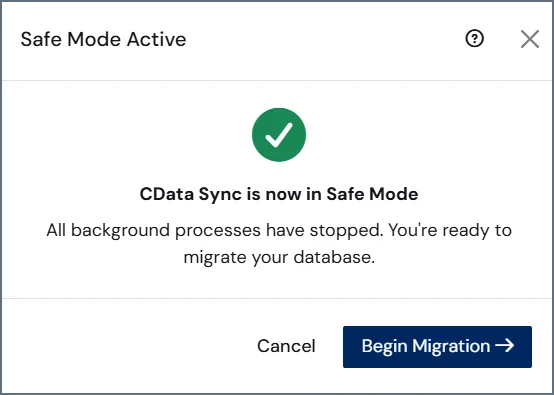
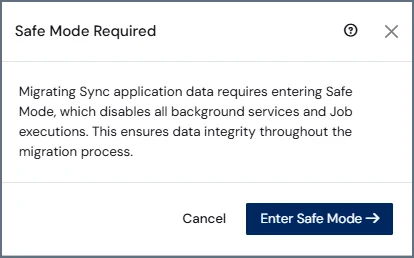 When you click **Enter Safe Mode** in the dialog box, {siteNameShort} disables background processes and waits for all threads to stop. Once {siteNameShort} is in safe mode, another dialog box appears with a confirmation message.
 4. Click **Select Database** to open the selection dialog box.
5. On the **Select Database** tab, choose your database.
4. Click **Select Database** to open the selection dialog box.
5. On the **Select Database** tab, choose your database.
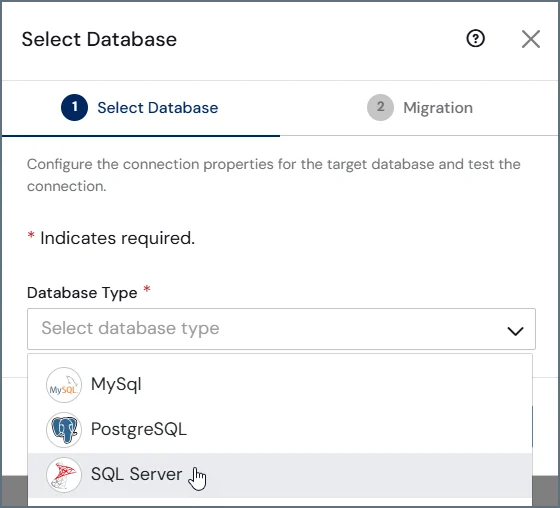 6. Enter the connection details for the server that you selected. (Note that the connection details are slightly different for each database.)
7. Click **Test Connection**. If the test connection is successful, click **Next**. If the test connection fails, check the connection details, correct any errors, and try again.
8. On the **Migration** tab, click **Begin Migration** to start the process. Before migration begins, {siteNameShort} validates that all prerequisite conditions are met, including that no jobs or change data capture (CDC) engines are running and that the system is in safe mode.
If validation fails, {siteNameShort} displays a message stating that you must resolve the issues before continuing.
Wait for the migration to complete. The migration progress is displayed in the UI.
9. Copy the encrypted connection string that is provided after the migration is complete. You need to use this connection string in the next section, which explains how to switch to your new database.
If the migration fails, {siteNameShort} rolls back changes and retains the original Derby database.
## Switching to the New Database
After the migration completes, follow these steps to switch to your new database:
1. Open the sync.properties file and set the following property:
```
cdata.app.db=
```
For more information about encrypted values like the connection string, see [Configuring the Server](../../installation-and-configuration/configuring-the-server#encrypting-sensitive-configuration-values).
2. Save the file and restart {siteNameShort}.
After you restart, {siteNameShort} uses the external database.
## Switching the Database in High-Availability or Clustered Environments
If {siteNameShort} is deployed in a high-availability (HA) or clustered environment, you must stop all nodes but one before migration. After migration completes, you must then update all nodes, as follows:
1. Open the sync.properties file on each node.
2. Set the `cdata.app.db` property to the encrypted connection string that was generated during the migration.
```
cdata.app.db=
```
3. Restart {siteNameShort} on each node.
6. Enter the connection details for the server that you selected. (Note that the connection details are slightly different for each database.)
7. Click **Test Connection**. If the test connection is successful, click **Next**. If the test connection fails, check the connection details, correct any errors, and try again.
8. On the **Migration** tab, click **Begin Migration** to start the process. Before migration begins, {siteNameShort} validates that all prerequisite conditions are met, including that no jobs or change data capture (CDC) engines are running and that the system is in safe mode.
If validation fails, {siteNameShort} displays a message stating that you must resolve the issues before continuing.
Wait for the migration to complete. The migration progress is displayed in the UI.
9. Copy the encrypted connection string that is provided after the migration is complete. You need to use this connection string in the next section, which explains how to switch to your new database.
If the migration fails, {siteNameShort} rolls back changes and retains the original Derby database.
## Switching to the New Database
After the migration completes, follow these steps to switch to your new database:
1. Open the sync.properties file and set the following property:
```
cdata.app.db=
```
For more information about encrypted values like the connection string, see [Configuring the Server](../../installation-and-configuration/configuring-the-server#encrypting-sensitive-configuration-values).
2. Save the file and restart {siteNameShort}.
After you restart, {siteNameShort} uses the external database.
## Switching the Database in High-Availability or Clustered Environments
If {siteNameShort} is deployed in a high-availability (HA) or clustered environment, you must stop all nodes but one before migration. After migration completes, you must then update all nodes, as follows:
1. Open the sync.properties file on each node.
2. Set the `cdata.app.db` property to the encrypted connection string that was generated during the migration.
```
cdata.app.db=
```
3. Restart {siteNameShort} on each node.